FAQ
Frequently asked questions
No matching questions: try different words.
Getting started
Why choose Feedler?
- A unique, custom-built parser: it pulls the whole article from most sites, even when the feed only has a preview, and you can fine-tune it per feed.
- Trending Stories: when several of your feeds cover the same news, Feedler gathers their articles into one story. It is a front page made from your feeds only, built on your device, with no AI involved.
- AI summaries: get the gist of an article before deciding to read it in full.
- Listen to any article: text-to-speech reads it aloud, so you can catch up hands-free.
- Smart feed discovery: type a website name (e.g. engadget.com) and Feedler finds the right RSS feed.
- Feeds Discover: new to RSS, or short on inspiration? Add Feeds opens to a hand-picked catalog of themed Feedler Packs and feeds by topic, in several languages, each added in a tap.
- True offline mode: articles and their images are cached on your device, so they stay readable with no connection.
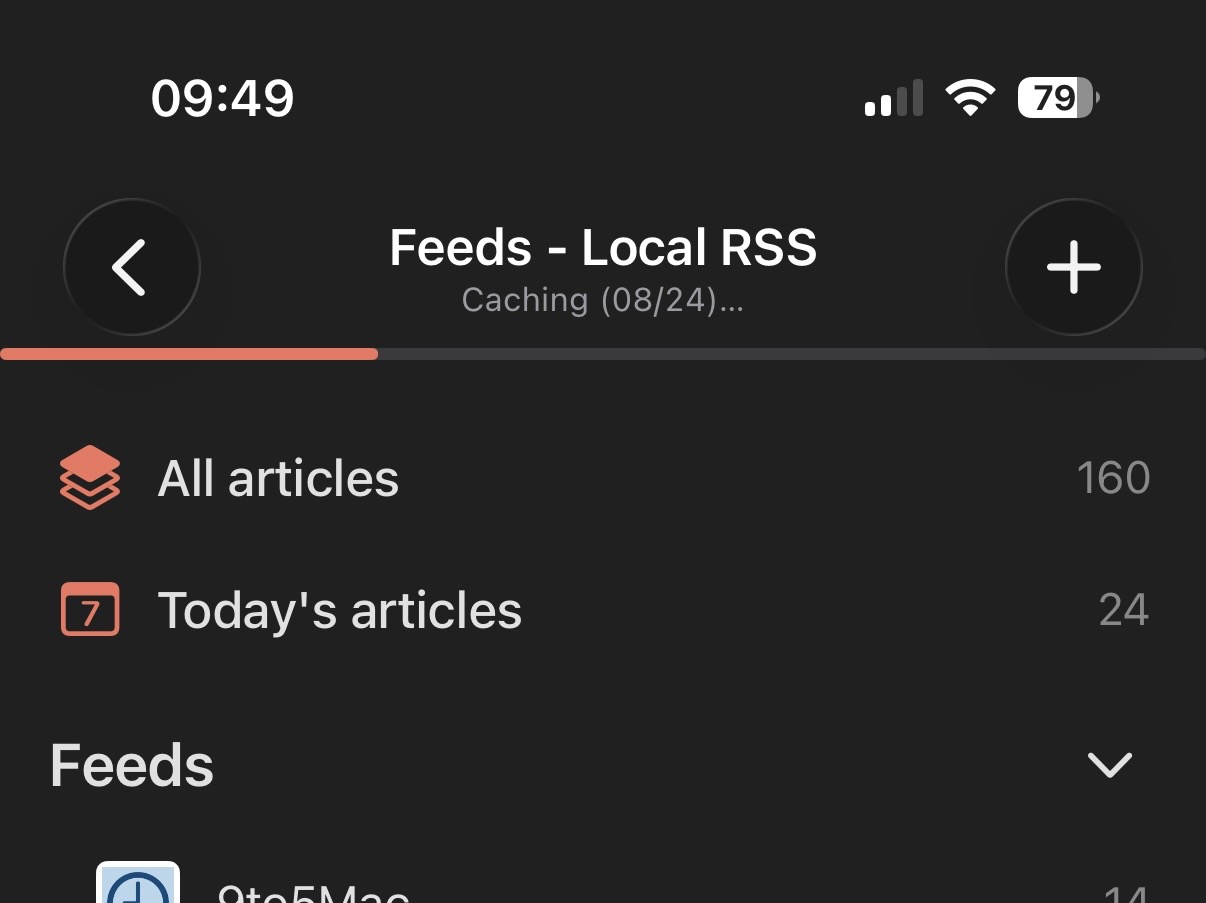
- Smart caching: Feedler preloads what you're most likely to read, keeps caching as you read on, and clears what you're unlikely to need, to stay fast and light.
- Smart image downloads: on a slow or spotty connection, Feedler can skip images so your sync stays fast. They load as you read, and it always asks you first.
- Modern yet familiar design: a native interface built on the gestures and patterns you already know, so it feels familiar from the first tap.
- Deep customization: themes, the reading view, per-feed and per-account settings… set Feedler up around how you read.
- Reading comfort, built in: choose the font, its size, the spacing and the column width, plus Feedler's own reading-assistance modes that help your eyes follow the text.
- One app, all your Apple devices: iPhone, iPad and Mac. The layout adapts to the window, a large iPhone shows the list next to the article in landscape, and every window reopens on the article you were reading.
- Backed up to iCloud: your accounts and all your settings are saved to your private iCloud, so a new iPhone or a reinstall restores your whole setup.
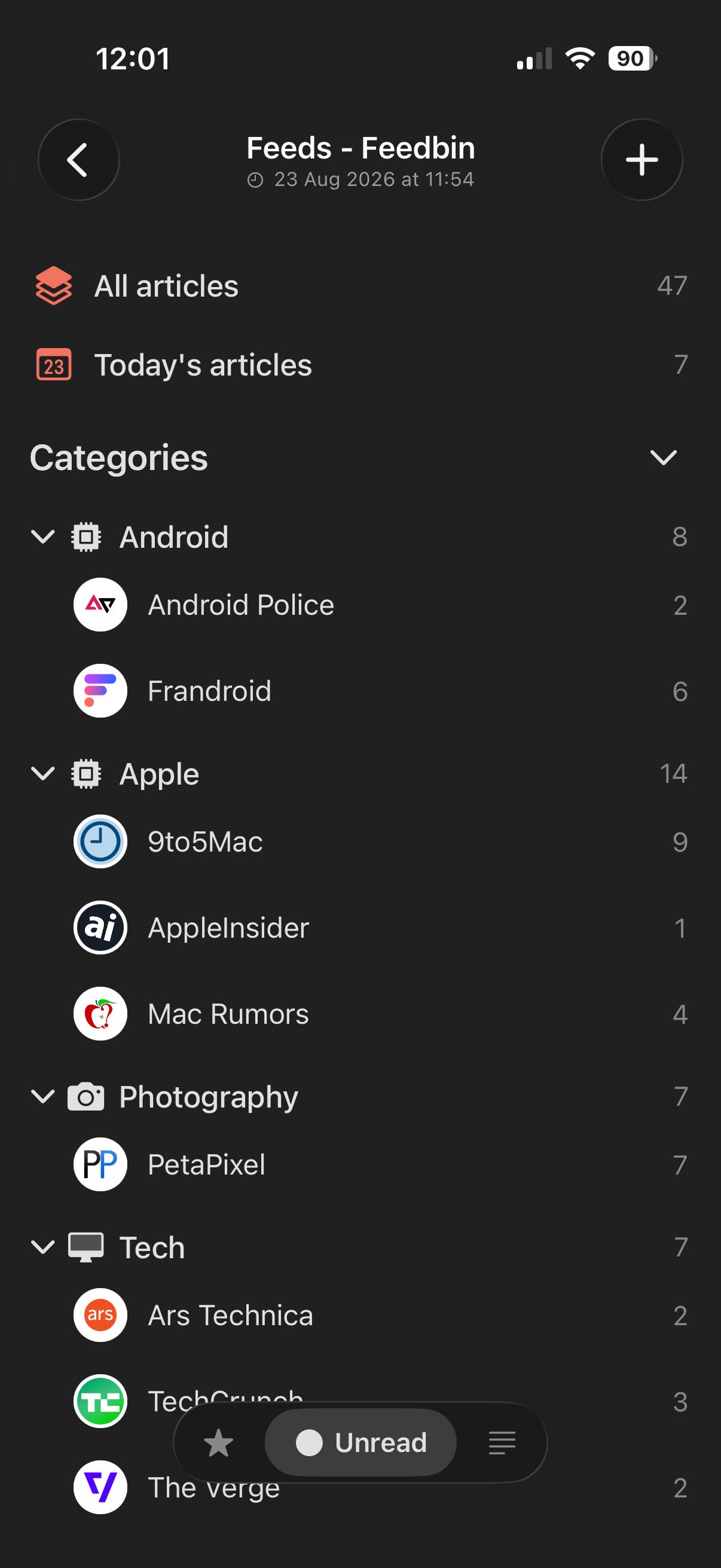
- Icons, found automatically: Feedler finds a clean icon for each feed, you can pick another one, and it even works out fitting icons for your categories.
- Fast and fluid: scrolling and transitions run at 120 Hz on ProMotion screens.
In short, smart means Feedler handles the busywork, so your time goes to reading.
What makes Feedler a truly smart RSS reader?
Most readers fetch and display. Feedler looks at how you read, at your feeds, at each site and at your connection, then acts on it. Concretely:
It looks at how you read
- Smart caching: articles are cached based on what you actually open, feed by feed, so your cache stays useful and light. More in “How does Smart Caching save data by learning your habits?”.
- Always ready: while you read, the next articles are prepared in the background, so the next one is there before you tap.
- Feedler Insights: facts from your own usage turned into one-tap suggestions to read better and download less. More in “What settings can improve your experience? Ask Feedler Insights”.
It looks at your feeds
- Trending Stories: when several feeds cover the same news, Feedler gathers every take into one story, on your device. More in “What are Trending Stories?”.
- Dead or dormant feeds are spotted and pointed out, instead of silently piling up.
- Missing thumbnails are looked up on the article page when a feed ships none. More in “Why does a sync sometimes take longer than in other readers?”.
- The best icon for a feed is found by Feedler, not the low-quality one most sites hand out. More in “Don't like a feed's icon? Change it”.
- Add a feed by name: type the site's name or a handle, and every feed is checked before it's imported. More in “How do I add a feed?”.
It looks at each site
- A parser built entirely in-house, tuned site by site, so articles come out clean and complete. More in “How does Feedler's parser work, and what makes it unique?”.
- Your own rules, per feed, when a site needs a hand. More in “How do I customize the article parser?”.
- Image galleries are recognized, tidied into grids, and long ones fold into a pile. More in “What makes Feedler's image galleries unique?”.
- AI summaries, on your device, to decide whether an article is worth your time. More in “How can I summarize articles with Apple Intelligence?”.
It looks at your connection
- Smart images: Feedler measures your connection as it syncs and offers to skip images when it's slow. More in “How does Feedler handle images on a slow connection?”.
And it remembers
- Three levels of settings, global, per account and per feed, and the whole setup restores on a new device from your iCloud. More in “What if I reinstall, or switch to a new iPhone?”.
- A detailed Activity Log tells you exactly what each sync did. More in “Can I see a history of what Feedler has been doing?”.
Smart means fewer things to fix by hand, and more time to read.
Is my data private?
Do I need an account to use Feedler?
Which accounts can I use: Local RSS, iCloud, or a sync service?
- Local RSS: on-device only. No account, no server; your subscriptions stay on this device.
- iCloud RSS: the same on-device parsing, but your feeds and read state sync across your devices through your private iCloud, with no third party. One per Apple Account.
Web-hosted


Self-hosted
Connecting one is optional: credentials are stored in the iOS Keychain, and are used only to talk to that service. Local RSS is free. iCloud and sync services are part of ∞ Feedler Unlimited.


Why isn't Feedly supported?
Unfortunately, Feedly no longer grants API access to new RSS apps, so Feedler can't connect to it. I'm hopeful that Feedler's growth (backed by Feedly users who'd love to bring their feeds along) may help change that in the future. In the meantime, you can export your feeds from Feedly and bring them into any other service Feedler supports (see “How do I import or export my feeds into another account with an OPML file?” below).
Why should I consider a sync service instead of Local RSS?
- Your library is safe: with Local RSS there is no backup. If the device is lost, broken or replaced, your feeds and reading history go with it. On a sync service everything lives in your account: sign in on any device and it's all back.
- Every app stays in step: read in Feedler on your iPhone, on the service's website at work, in any other reader anywhere. Read once, read everywhere, always in sync.
- Favorites for life: starred articles are kept by the service itself. Change your phone in three years and they're all still there.
- No gaps after a break: the service keeps collecting your articles around the clock, even while your phone is off. Come back from two weeks away and the whole backlog is waiting. A local feed only serves its latest handful of entries, so with Local RSS a long pause means missed articles, for good.
- Fresh articles, faster: the service crawls your feeds continuously on its servers, so new articles are ready the moment you open the app.
- Often free: most services have a free tier that comfortably covers a normal library, and self-hosted options are generally free software, although hosting itself may have a cost.
How do I import or export my feeds into another account with an OPML file?
- Export your list: in Feedler, long-press the account and tap Manage Account › OPML › Export OPML. Most other apps and websites offer the very same one-tap export.
- Import it: two quick ways into the account you want the feeds in:
- Tap the + in your Feeds list and choose Import OPML.
- Or long-press the account and tap Manage Account › OPML › Import OPML.
- Review & confirm: Feedler previews everything grouped by folder; uncheck any you'd rather skip, then confirm. Feeds and folders land in seconds.
No copy-pasting URLs, no feed left behind.
How do I follow Feedler's news and releases?
Feeds & syncing
How do I add a feed?
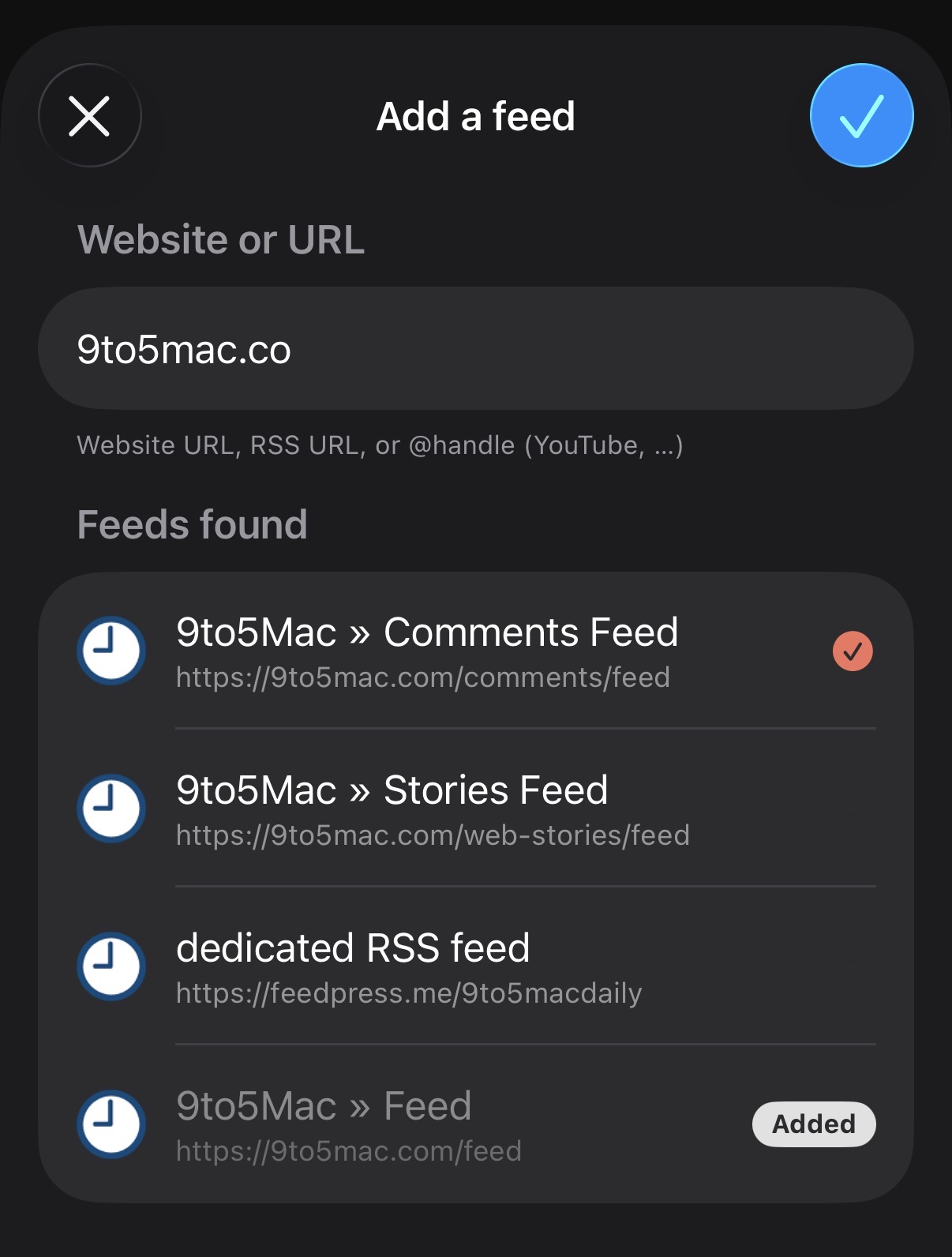
- A website: type an address like engadget.com (you don't even need to finish it). Feedler's smart discovery tracks down the right RSS feed, so you never need to know the exact URL. That includes YouTube pages: paste a channel or playlist link (straight from the Share button) and Feedler turns it into the right feed.
- An RSS link: already have one? Paste it and it's added on the spot. And when a site offers several feeds, Feedler groups them neatly under one card so you can pick the exact topic you want.
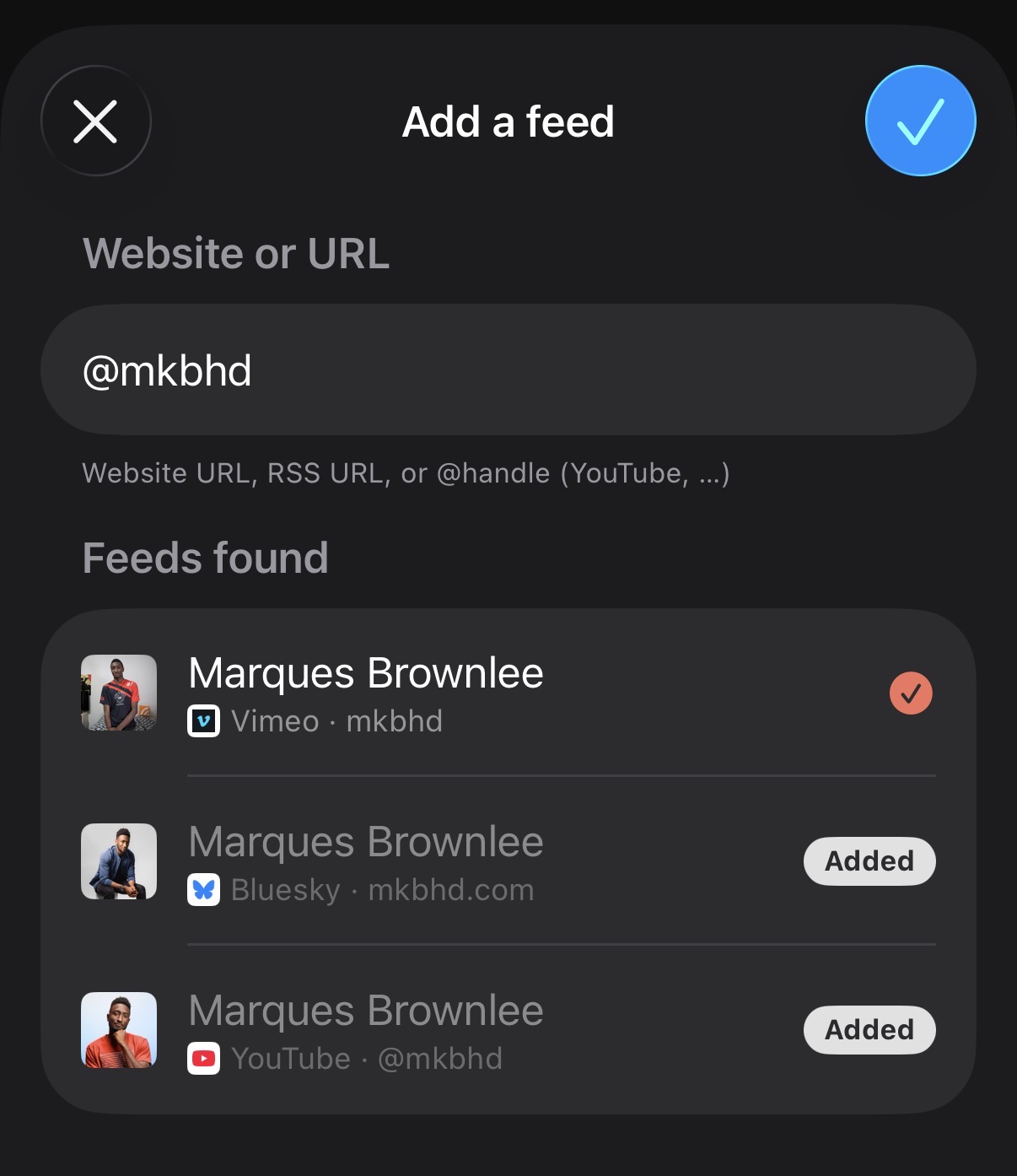
- A @handle: follow a creator from YouTube, Vimeo, Bluesky, GitHub and more. Just type their @handle and Feedler finds their feed and brings in their avatar.
- A subreddit: type it the way Reddit writes it (r/apple is enough). Feedler resolves the community's feed on the spot, no URL needed. This works until November 13, 2026, when Reddit ends its RSS feeds (see “Reddit is ending its RSS feeds on November 13, 2026”).
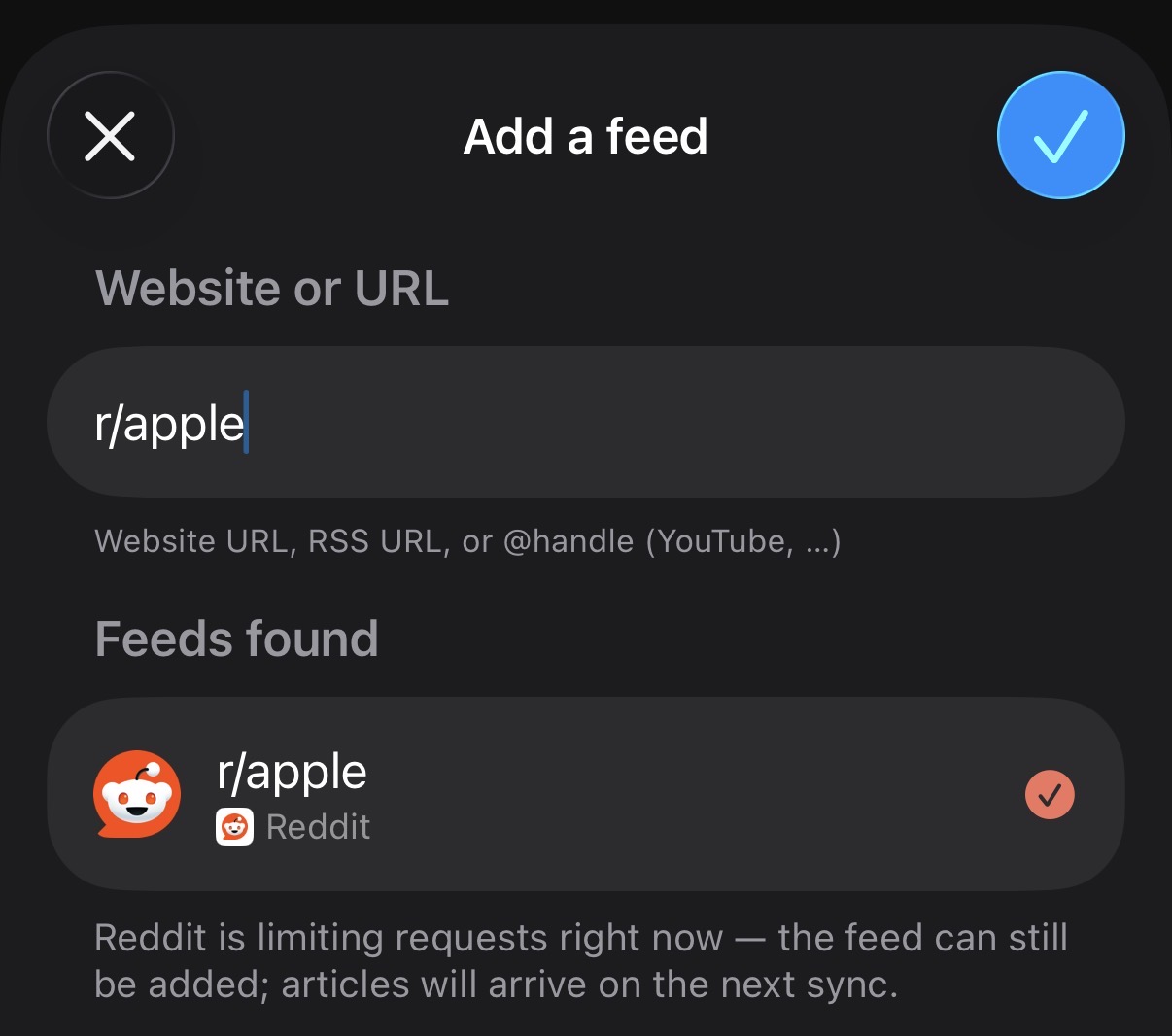
Whatever you type, Feedler shows you exactly what it found (with the source and account), so you tap the right one with confidence. And if you don't know what to follow yet, the same screen opens on Feeds Discover: curated packs and suggestions by topic, ready to add.
Where do I find good feeds to follow?
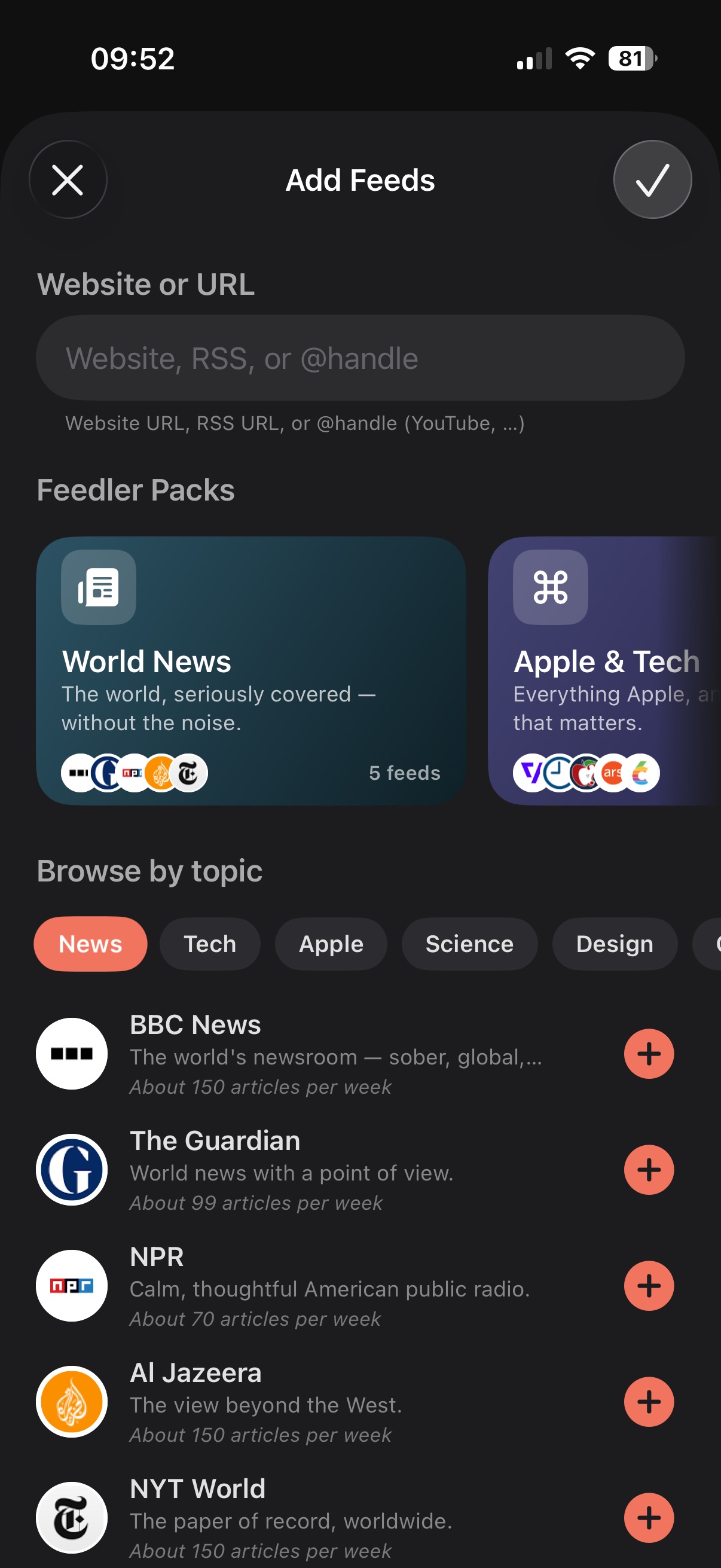
- Feedler Packs: themed starter collections (world news, Apple & tech, science, gaming, finance, sport and more). Open a pack, add the feeds you like (or the whole pack in one tap) and Feedler files them into a category of your choosing.
- Browse by topic: tap a topic and skim the suggestions, each with a one-line description and how often it publishes, so you always know what you're subscribing to.
- In your language: the catalog is curated in English, French, German, Italian and Spanish, and follows your language and region, with the English essentials included for everyone.
- Hand-checked, kept fresh: every suggestion is verified before it enters the catalog, and the selection refreshes over time, so what you see is worth following today.
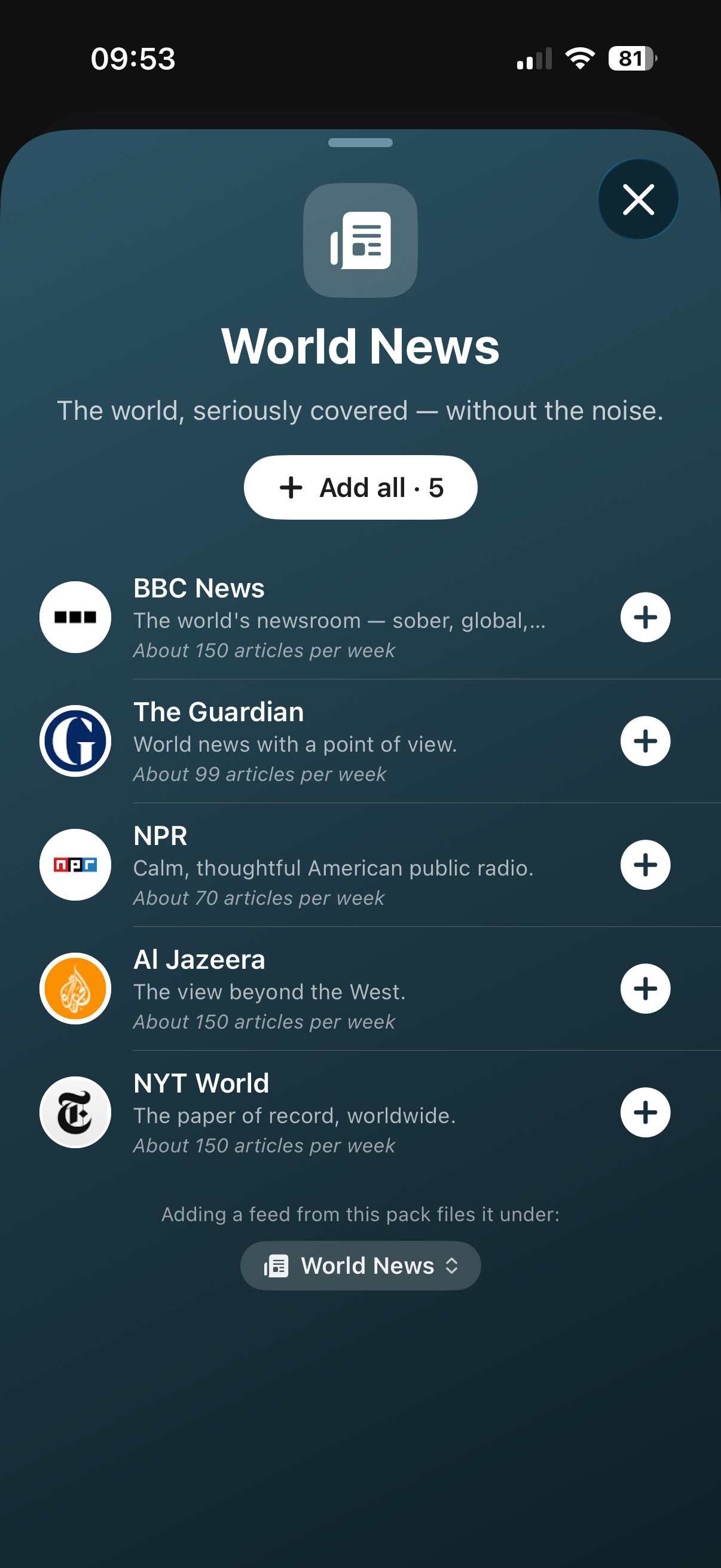
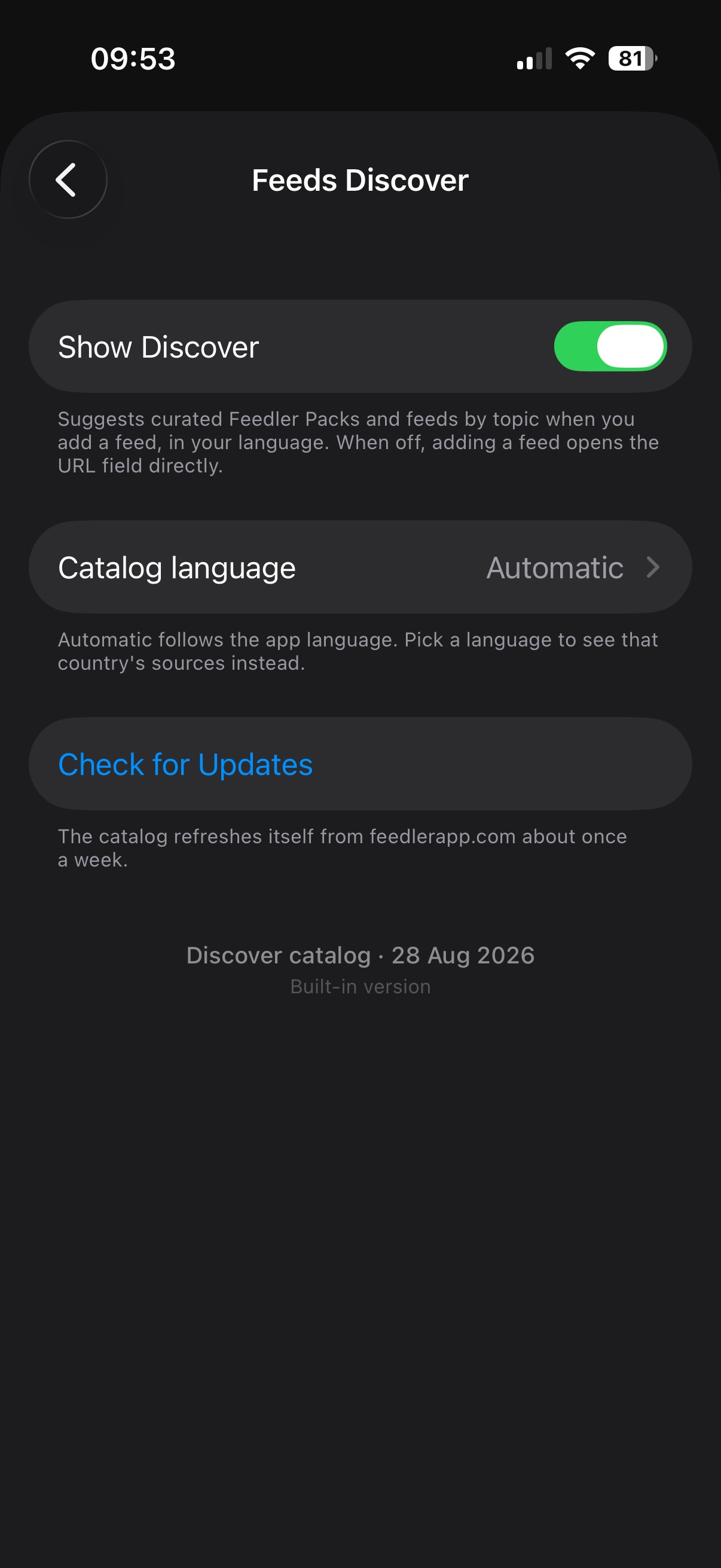
Prefer the classic way? Just start typing: the URL field stays right at the top. And Discover is yours to tune in Settings › General › Feeds Discover: turn it off to jump straight to the URL field, or pick another catalog language.
Can I create and share my own Feedler Packs?
Can I suggest a feed for Feeds Discover?
Can I follow Reddit subreddits?
On November 13, 2026, Reddit ends its RSS feeds: your Reddit feeds stop updating and adding a subreddit no longer works (see “Reddit is ending its RSS feeds on November 13, 2026”). Until then, everything below still applies.
One thing worth knowing: in mid-2026 Reddit tightened how outside apps may read its feeds. These limits come from Reddit itself, not Feedler, and apply to every RSS reader:
- About one refresh a minute, counted per network (your internet, or “IP”, address), not per feed.
- Up to 100 of the newest posts each time it refreshes.
Because it's counted per network, a shared or public Wi-Fi (a café, an office, a campus) counts everyone on it together. There, your Reddit feeds may update slowly or skip a beat; on your own connection it's rarely noticeable.
Feedler is built for these limits, so they mostly stay invisible:
- All your subreddits, one refresh: Feedler bundles them into a single request, so they all update together instead of just the first one making it through.
- Adding always works: if Reddit happens to be busy the moment you add a subreddit, Feedler adds it anyway and the posts arrive on the next refresh.
- Polite by design: when Reddit says “not now”, Feedler waits exactly as long as asked and catches up on the next refresh, instead of hammering and making things worse.
Reddit is ending its RSS feeds on November 13, 2026
After that date:
- Your Reddit feeds stop updating: Feedler can no longer get new posts from Reddit.
- The posts you already have stay: you can still read them, and your favorites keep their saved text. Deleting a feed also deletes its posts, favorites included, so keep it as long as you want them.
- A warning triangle appears on a Reddit feed after three syncs in a row that fail. Nothing is wrong with your account or with Feedler: Reddit no longer answers.
- Adding a subreddit no longer works: typing r/apple or a reddit.com address finds no feed.
This applies to every type of account. A sync service such as Feedbin or FreshRSS gets Reddit's feeds on its own servers, where the same change applies.
Reddit says there is no replacement for people who use RSS to follow communities. If a reliable way to follow subreddits in Feedler appears, one that respects Reddit's rules, I'll share it. Meanwhile, many subreddits mostly share links to articles, and the sites behind those links often have their own feeds: add them in Feedler, or find them in Feeds Discover.
The whole story is on the blog: “Reddit is ending its RSS feeds”.
Don't like a feed's icon? Change it
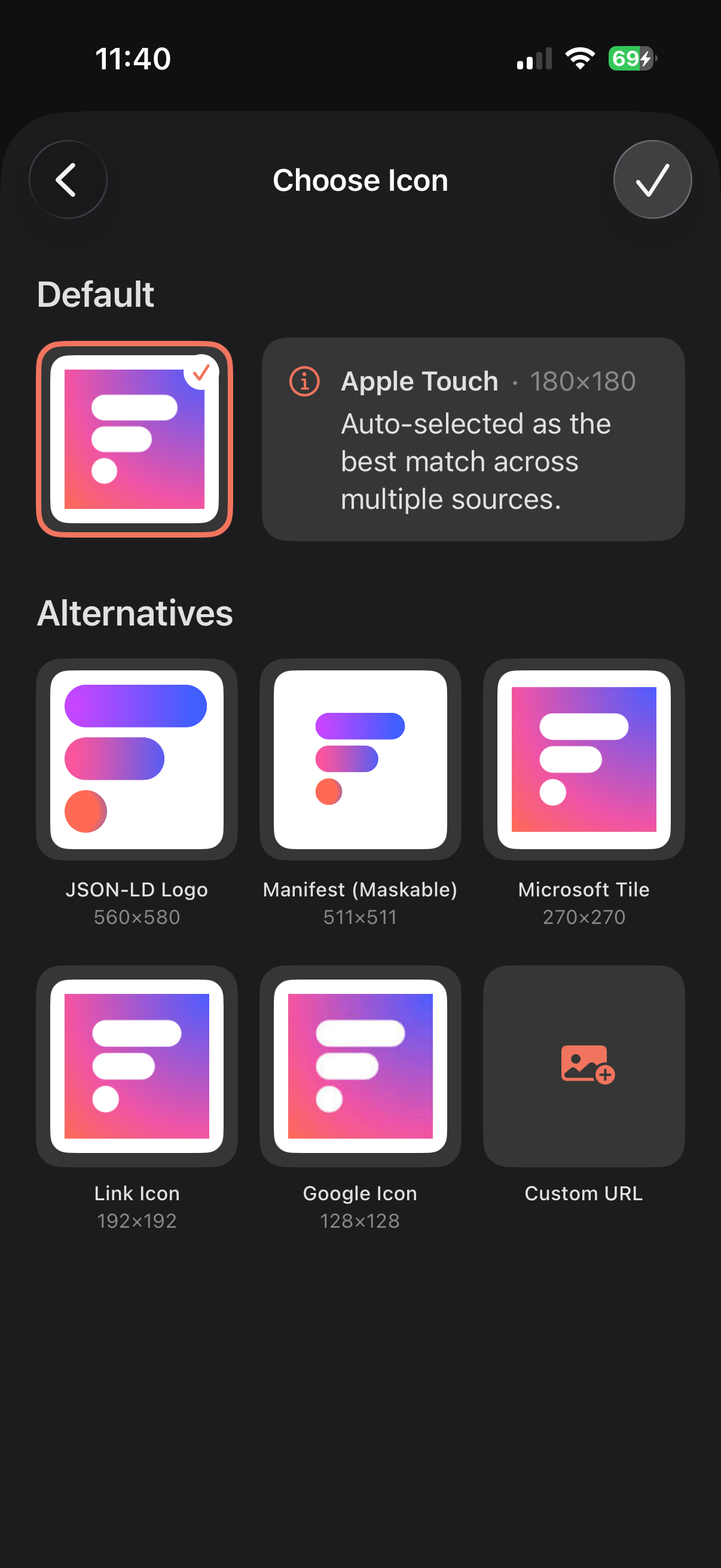
- Pick from suggestions: Feedler intelligently hunts down the sharpest, highest-quality icons it can find for that site and lays them out in a grid. Tap the one you like.
- Use your own: none quite right? Paste a URL to any square image you find online, and Feedler previews it before you apply.
Your choice is saved for that feed and stays crisp everywhere it appears.
Prefer a different look altogether? Every feed icon can be square or round: one switch in Settings › Appearance reshapes them all, everywhere, instantly.
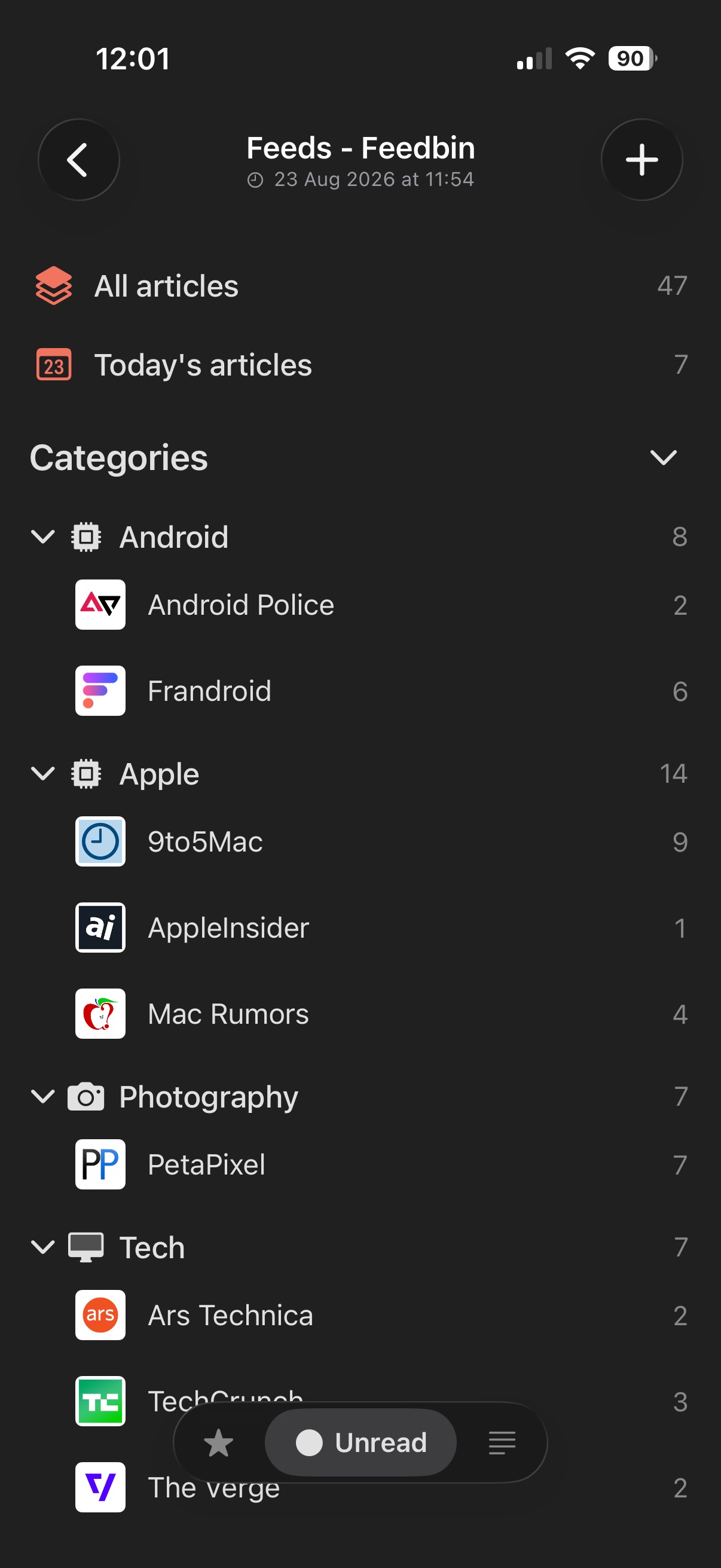
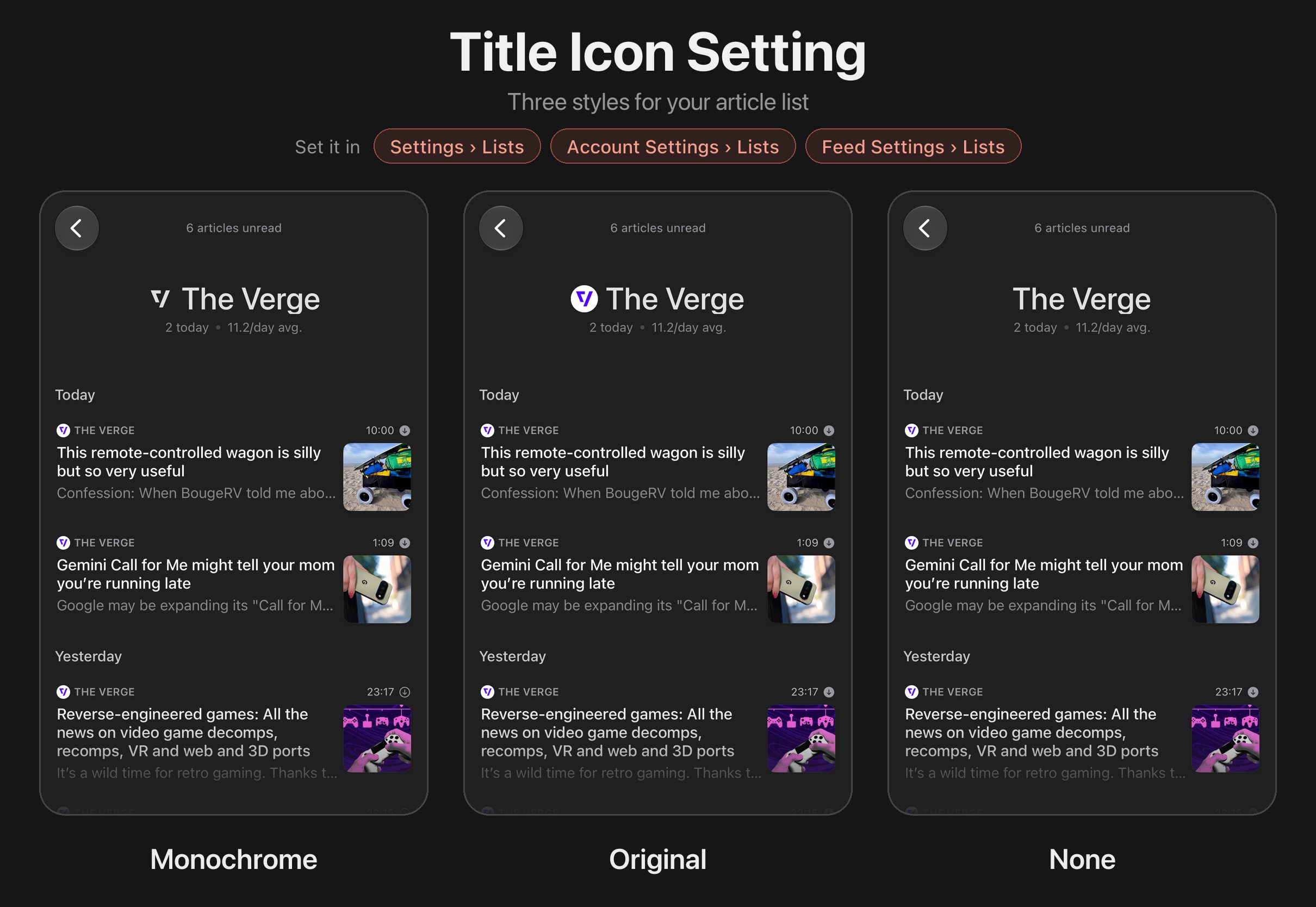
The icon also sits next to the feed's name at the top of its article list and in Feed Info. There, the Title icon setting chooses how it looks: Monochrome (the default, a clean one-color silhouette), Original (the site's own icon, in its colors) or None. Set it once for the whole app in Settings › Lists, then for an account or a single feed in their own settings.
How does the iCloud account work?
The iCloud account syncs your feeds, your folders, and what you have read or starred between your devices, automatically. The articles themselves are not synced: each device fetches them from the sites when it syncs. The exception is your favorites, whose saved text is kept in iCloud. Everything goes through your own private iCloud. Feedler has no server of its own.
What iCloud carries: your feeds and folders, what you have read or starred, and the saved text of your favorites. Changes usually appear on your other devices shortly afterwards while Feedler is open. Otherwise they arrive at the next sync. When Feedler has saved a favorite's text, that text is kept in iCloud too, so the favorite stays readable on your other devices even if the site removes the article later.
What each device fetches on its own: the articles, like a Local RSS account. Unread counts can differ from one device to another, because each device downloads and keeps its articles independently. Syncing a device brings it up to date. In Settings › Synchronization, Sync on launch is on by default and syncs every time you open Feedler. Offline copies and clean-up settings, such as how long read articles are kept, also belong to each device.
Changing your feeds: adding, renaming, moving or deleting a feed or a folder needs iCloud to be reachable, so every device keeps the same list. Offline, Feedler says so and changes nothing. Reading and starring always work. Offline, they wait on the device and are sent when the connection is back.
Deleting: a feed deleted on one device is deleted on all of them, with its read states and its favorites. Removing the iCloud account from Feedler on one device deletes nothing in iCloud. Add it again, or reinstall Feedler, with the same Apple Account, and your feeds, folders, read states and favorites come back. The other articles are fetched again from the feeds.
Resync from iCloud: if a device ever looks different from the others, long-press the iCloud account and tap Resync from iCloud. On iPad and Mac, it is in the account menu at the top of the sidebar. Feedler reads again everything it keeps in iCloud, including changes and deletions made on your other devices, then syncs and tells you when it is done. It never erases anything in iCloud. It can also run on its own, once a day or once a week, with Manage Account › Maintenance › Automatic resync from iCloud.
Backup on the device: long-press the iCloud account and tap Manage Account › Backup › Back Up Now. Feedler keeps a copy of the account's feeds, folders and favorites, with their text, on the device. It also takes an automatic copy, once a day at most, and it never replaces your own. To restore, pick a copy in Manage Account › Backup. Restoring adds the feeds and favorites that are missing, and tells you how many before it starts. Nothing is deleted and nothing that is already there is changed. What comes back is sent to iCloud, so your other devices get it too.
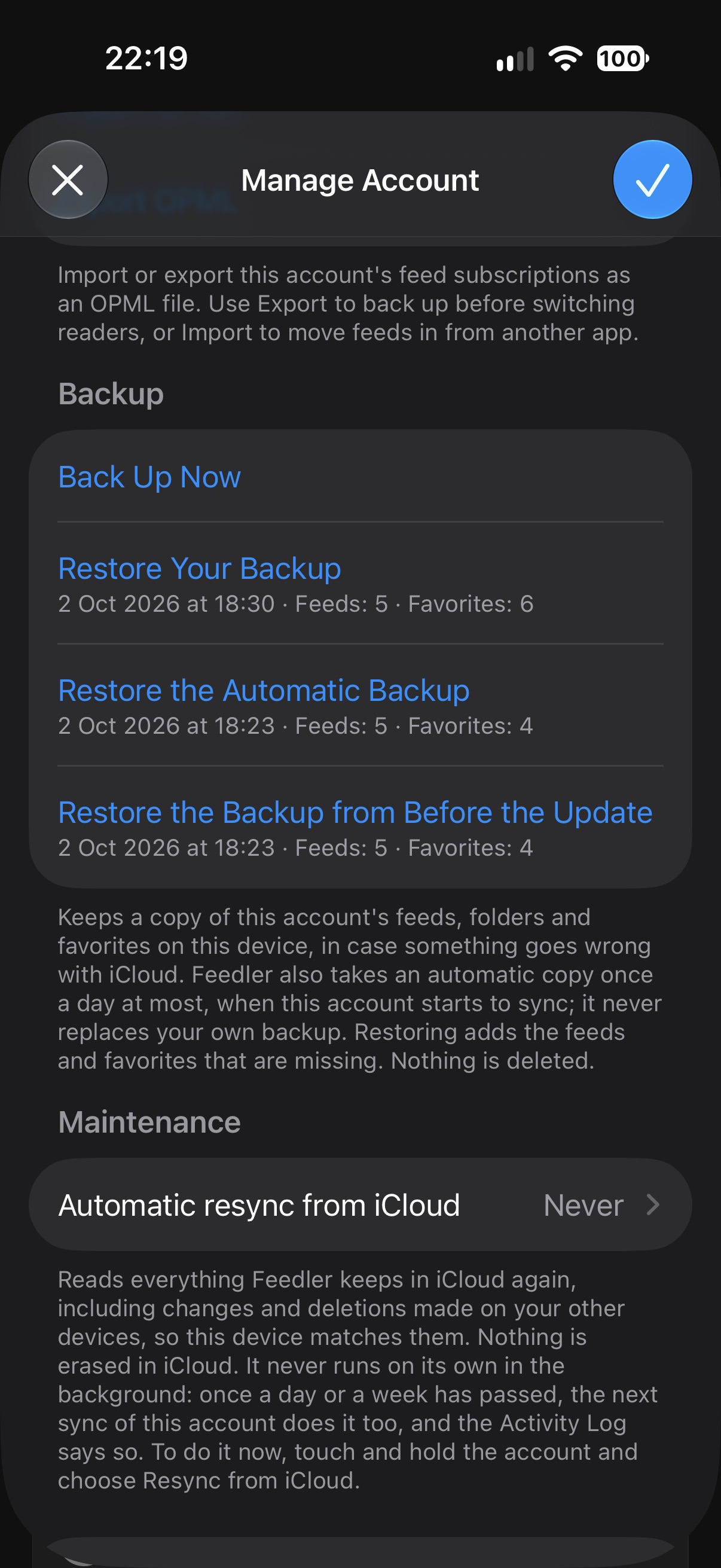
The backup has limits. It stays on the device. Deleting Feedler also deletes these local backups. An OPML export keeps your feed list for that case (see “How do I import or export my feeds…”). It holds your feeds and your favorites, not what you have read. When a restored feed syncs again, its other articles come back as unread. A copy belongs to the Apple Account it was taken with. The copy “from Before the Update” was taken once, when Feedler 1.8.2 changed how the account is stored in iCloud, and it is kept for good.
Several devices: keep Feedler up to date on all of them. A device on a version older than 1.8.2 still shares feeds and folders, but not read states and favorites, until it is updated.
The iCloud account is part of ∞ Feedler Unlimited. Without it the account stays readable, but it stops syncing and its feeds can't be changed. Feedler says so at the top of the feed list. Subscribe again and what you read or starred in the meantime is sent first. There is one iCloud account, the one of the Apple Account signed in on the device. If another Apple Account signs in, Feedler shows that account's feeds instead, and nothing is deleted in anyone's iCloud. What had not reached iCloud yet at that moment, such as articles read or starred offline, is lost. More in “Which accounts can I use: Local RSS, iCloud, or a sync service?”.
Can Feedler sync in the background?
- On, at your pace: turn on background sync and choose how often it runs.
- Kept in the loop: get a notification when new articles arrive, and if you close the app mid-sync a Live Activity shows the progress on your Lock Screen.
Two things worth knowing: a background run refreshes only your last selected account. iOS grants apps just a short window in the background, so Feedler spends it where you were reading. And article caching happens when you open the app, not in the background: Feedler pre-loads what you're likely to read next the moment you return, which keeps background runs quick and light on battery.
Does Feedler send notifications for new articles?
Can I see a history of what Feedler has been doing?
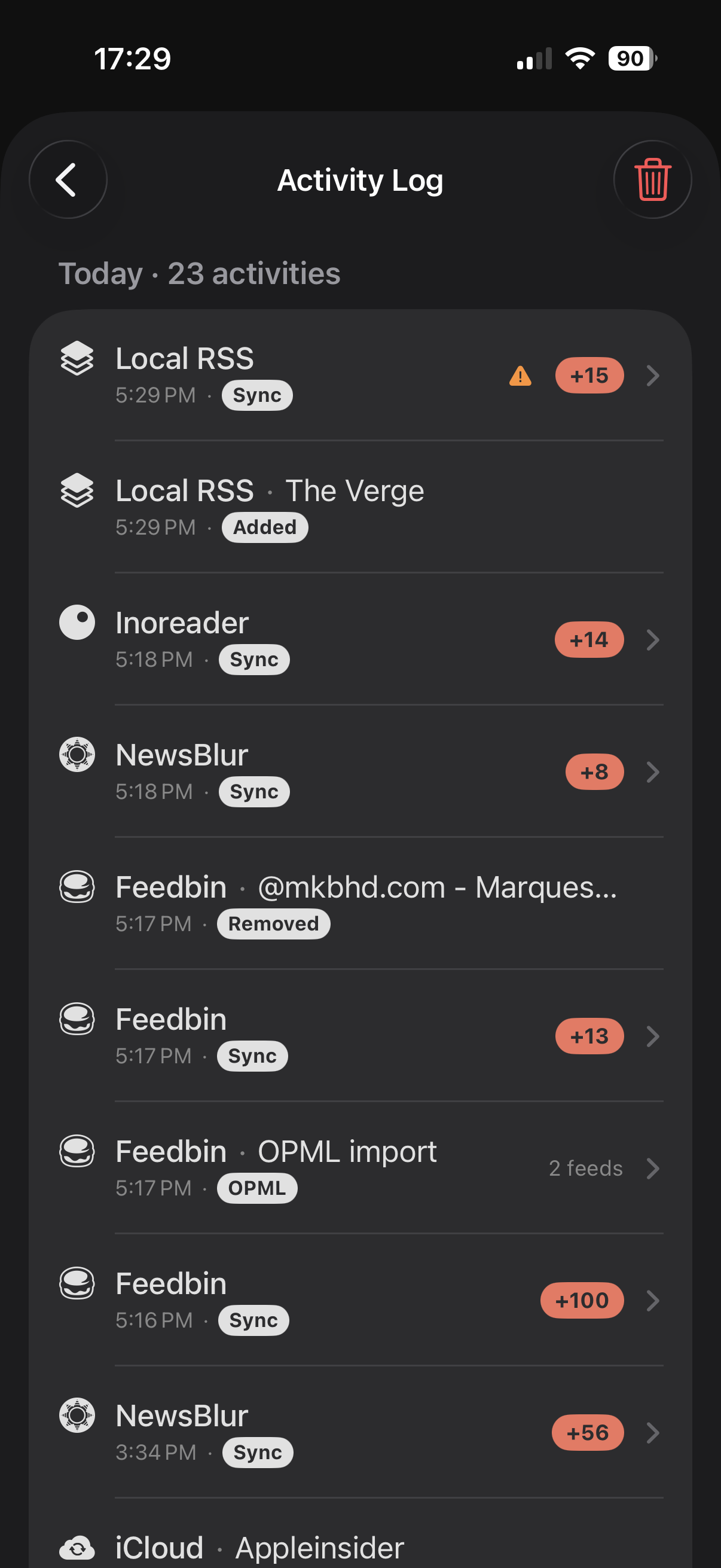
- Every sync in one timeline: pull-to-refresh, app-open syncs and background runs alike, each stamped with its account and time.
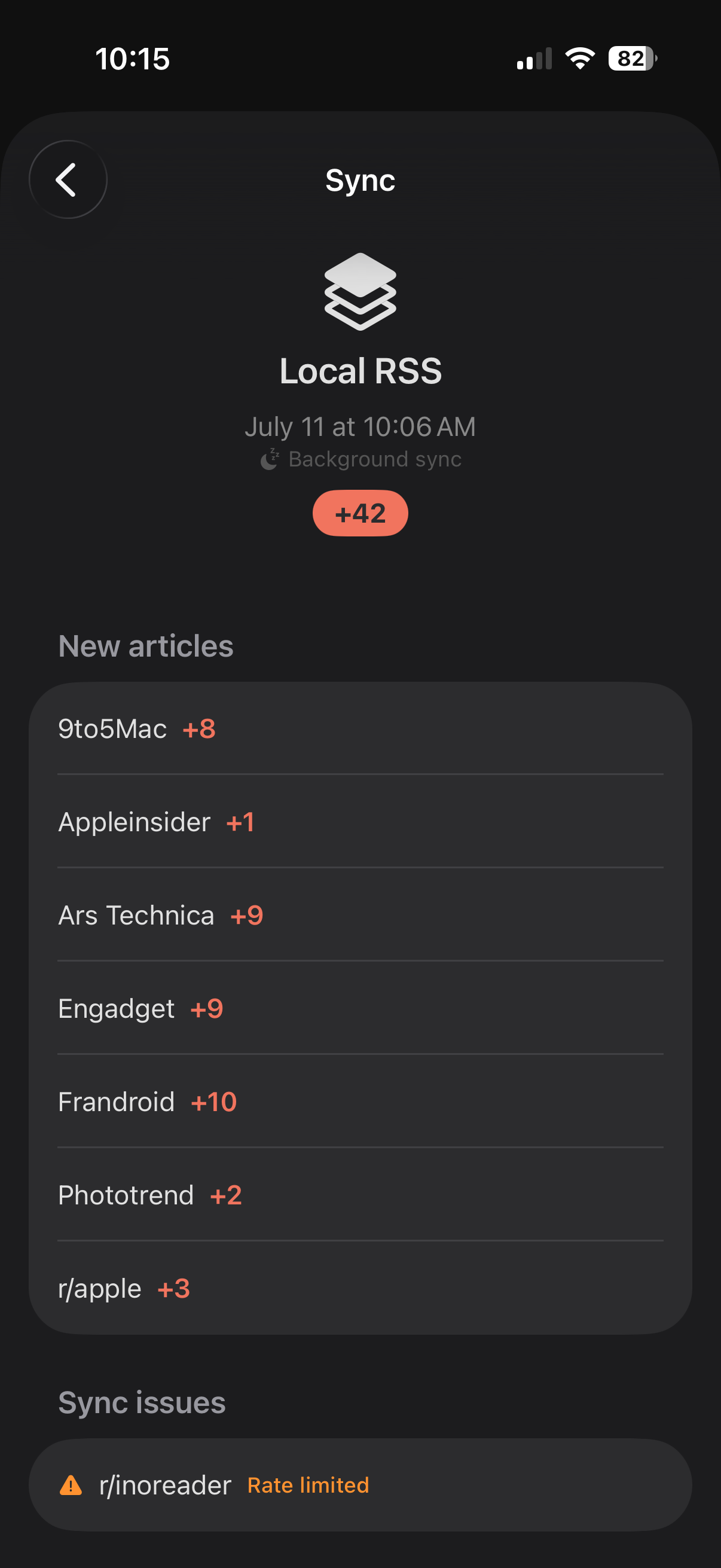
- Tap a sync for the full story: which feeds delivered new articles, how many were saved for offline reading, and the images that came with them, feed by feed.
- Your offline cache, accounted for: every sync sums up what it stored (articles, images, and their size on disk), with anything that couldn't be fetched clearly flagged.
- Nothing slips by: feeds added or removed, OPML imports, account hiccups and even syncs you cancel mid-way are logged too, so an oddity always has a trace.
- Tidy by design: entries clean themselves up after a week, two weeks or a month, your pick.
Reading
What are Trending Stories?
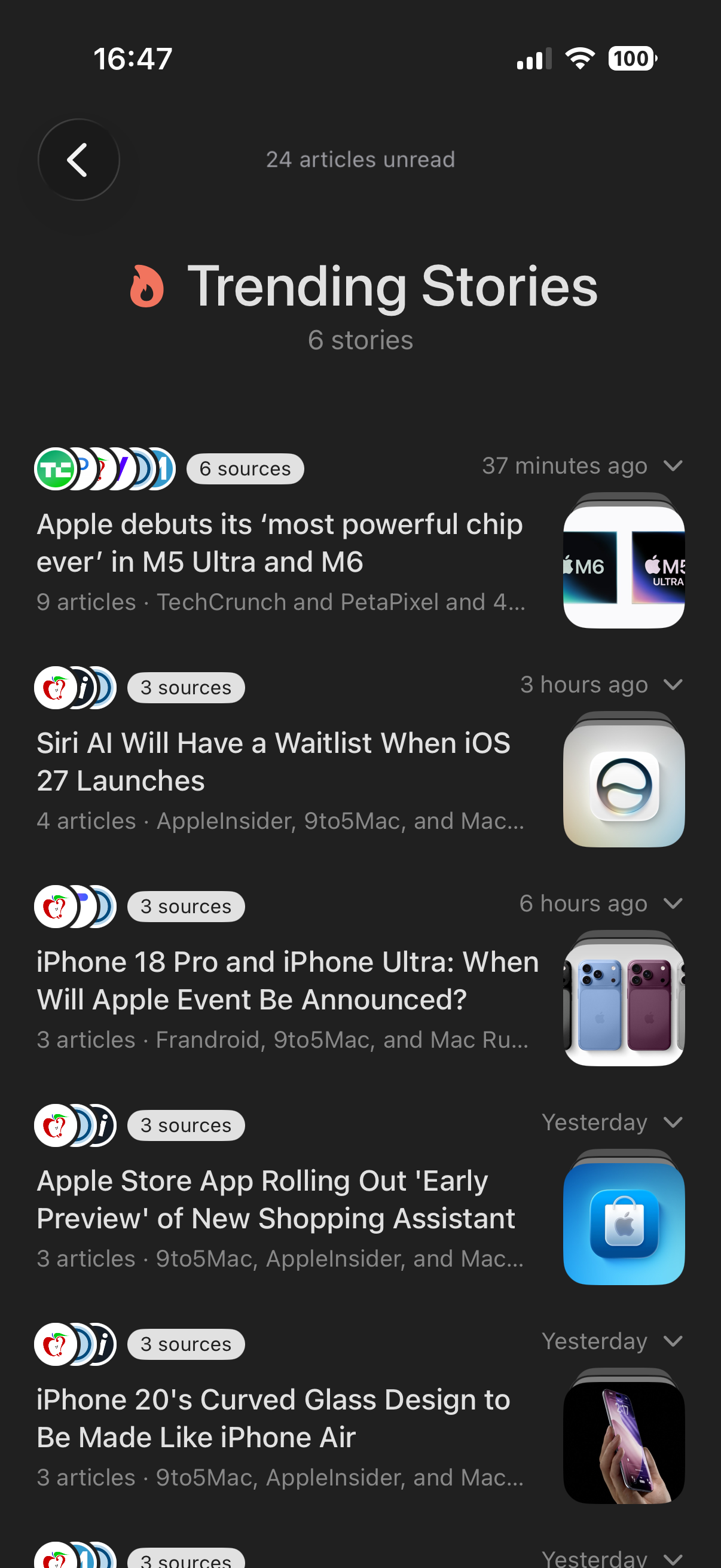
- Your feeds, nothing else: stories are built only from the sources you follow. No editor, no external news service, no global popularity chart: if it's trending here, it's because your own sites are covering it.
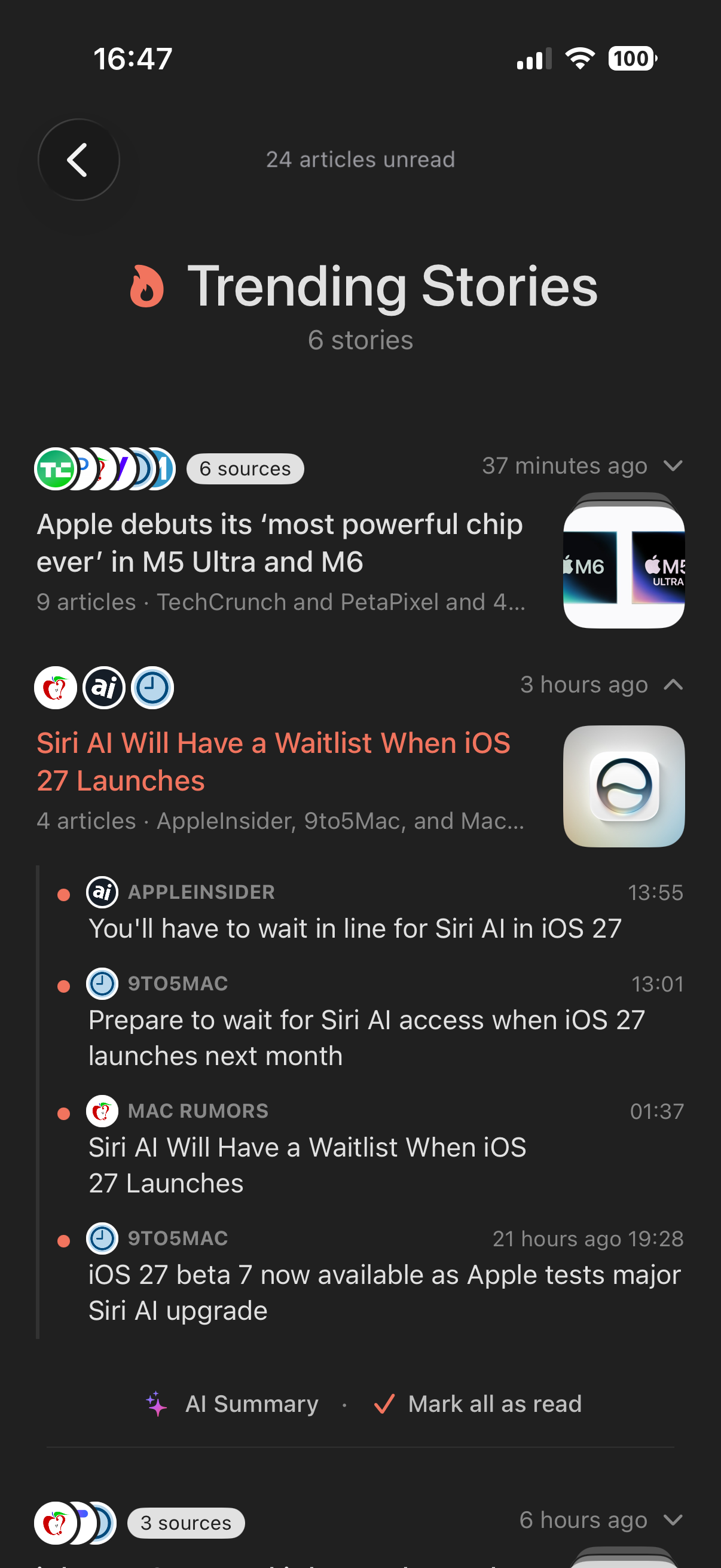
- Every angle, side by side: expand a story to read each source's coverage, one article after another.
- Done with a story? Mark it read: one tap on Mark all as read clears every article in the story, and the story bows out of the list. It isn't gone for good, though: the moment a new article joins the story, it comes back to show it.
- Not interested? Swipe it away: swipe a story left to delete it. Unlike marking it read, this is for good: the story won't return, even as new articles are added to it. An Undo appears right after in case of a slip, and you can always bring every deleted story back from the settings.
- An algorithm, not AI: stories are grouped by a smart matching algorithm running entirely on your device. That means it works on every iPhone, iPad and Mac (no Apple Intelligence required) and nothing about your reading ever leaves your device. Note that matching by words can occasionally group articles that merely share a lot of vocabulary: swipe such a story away and it's gone for good.
- AI only where you want it: one optional extra does use Apple Intelligence, on devices that have it. Tap AI Summary inside a story and the essentials of all its articles are condensed into a few lines.
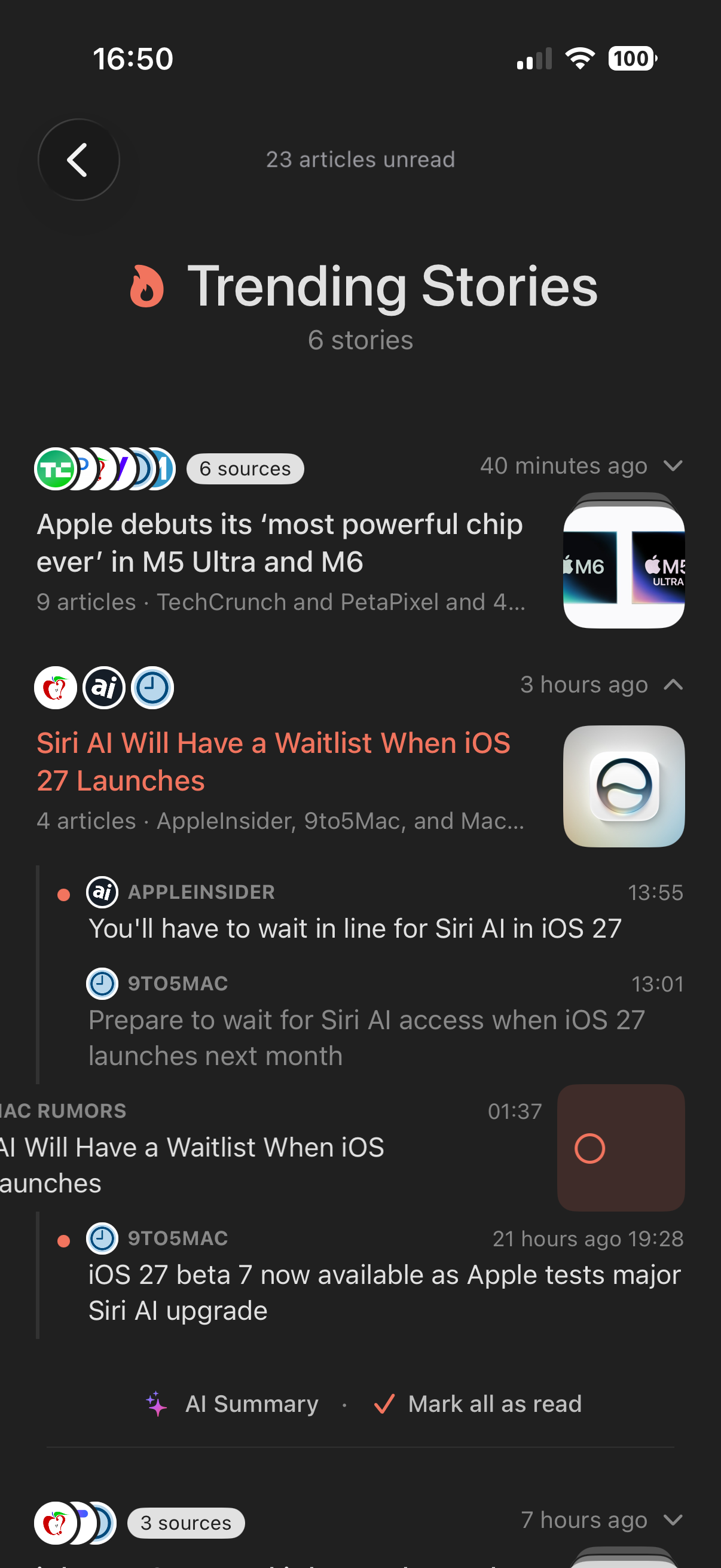
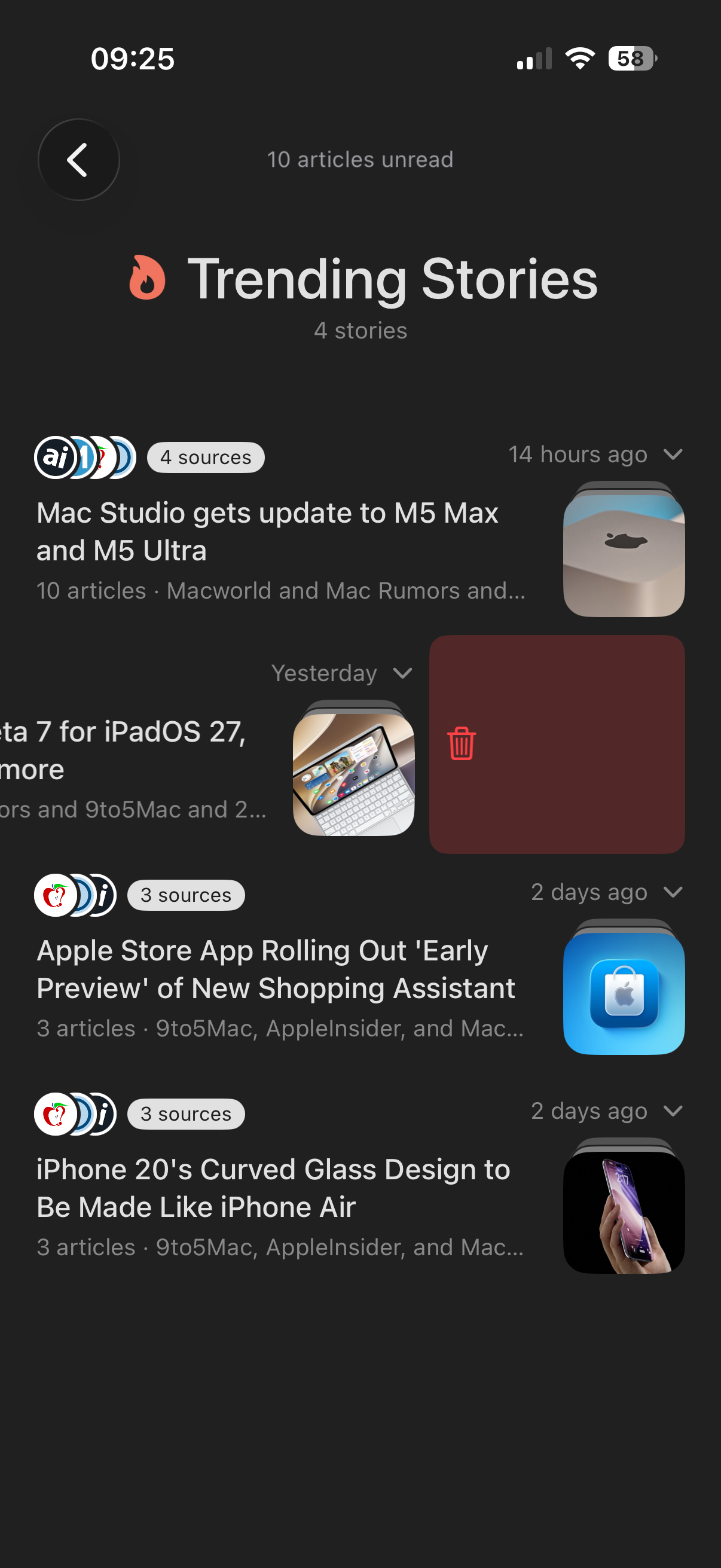
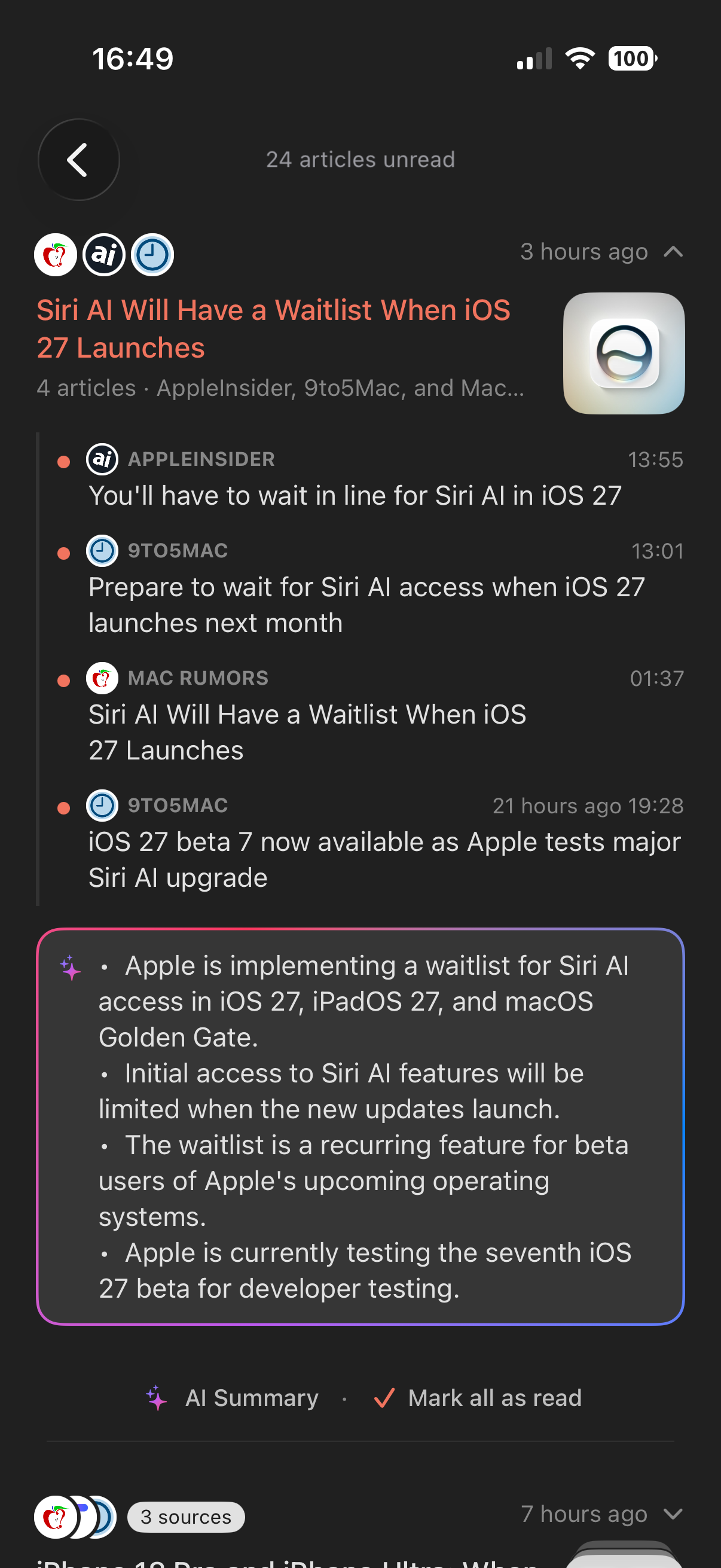
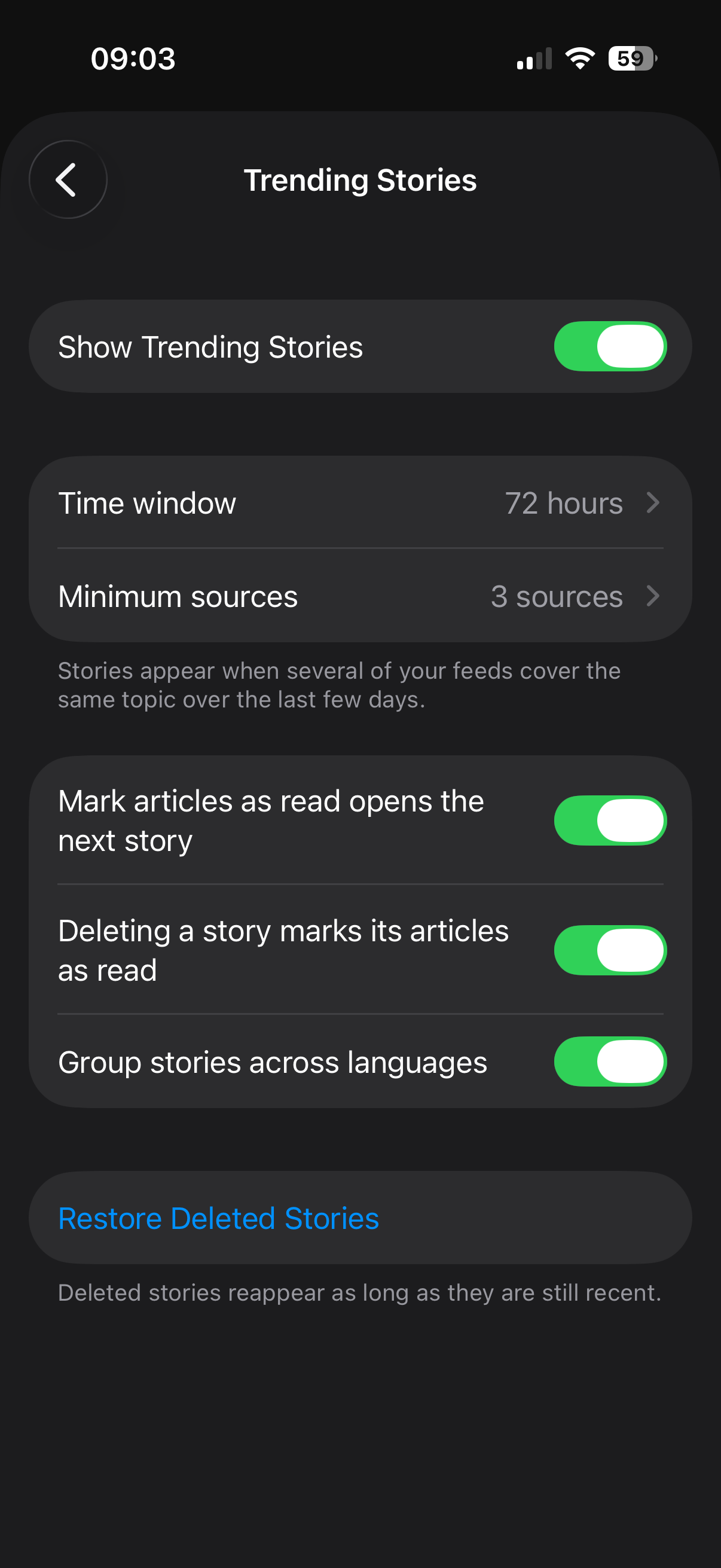
And it's yours to tune, in Settings › Lists › Trending Stories: how recent a story must be, how many sources it takes to make one, whether stories can group articles across languages, and a one-tap way to restore the stories you've swiped away.
What makes reading an article in Feedler unique?
- AI summaries: grasp a piece at a glance before you dive in.
- Themes: dress the app to suit your eyes.
- YouTube: videos play inline, right where they belong.
- X: posts render right in place, not just bare links.
- Instagram: photos and reels embedded natively.
- Bluesky: posts render in place, lightweight and native.
- Magazine-quality layout: a polished design that lets the writing breathe.
- Image galleries, tamed: walls of screenshots become thumbnail grids, or even a single stack of cards; tap to flip through every photo fullscreen.
- Read it your way: tune the font, size, spacing and alignment to your taste.
- Visual assistance: four exclusive modes give your eyes a subtle landmark in every word (a colored anchor letter, tinted first letters, bolded beginnings or softened endings), with a highlight color tuned for each theme. A quiet comfort on long reads.
- Reading time: an optional estimate, set to your own reading pace.
- Listen, don't just read: built-in text-to-speech reads any article aloud, so you can rest your eyes.
The result feels less like an RSS feed and more like every article was crafted for your phone.
Can I change how the article list looks?
Yes. Open Settings › Lists › Layout. A live preview at the top uses an article from your current account: a favorite if available, otherwise a recent article. It updates as you change the settings.
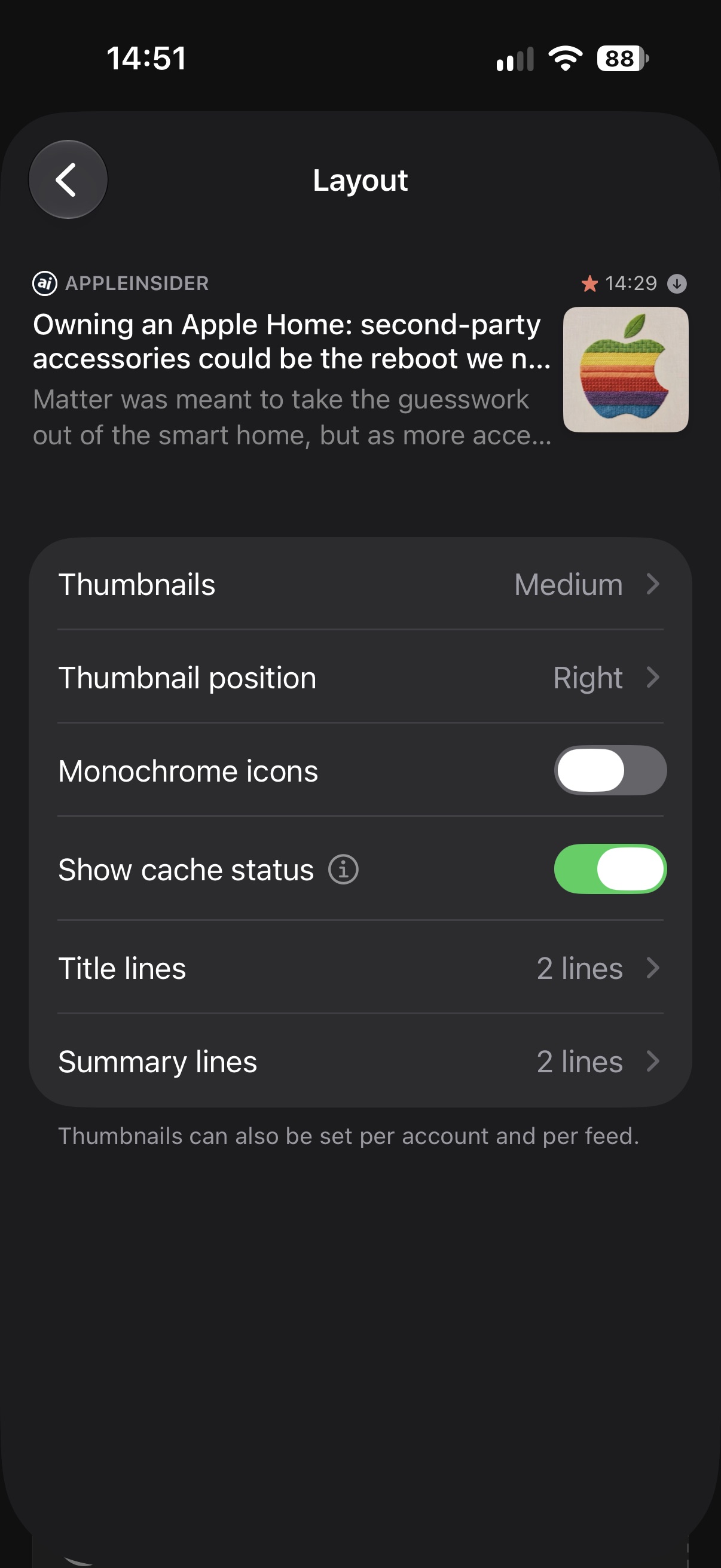
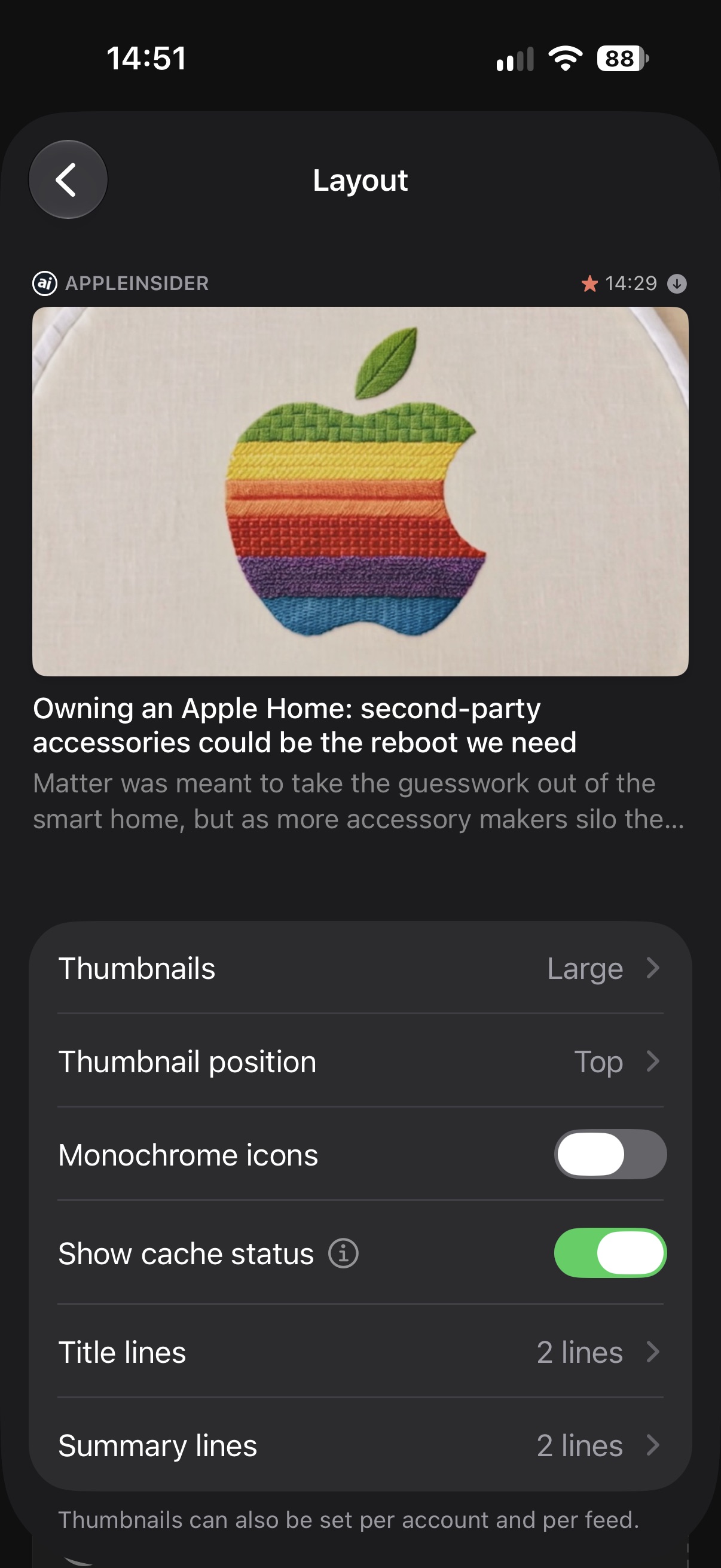
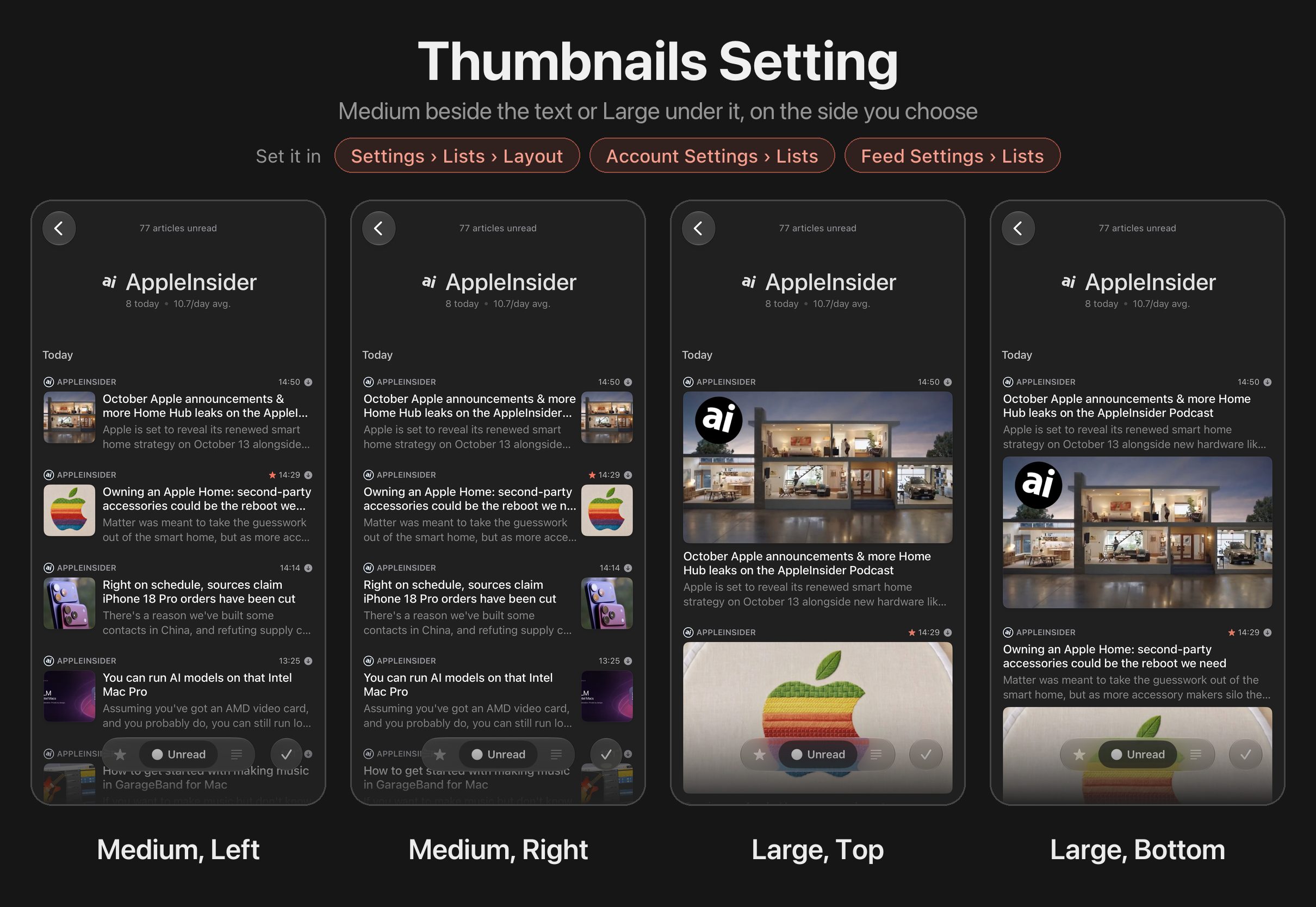
- Thumbnails: None, Medium (a square beside the text, the default) or Large (a wide image across the row, the same shape for every article). Choosing None for the whole app also stops thumbnail downloads. For an individual account or feed, it only hides them.
- Thumbnail position: Left or Right for Medium, Top or Bottom for Large.
- Monochrome icons: shows feed icons in a single color for a quieter look.
- Show cache status: a small arrow in a circle at the end of the row's first line, filled when the article is saved on your device for offline reading, outlined otherwise.
- Title lines: up to four lines for the title.
- Summary lines: up to three lines for the summary, or none. One title line and no summary gives the densest list. Higher limits leave more room for each article's title and summary.
The thumbnail size can also be set for an account or a single feed, in their own settings under Lists: a news account in Large, a feed of link posts with no thumbnails at all. Thumbnail position and the line limits apply to all accounts and feeds on that device. An iPhone and an iPad each keep their own layout settings, backed up to iCloud along with the rest of your preferences.
More in the post Your article list, your way.
Can I make reading in Feedler more comfortable?
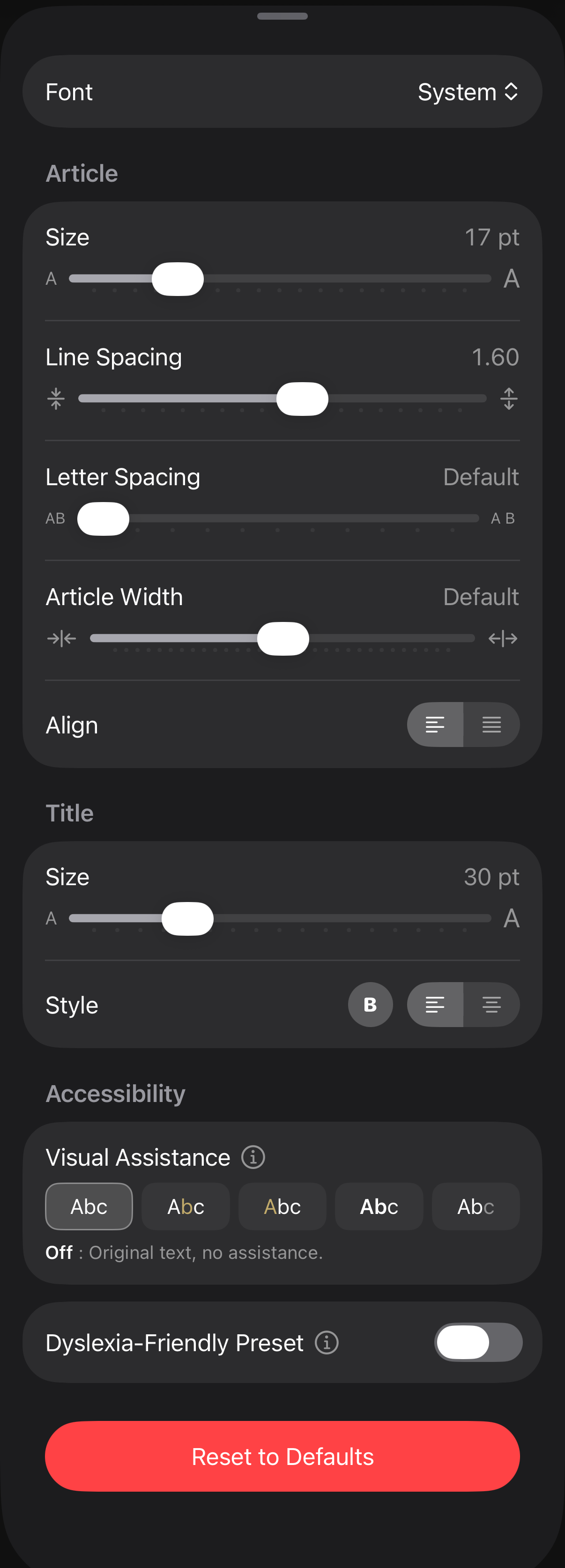
- Fonts made for reading: a curated set, including two designed for maximum legibility (Atkinson Hyperlegible Next and OpenDyslexic), with fine control over text size, letter spacing, line height and column width.
- Visual assistance: four exclusive modes give your eyes a subtle landmark in every word (a colored anchor letter, tinted first letters, bolded beginnings or softened endings). The effect is personal, so try the styles and keep the one that feels right.
- A one-switch comfort preset: applies the letter spacing, line height and column width that reading research recommends. Designed with dyslexic readers in mind, calmer for everyone.
- Listen instead: when your eyes need a break, built-in text-to-speech reads any article aloud.
Everything lives in the Aa panel right on the article, so you see the result as you adjust, and your setup comes back when you reinstall Feedler or set up a new device.
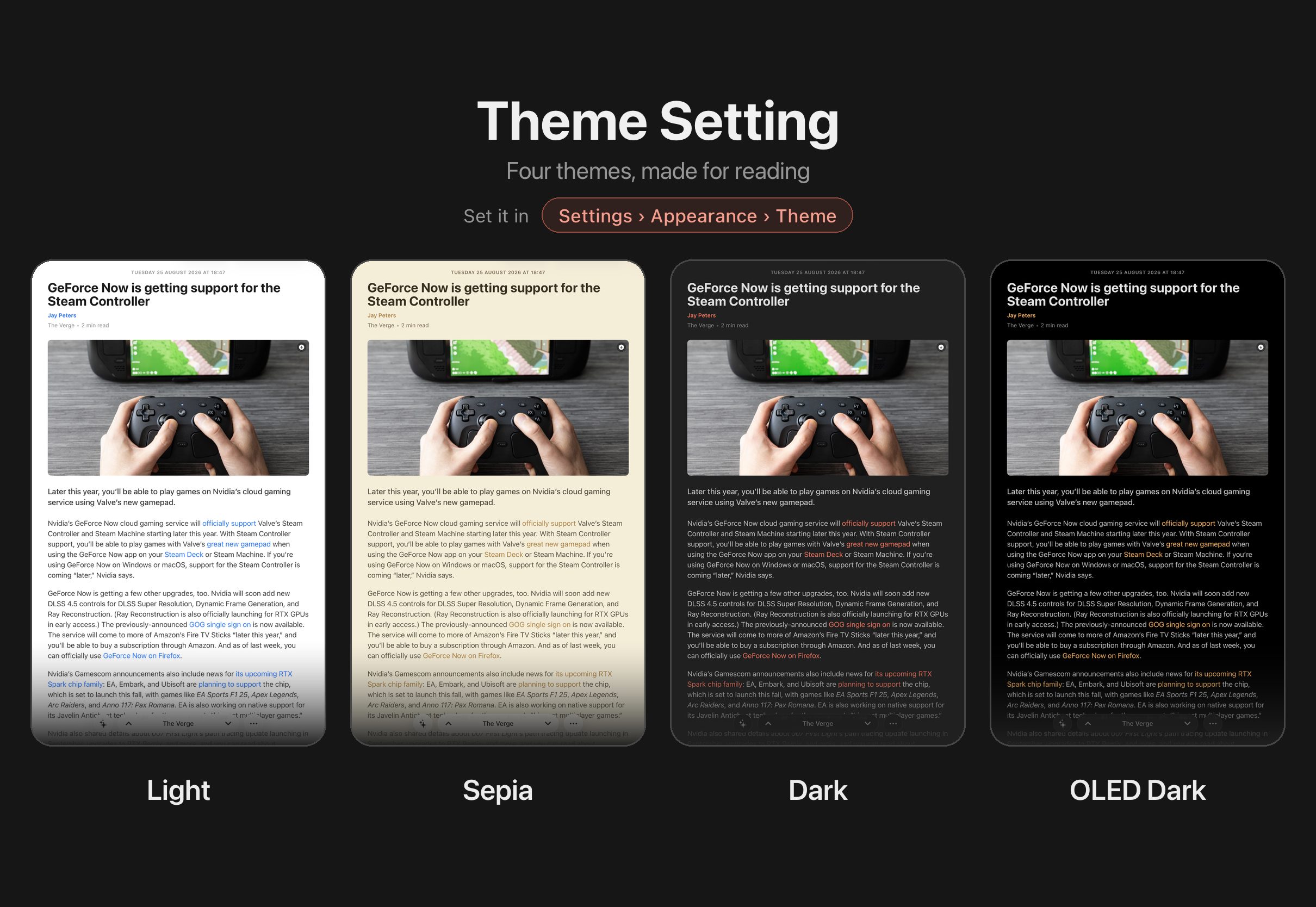
What themes does Feedler offer?
- Light: a crisp, bright background.
- Sepia: a warm, paper-like background.
- Dark: a gentle dark gray background.
- OLED Dark: a true black background, ideal for OLED screens.
Let Feedler follow your device
Choose Automatic in Settings › Appearance › Theme to follow your device's light or dark appearance. You can choose Light or Sepia for light mode, and Dark or OLED Dark for dark mode.
Make each theme your own
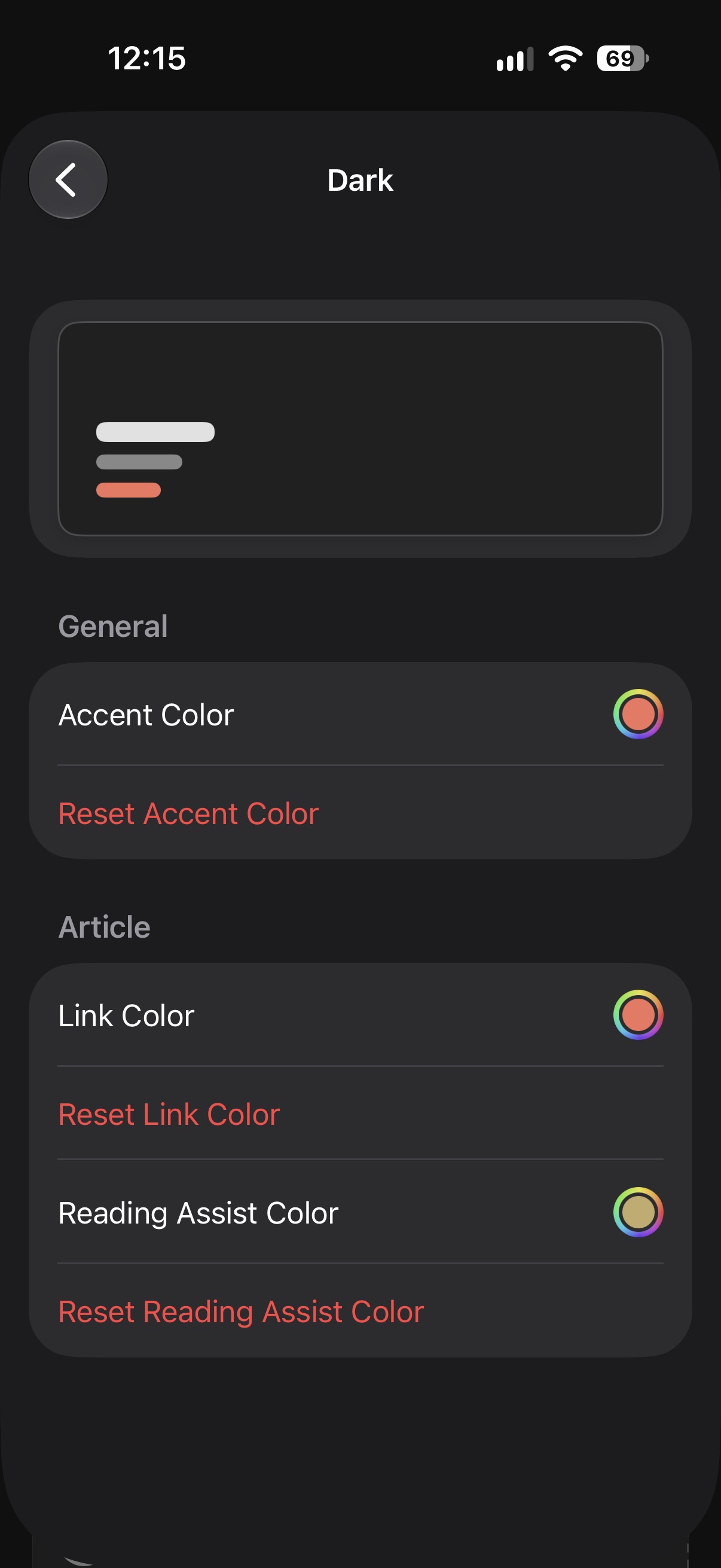
You can customize each theme separately in Settings › Appearance › Theme Customization: the accent color used throughout the app, the link color in articles, and the Reading Assist color that highlights parts of the text (more in “Can I make reading in Feedler more comfortable?”). Each color can be reset to its default.
Does Feedler remember where I stopped reading?
What makes Feedler's image galleries unique?
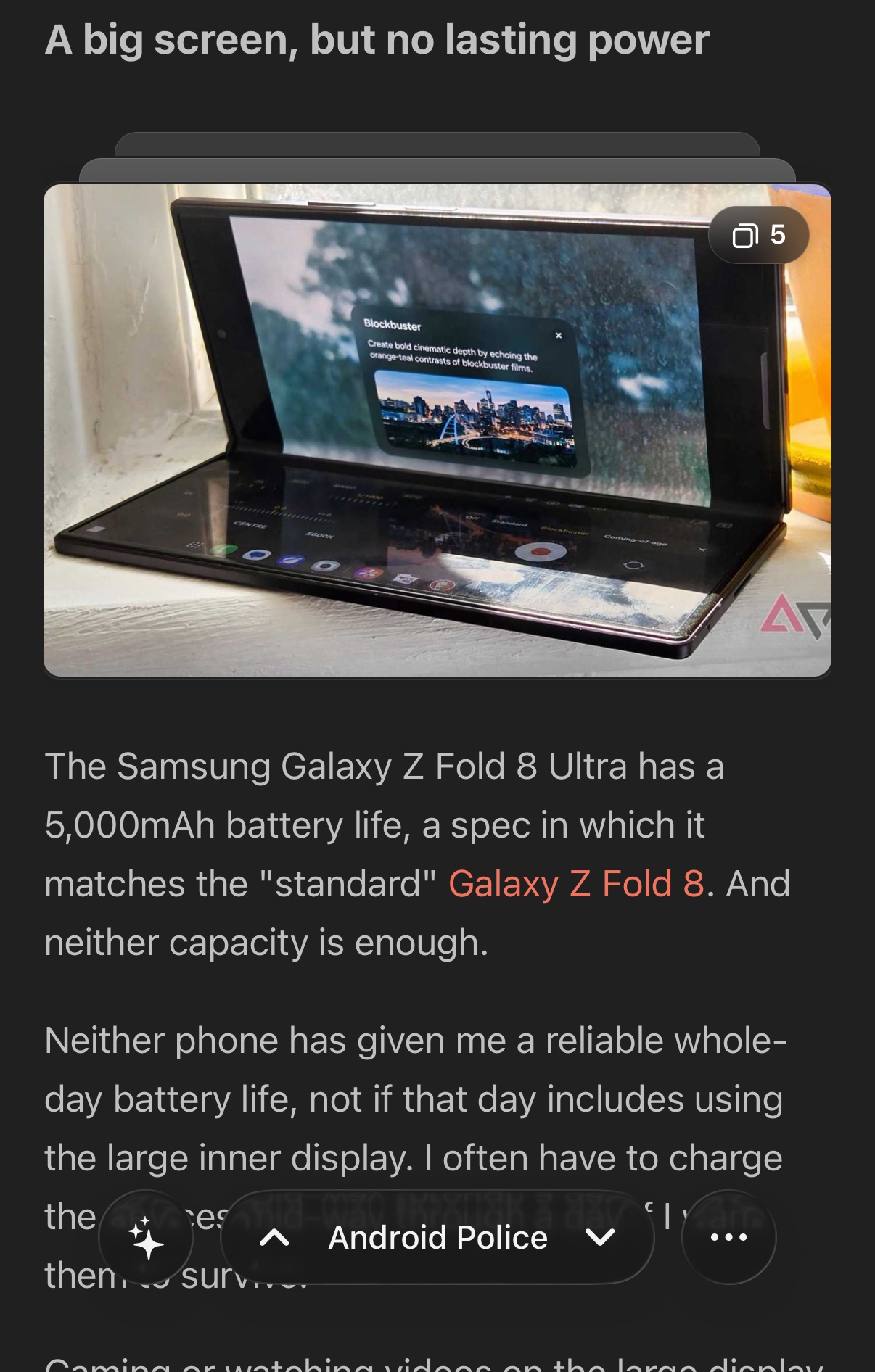
Smaller galleries become a grid of thumbnails: neat tiles instead of an endless scroll of full-width pictures. Tap any of them and a fullscreen carousel opens. Swipe from photo to photo, pinch to zoom, and you never lose your place in the article.
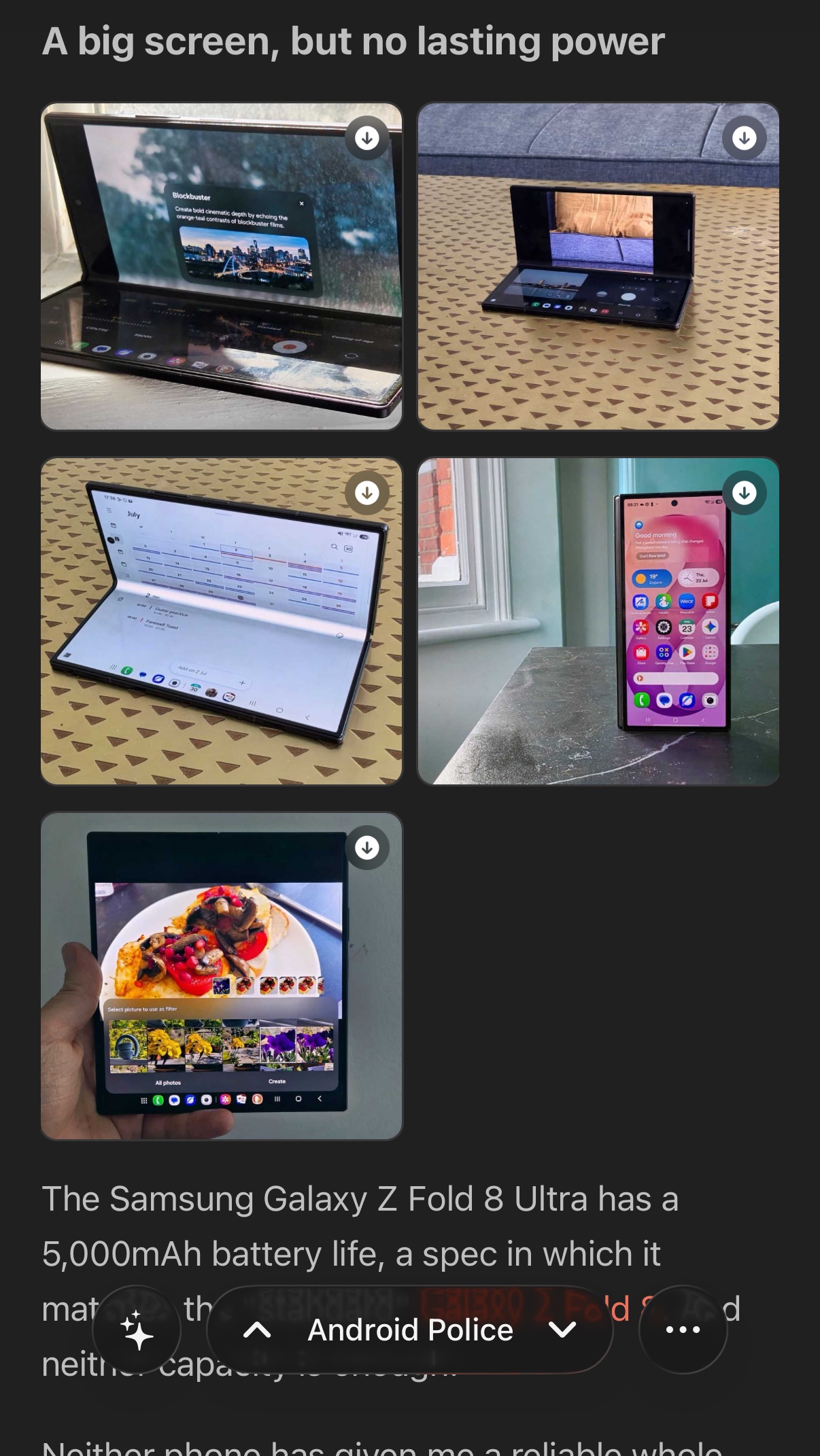
Even a simple pair of images gets its own treatment: instead of two full-width pictures stacked on top of each other, they sit side by side. Half the scrolling, and a nicer read.
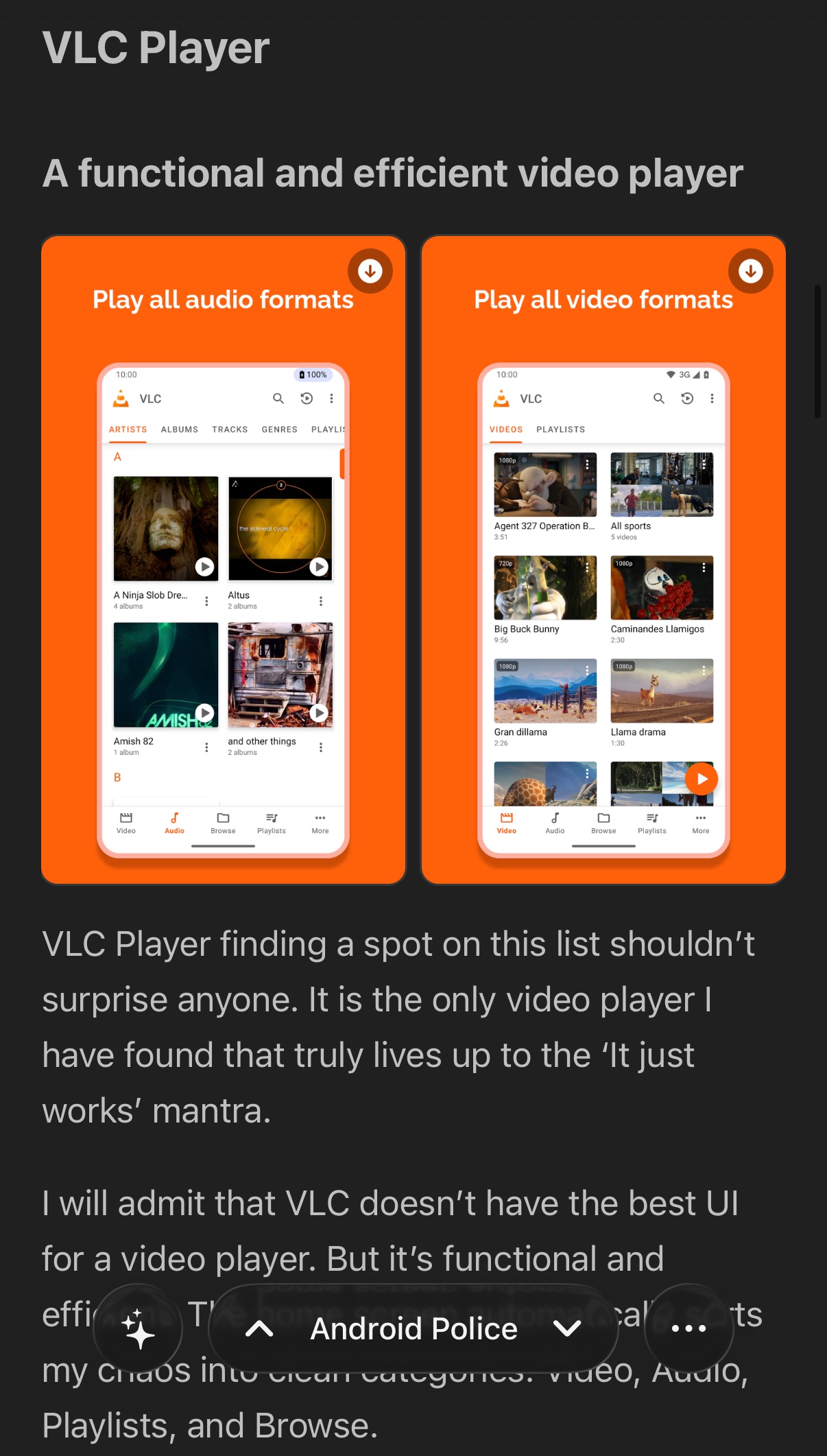
Long galleries fold by default into a single stack of cards: the first photo on top, a counter in the corner, the rest tucked behind. Long means three rows of tiles or more, six images on an iPhone, nine on a wide iPad. Tap the pile and the same carousel opens with every photo inside. Feedler decides when the article opens, so nothing moves while you read. Want a different balance? In Settings › Article › Stack Galleries you can fold every gallery beyond a single row, only the long ones, or none at all. Switching is instant, on your existing articles too.
How does Feedler's parser work, and what makes it unique?
Plenty of apps have a “reader mode”. Here's why Feedler's is different:
- Built entirely in-house: most readers ship the same generic, open-source extraction engine, and it shows. They all fail on the same sites, the same way. Feedler's parser was written from scratch for Feedler, and battle-tested on the messiest pages out there (script-heavy sites, tangled newsletters, gallery-packed reviews), including many that generic engines give up on.
- It works in layers: broad rules that fit the web at large, refined by fine touches tuned for specific sites. The everyday blog and the most convoluted news CMS both come out reading the same: clean and whole.
- It keeps the good parts whole: photo galleries are rebuilt as real galleries, videos play natively right in the article, social posts stay readable, captions stay with their images. Where other readers show a broken box (or nothing), Feedler shows the article as it was meant to be.
- It removes noise without eating the article: the hard part. Sponsor blocks, subscription prompts and “most read” lists disappear; the conclusion, the code snippet and the pull-quote stay. That balance is what years of tuning buy.
- It keeps getting better, and your library comes along: the parser improves with nearly every release, and when it does, your already-saved articles are automatically re-parsed with the new engine. Articles you cached months ago read better today than the day you saved them.
- And you can tune it per feed: hide a recurring block by selecting its text, cut articles after the small print, switch a paywalled subscriber feed to read from the feed itself, or go surgical with CSS selectors. See “How do I customize the article parser?” and “What if a feed already contains the full article?” below.
For the rare site that needs more, there's the Advanced Parser mode. And if a site still resists, tell me about the feed and I'll do my best to tune the parser for it (see “What if a feed's articles don't display correctly?”).
What if a feed already contains the full article?
A few kinds of feeds work this way:
- Paid & member feeds: sites like 404 Media, and blogs on Ghost or Substack, give subscribers a personal feed with the full articles inside, while their public pages show only a teaser and a subscribe prompt. Reading from the feed gets you the whole piece you paid for.
- Newsletters: services that turn newsletters into feeds (such as Kill the Newsletter) place the whole email in every entry; there's often no article page to visit at all.
- Self-hosted services: a FreshRSS-style setup can be configured to deliver complete articles in the feed itself.
For those, open Feed Settings › Parser Customization › Source and choose Feed Content: Feedler reads everything straight from the feed and never touches the page. No teasers, no paywall detours, and it works even when no public page exists.
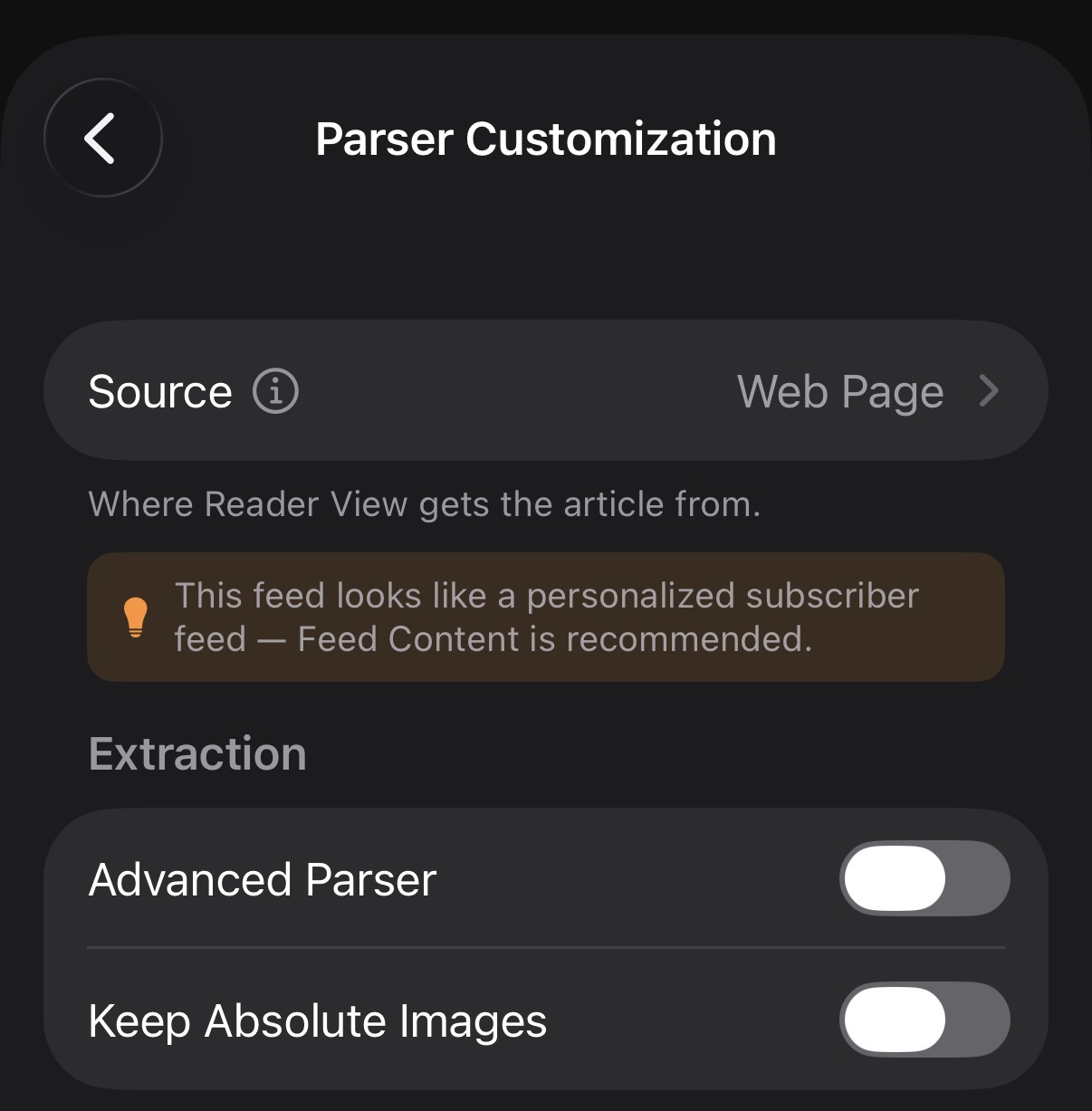
You don't even have to figure this out yourself. Feedler recognizes feeds that look like they carry the full article and suggests the switch, right in the article: tap Change the Source and you land on the setting; dismiss it and it won't ask again for that feed. Well-known services are even preconfigured, so a newsletter feed arrives set up right.
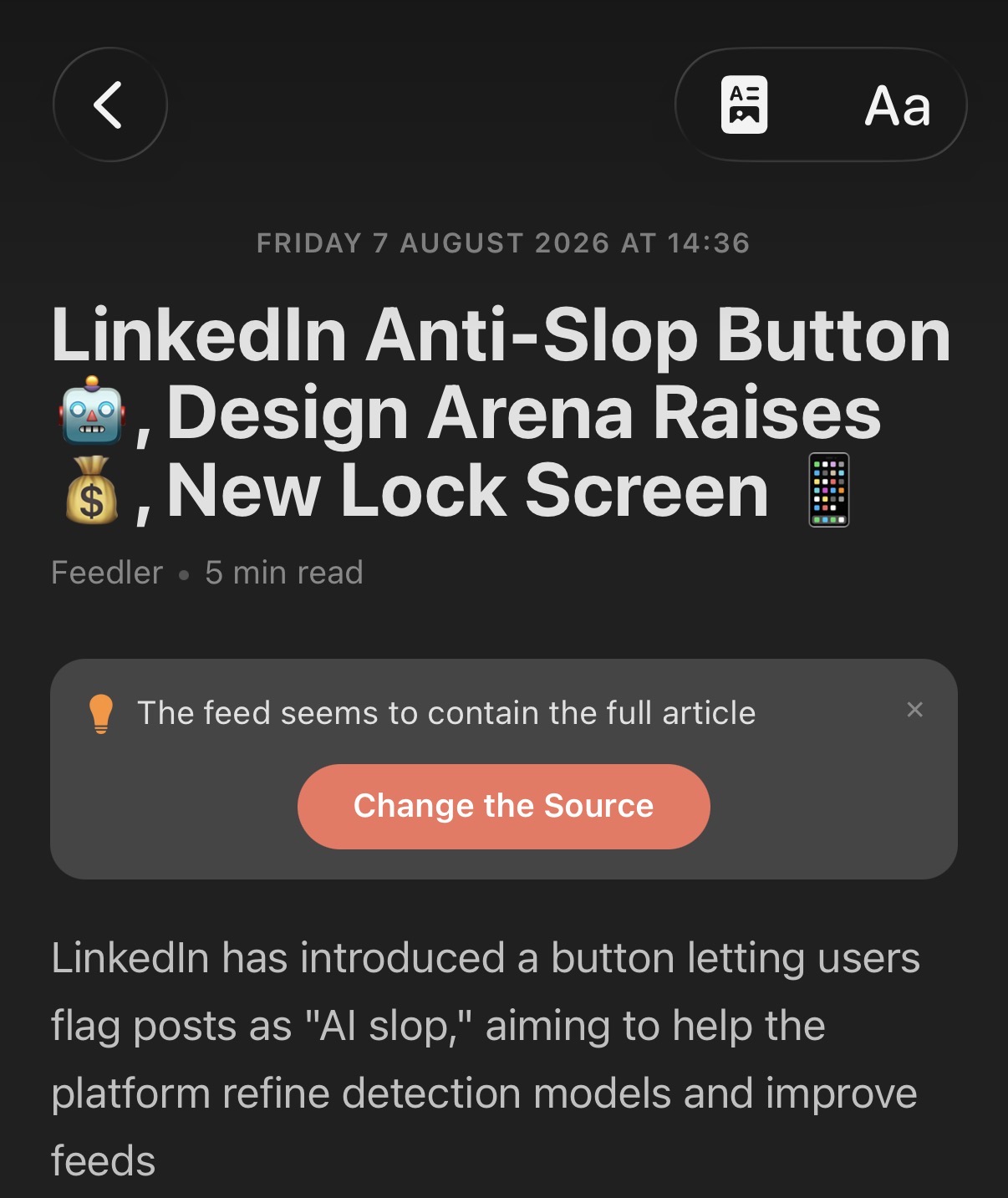
Whichever source you choose, the article gets Feedler's full treatment. Feed content is written for inboxes and browsers (cramped layouts, leftover formatting, invisible clutter), so Feedler reshapes it into the same clean, comfortable Reader View as any other article: your fonts and theme, well-spaced text and images, offline reading and AI summaries included. Newsletters stop looking like emails and start reading like articles.
How do I customize the article parser?
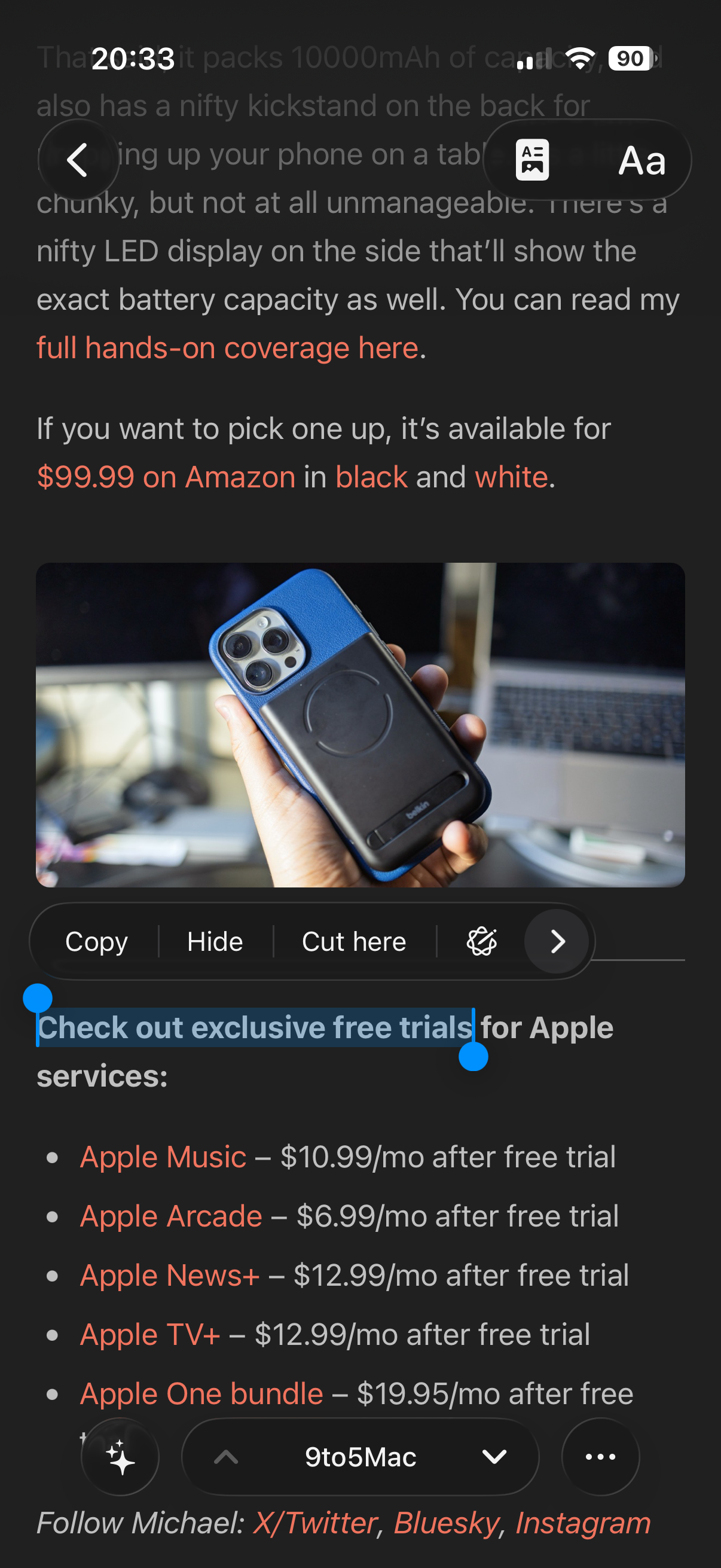
The quickest way is right in the article. Select some text and tap:
- Hide: makes any block containing that text disappear (a recurring newsletter prompt, a promo banner…).
- Cut here: trims everything from that point on (the small print at the end, a “related articles” footer…).
The article updates instantly, and Feedler remembers your choice for every future article from that feed.
Pictures work the same way: long-press any image in an article. The familiar menu appears, with two new choices at the bottom:
- Hide image by URL: that exact picture never shows up again in this feed's articles, whatever size a site serves it in.
- Hide image by CSS class: smarter still, ideal for promo spots that rotate the picture but keep the same styling. Feedler offers it only when the image carries a usable class.
Feedler always confirms exactly what will be hidden before saving the rule.
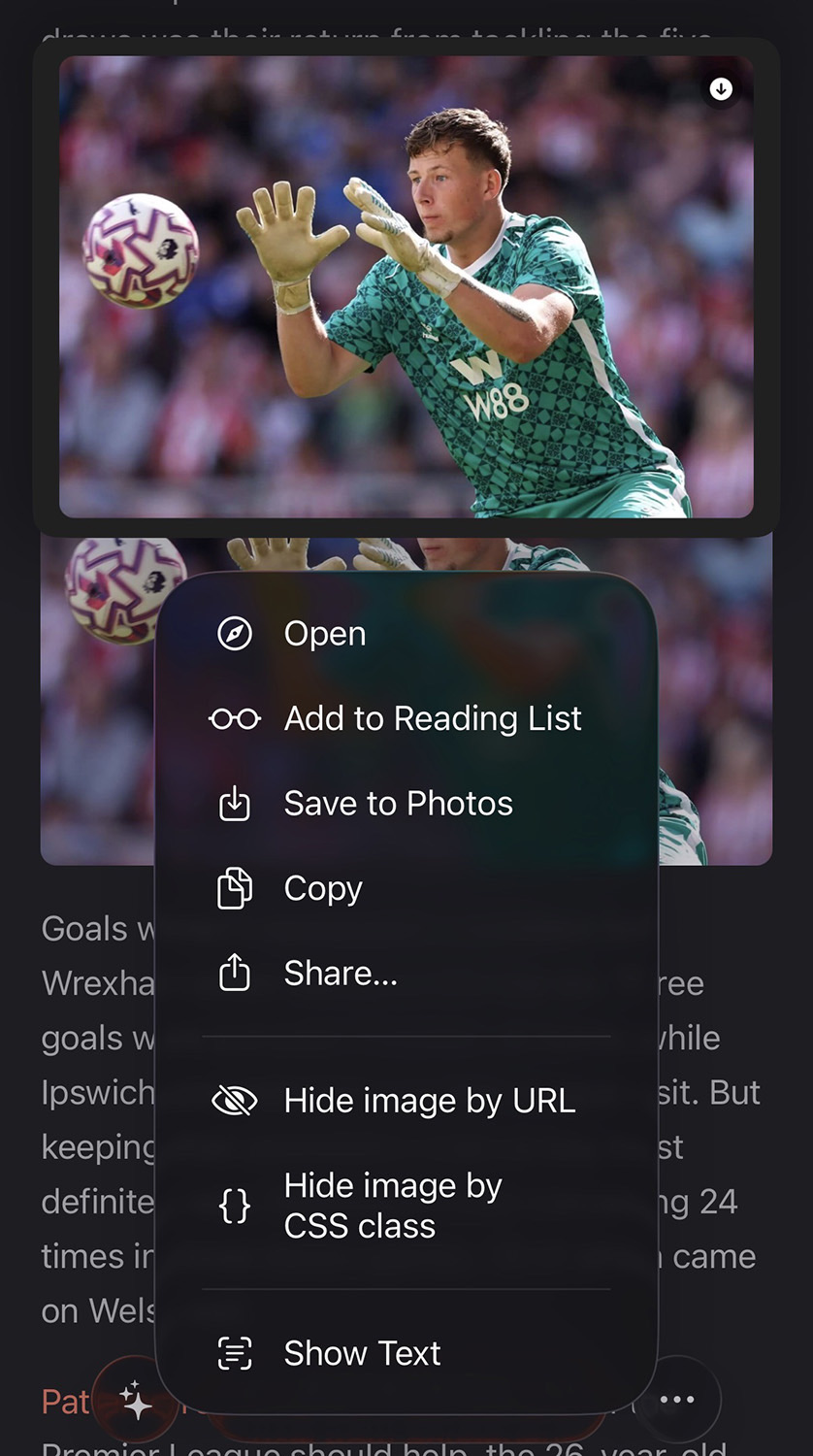
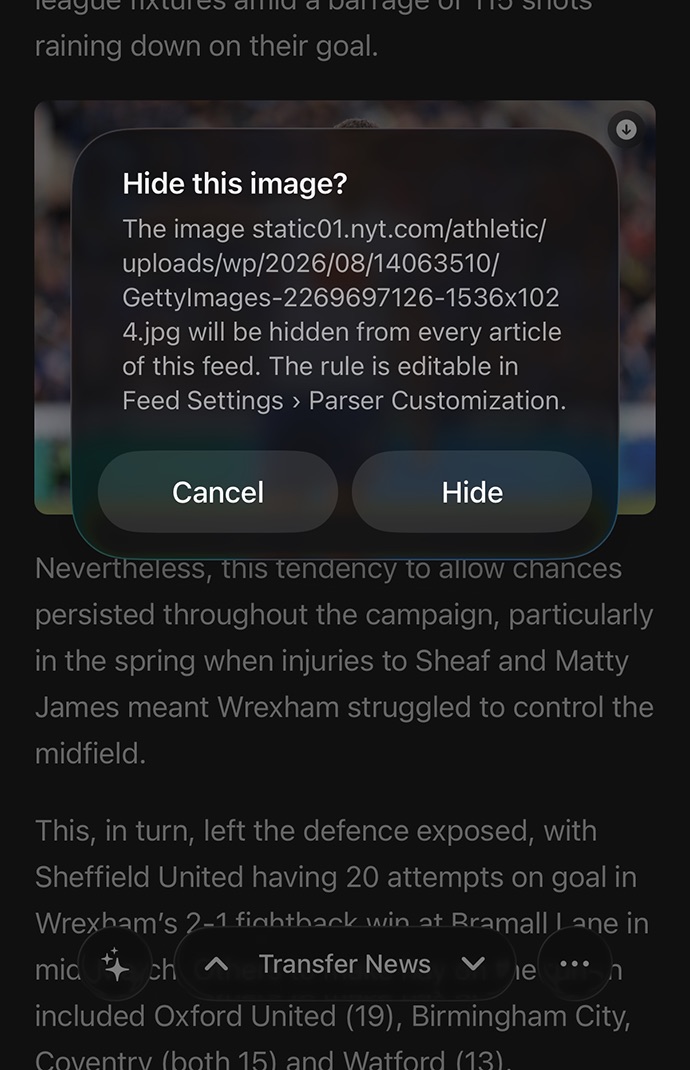
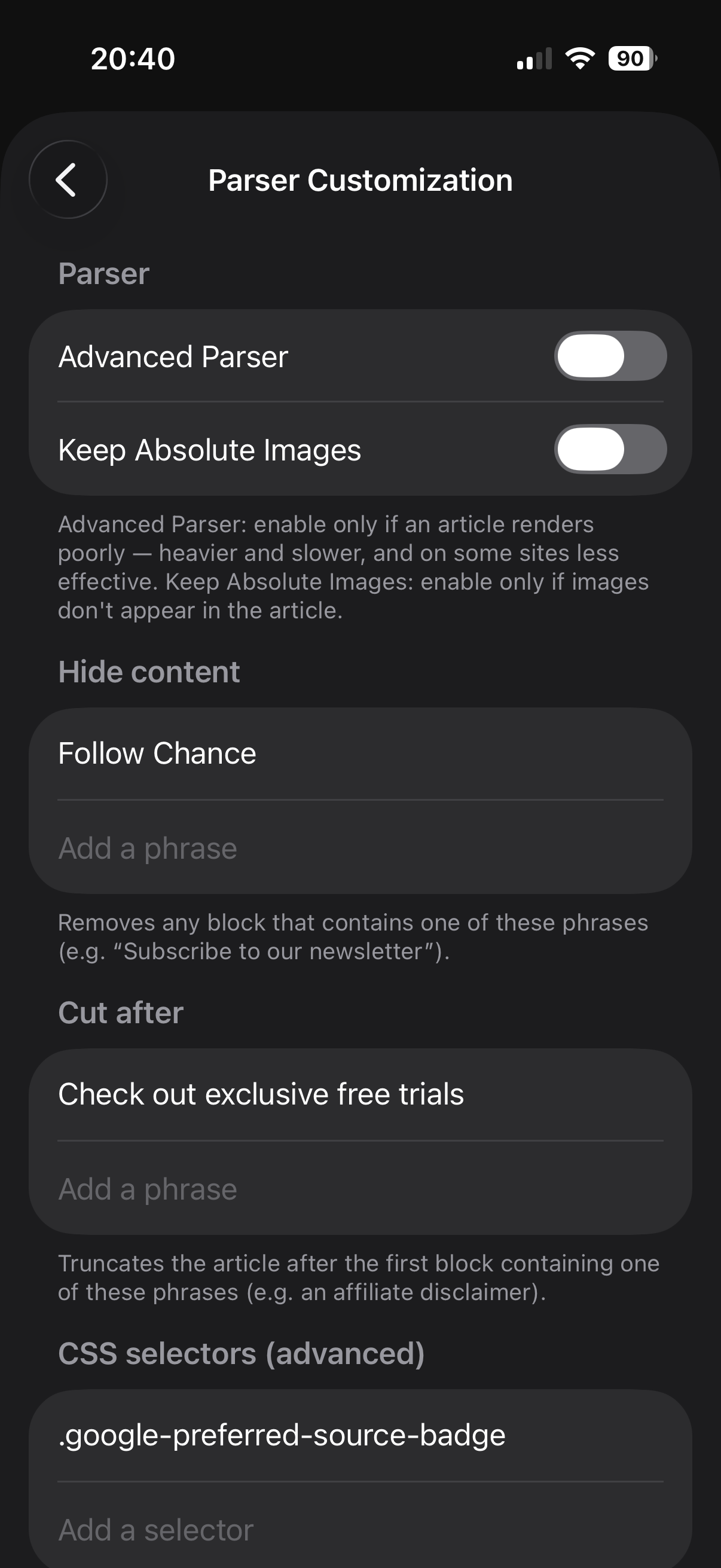
Prefer a panel? Long-press any article, open Feed Settings, and tap Parser Customization for the full set of controls:
- Advanced Parser: a more thorough reading mode for the occasional site that doesn't come through cleanly.
- Keep Absolute Images: brings back article images on sites that don't surface them on their own.
- Hide content: your list of phrases to hide, wherever they appear.
- Cut after: your list of phrases to trim the article after.
- CSS selectors, for power users who want to pinpoint exactly what to remove.
- Hidden images: every picture you've hidden, listed and easy to bring back.
Every rule stays listed and easy to change or undo, and the moment you add or edit one, Feedler re-applies it to the articles you had already downloaded, so the change shows up everywhere without lifting a finger. It all travels to your next iPhone via iCloud, too.
What if a feed's articles don't display correctly?
- Fine-tune it yourself: in that feed's Parser Customization, turn on Advanced Parser (and Keep Absolute Images if photos are missing). Your articles re-parse automatically the moment you confirm. See “How do I customize the article parser?” above: this clears up most sites.
- Still not right? Tell me: every site is unique, and some need a tweak on my end. Email me the feed and I'll do my best to tune Feedler's parser for it.
Can I send a full article to someone by email?
AI Summaries & listening
How can I summarize articles with Apple Intelligence?
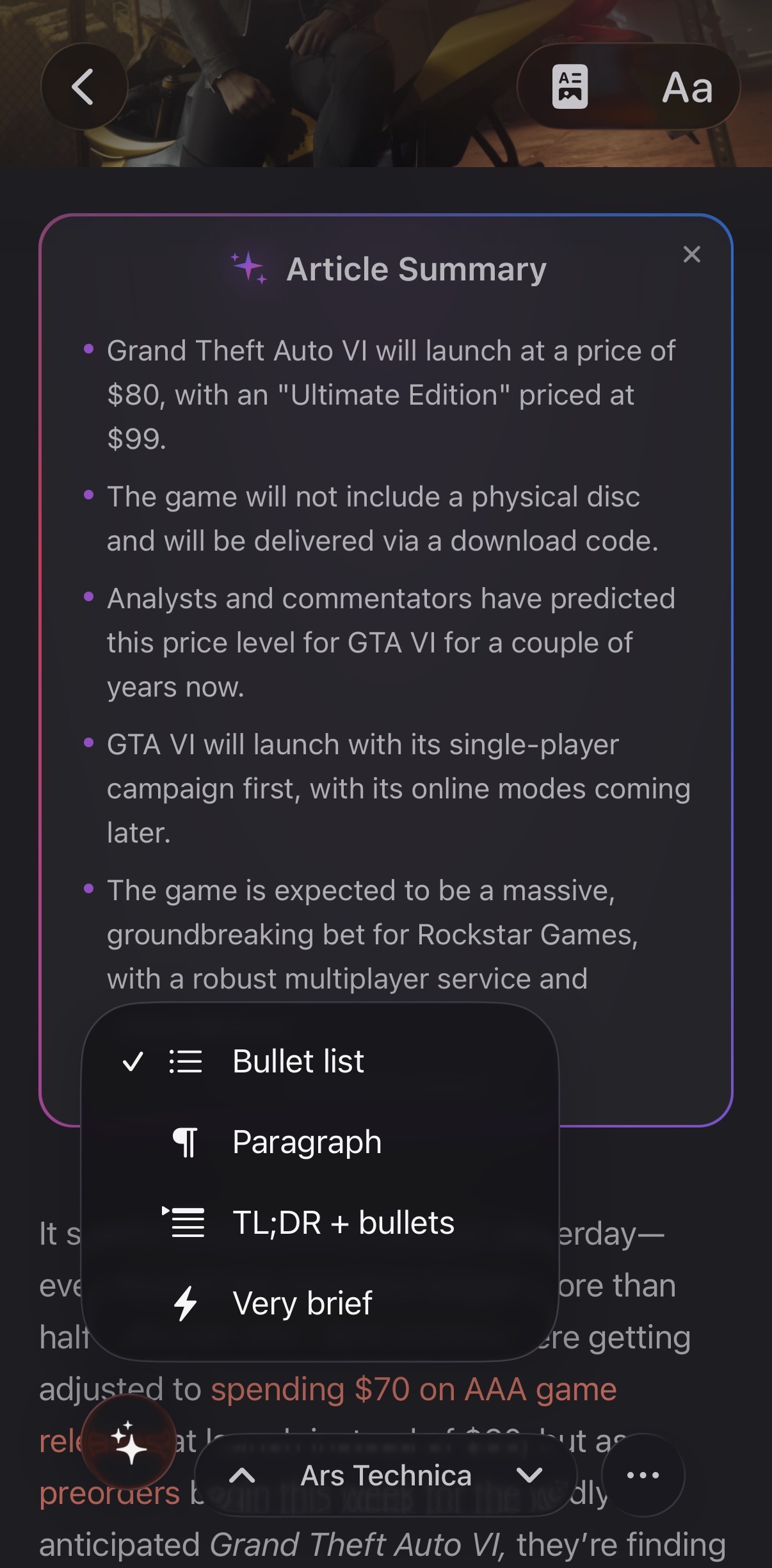
Tap the AI button to generate a summary; press and hold it to switch the style on the fly, or set your favorite as the default in Settings › Article. Choose from:
- Bullet list: 3 to 5 bullet points covering the distinct facts.
- Paragraph: a single flowing paragraph of 2 to 3 sentences.
- TL;DR + bullets: a one-line takeaway, then 3 to 4 supporting bullets.
- Very brief: 2 sentences maximum, no lists.
Summaries can be written in the article's own language or your device's language: pick whichever you'd rather read in Settings › Article, right alongside the format.
Like any AI, Apple Intelligence can occasionally get something wrong, so check anything important against the original article.
Can I use ChatGPT or another AI model instead?
- Truly private: every summary is generated right on your iPhone. Your articles are never uploaded, read or stored by anyone: no servers, no third parties, nothing tracked.
- Fast: the summary is built right on your iPhone, so there's no uploading the whole article to a server and waiting for it to come back. It just appears.
- Works offline: it runs on your device, so no internet connection is needed. Summarize on a plane, on the subway, or with no signal at all.
- Free, forever: Apple Intelligence is built into iOS. No subscription, no fees, no per-summary cost, no extra data used, and no usage limits to watch.
- Nothing to set up: no account to create, no API key to paste, no sign-in. Just tap and read.
Other AI models such as ChatGPT, Gemini or Claude are reached through an online service. To use one, Feedler would have to send your articles to that service, and you would have to connect an account of your own. Feedler uses Apple Intelligence because the summary can be generated on your device, without sending the article to a third-party AI service.
So Feedler keeps summaries simple and yours: private, on-device and free, in a single tap, with nothing to manage.
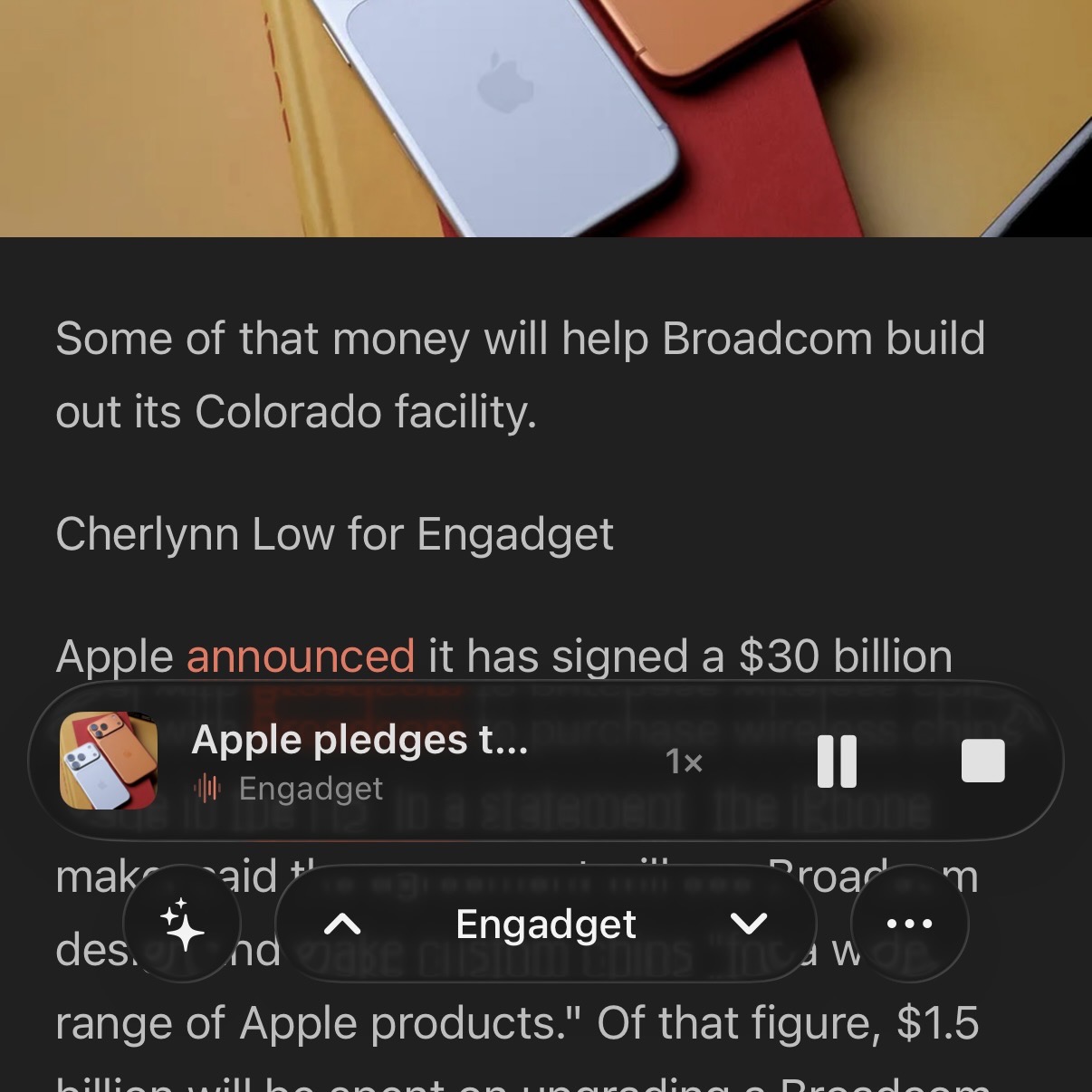
Can Feedler read articles aloud?
- Pause and resume: pick the reading back up right where it stopped.
- Playback speed: cycle from 0.8× to 2× in one tap; your pace is remembered across articles.
- Locked-screen friendly: built on Apple’s system player, playback keeps going with the screen off, with full controls on the Lock Screen and in the Dynamic Island.
One tip worth knowing: iOS ships much nicer voices than the default one. In Settings › Accessibility › Read & Speak › Voices (called Spoken Content before iOS 26), pick your language and download an Enhanced or Premium voice: Feedler picks it up automatically, and the difference is night and day.
Settings & performance
What settings can improve your experience? Ask Feedler Insights
Personal insights
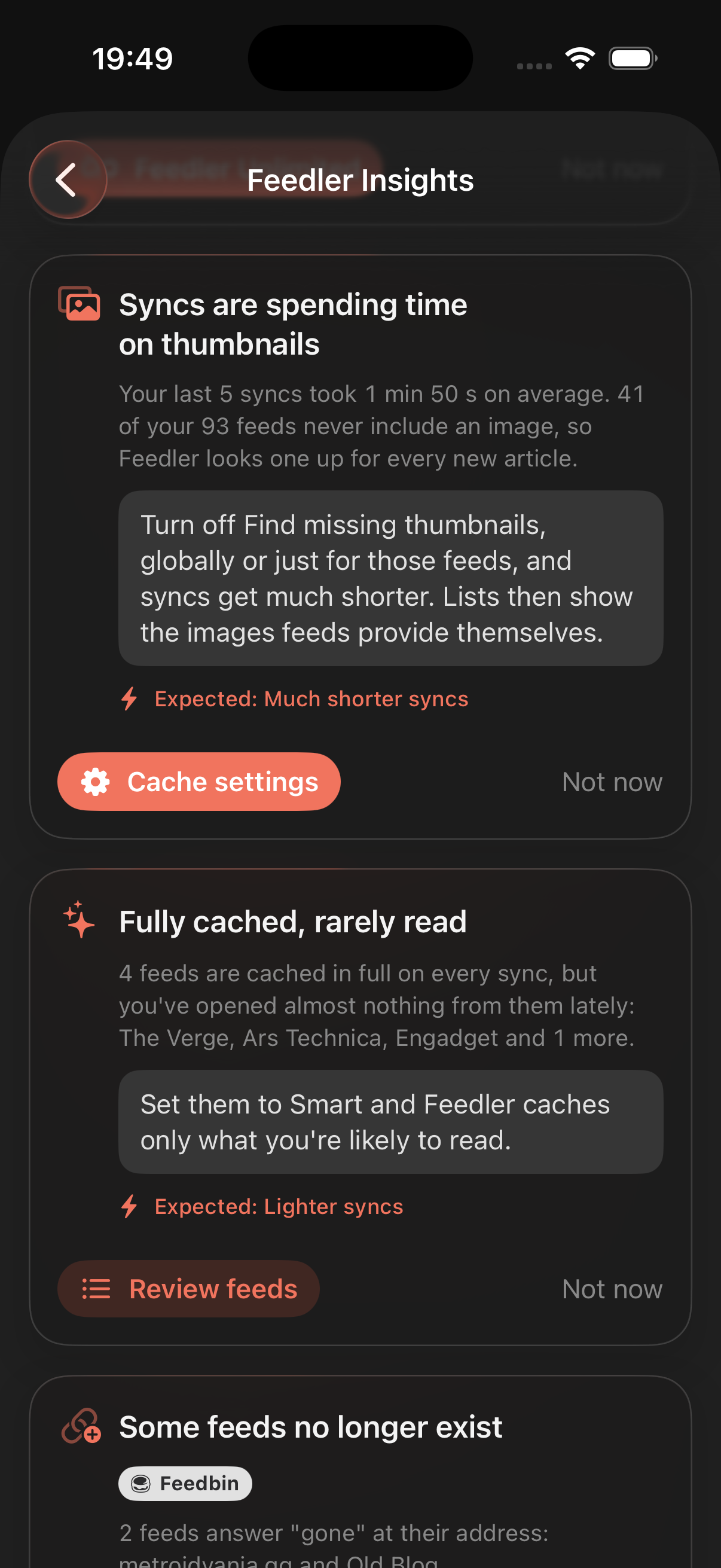
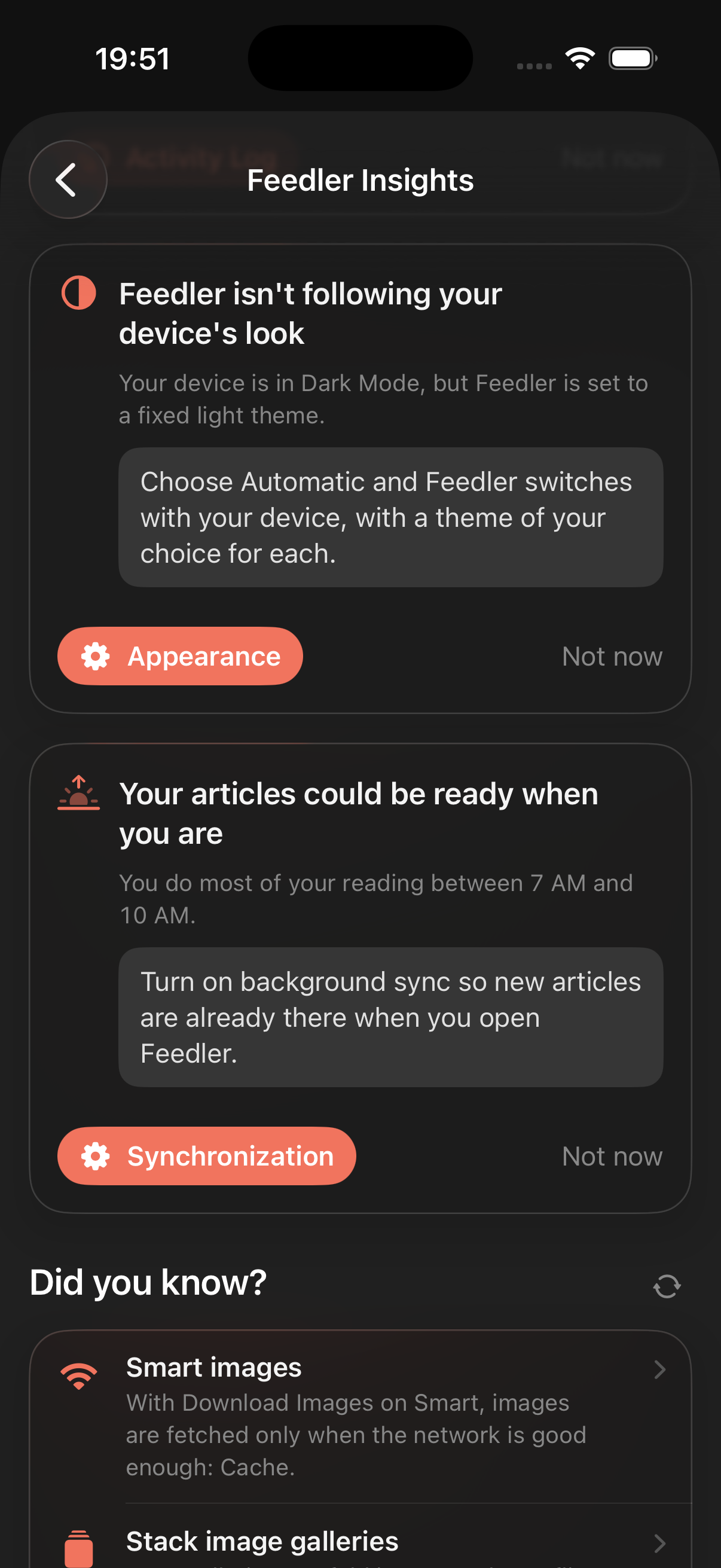
Cards built from your own numbers: a fact, one suggestion, and a button that takes you straight to the setting. For example:
- Your syncs spend most of their time looking up thumbnails for feeds that don't include one. Turn the lookup off, globally or just for those feeds.
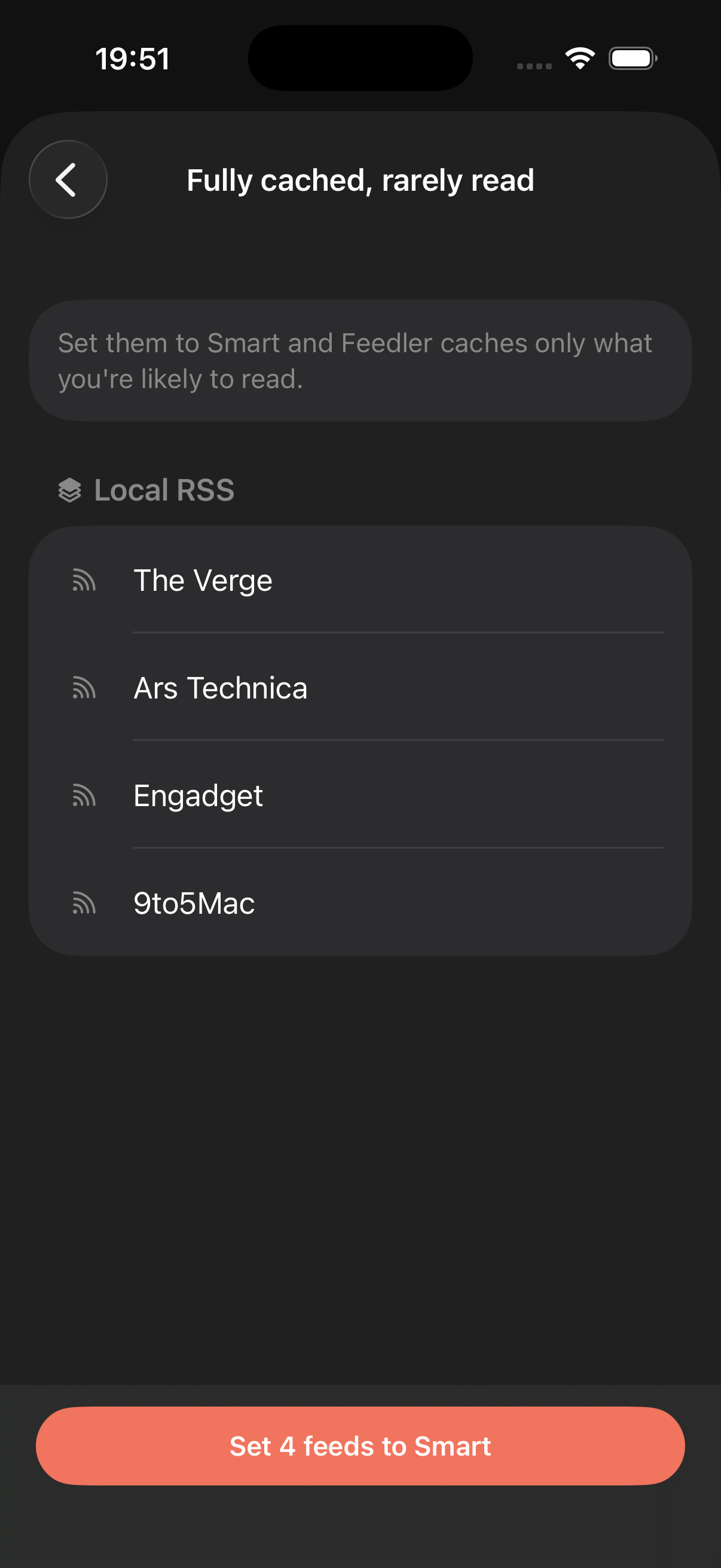
- Some feeds are cached in full on every sync, but you rarely open them. Switch them to Smart.
- Your feeds live only on this device. Move them to iCloud or a sync service.
- Some feeds went quiet months ago, or no longer exist at their address. Search the site again, or let them go.
- You read mostly in the morning. Turn on background sync so articles are already waiting.
- Feedler is on a fixed theme while your iPhone switched to Dark Mode.
Every card is a fact, never a lesson. When a suggestion concerns several feeds, Review feeds lists them by account and applies the change in one tap.
Insights is alive. The cards are recomputed every time you open the screen, from your latest syncs: fix something and its card is gone; add feeds or change your habits and new ones appear. Swipe a card away and it stays away for two weeks, then comes back only if the situation hasn't changed. That's why it's worth a visit now and then: a feed that went quiet, a cache that fills up, a sync that got slower are the things you'd only notice months later.
Did you know?
Below the cards, three tips about features you may not have found yet, different every day, with a shuffle if you want more.
Nothing runs in the background: it all happens when you open the screen, on your device, and nothing leaves your phone.
Why does a sync sometimes take longer than in other readers?
- Generating icons. Right after an OPML import or a pack, Feedler finds a high-quality icon for every new site. Once, never again.
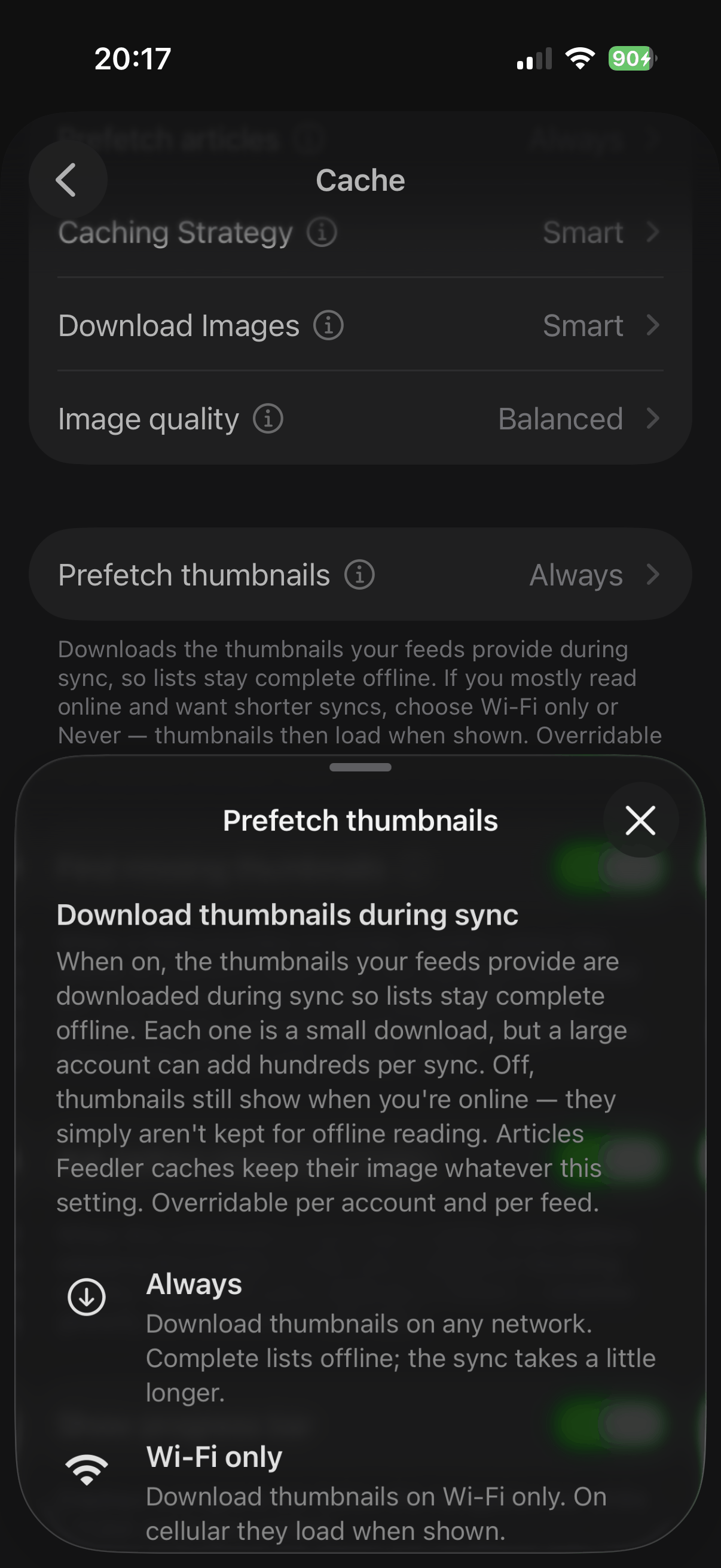
- Fetching thumbnails. The images your feeds provide are saved on your device, so lists stay complete offline.
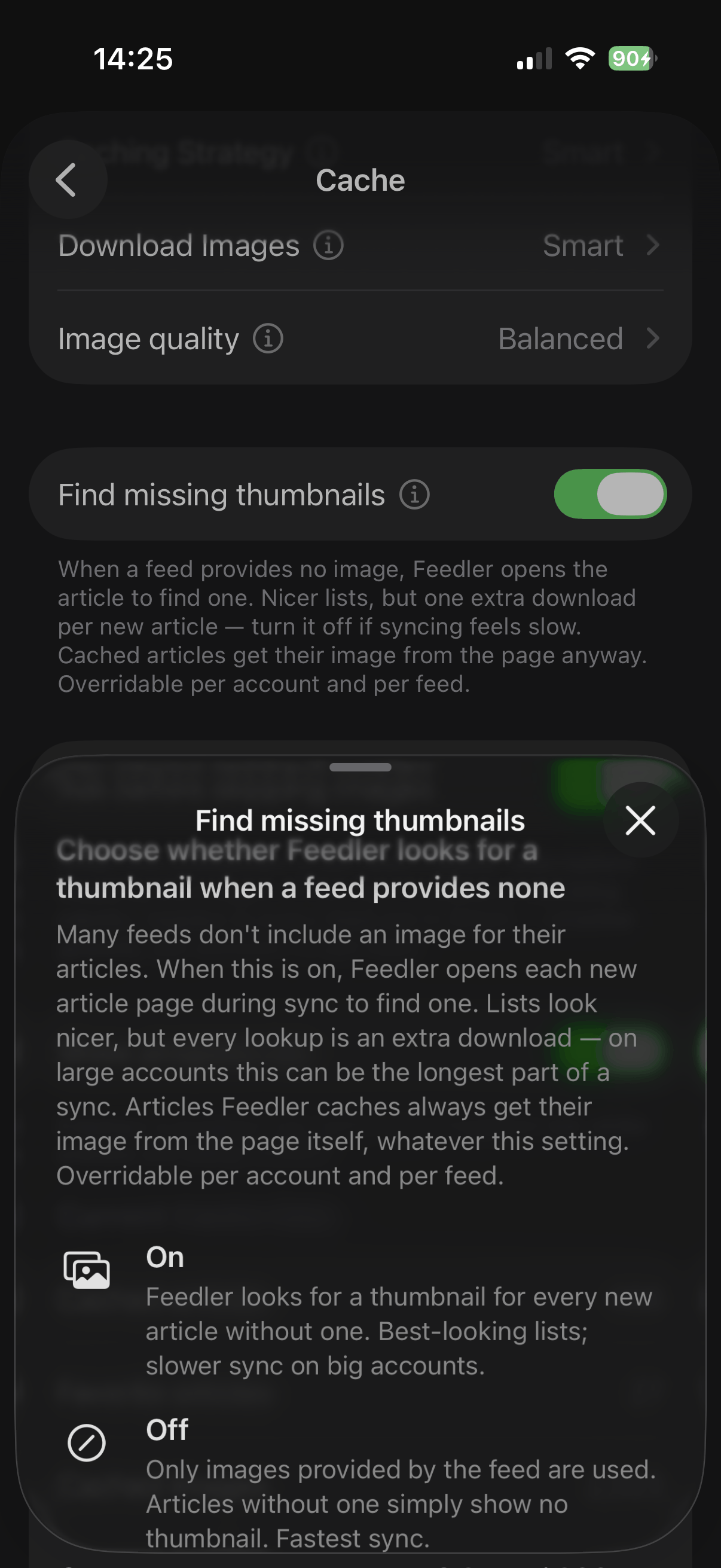
- Finding missing thumbnails. When a feed ships no image (many don't), Feedler opens each new article to find one. On a big account this is the step that stretches a sync: one extra download per new article.
Feedler is also more transparent about it. Every feed that couldn't be refreshed is listed with its reason in the Activity Log (see “Can I see a history of what Feedler has been doing?”), and tapping a sync's Duration shows how long each step took. Most readers keep the previous articles and say nothing, so the same delay goes unnoticed.
Prefer fast syncs? Two settings in Settings › Cache:
- Prefetch thumbnails: set it to Wi-Fi only or Never if you mostly read online. Thumbnails then load when shown, and no thumbnail work runs during sync at all, lookup included.
- Find missing thumbnails: turn off the lookup alone, and lists show only the images feeds provide themselves.
Both work at three levels, globally, per account or per feed, so you can keep them on for the few feeds where it matters. Not sure about a feed? Its Feed Info shows Images in feed, Found by Feedler, and the settings that apply to it.
One more option: with a sync service, its servers fetch your feeds and your phone only downloads the result. Faster, and more reliable. See “Why should I consider a sync service instead of Local RSS?”.
Does Feedler work offline?
How does Smart Caching save data by learning your habits?
- Smart caching: Feedler keeps more from the feeds you read often, and less from the ones you rarely open, adjusting on its own as your habits change, so it spends your data where it counts. As you read, it readies the next articles in the background, so you glide from one to the next with no waiting. Your favorites are always kept, anything already saved stays, and older articles load the moment you open them.
- Cache everything: prefer your whole library within reach? Keep every article offline, perfect before a flight or a trip with no signal.
- Cache nothing: watching every megabyte? Store nothing at all; articles load when you open them.
Whichever you choose, it all lives on your device: no account, nothing in the cloud.
How does Feedler handle images on a slow connection?
- It senses the connection as it syncs: no speed tests, no battery drain. Feedler pays attention to how the sync itself is going. If the network turns slow, spotty or overloaded, it knows.
- Text first, so sync stays fast: on a bad connection, Feedler skips the images for that sync and your articles arrive in seconds instead of minutes. Nothing is lost: images load as you read, like on any web page, and thumbnails are always there.
- You always have the last word: before skipping, Feedler asks, with an estimate of how long the images would take. Stuck in a dead zone you're about to leave? Tap Download and it powers through. Prefer it fully automatic? Turn the confirmation off.
- Tune it per feed: pick Never, Smart or Always, globally, per account or per feed. Keep a favorite photography feed on Always while the rest adapts to your connection.
It also respects iOS Low Data Mode automatically. Slow network, fast sync: that's the smart way.
Pricing & subscription
What can I do for free?
What is ∞ Feedler Unlimited?
Why a subscription and not a one-time purchase?
How does the free trial work?
How do I cancel, and what happens then?
How do refunds work?
I'm a beta tester on TestFlight: do I have to pay?
That test environment has its quirks, though: time runs faster there. Whatever the plan, a test subscription renews once a day and stops renewing after about a week (the shortened trial included), so it lapses on its own. If Feedler tells you your subscription has expired, that's not a bug, it's the accelerated test clock. Just subscribe again: a couple of taps, roughly once a week, always free.
And when Feedler reaches the App Store, none of this carries over: test subscriptions don't exist in production, so everyone starts fresh on the free tier, trial included.