Your article list, your way
The article list is where you spend most of your time in an RSS reader, and everyone reads it differently. Some want big pictures and a headline. Some want as many headlines as fit on the screen. Some follow feeds whose images matter and feeds whose images are noise. Until now, Feedler offered one layout and a switch for thumbnails. Customizable article layouts have been one of the most requested features since the beta began. This update introduces a dedicated Layout page.
A preview that shows your own articles
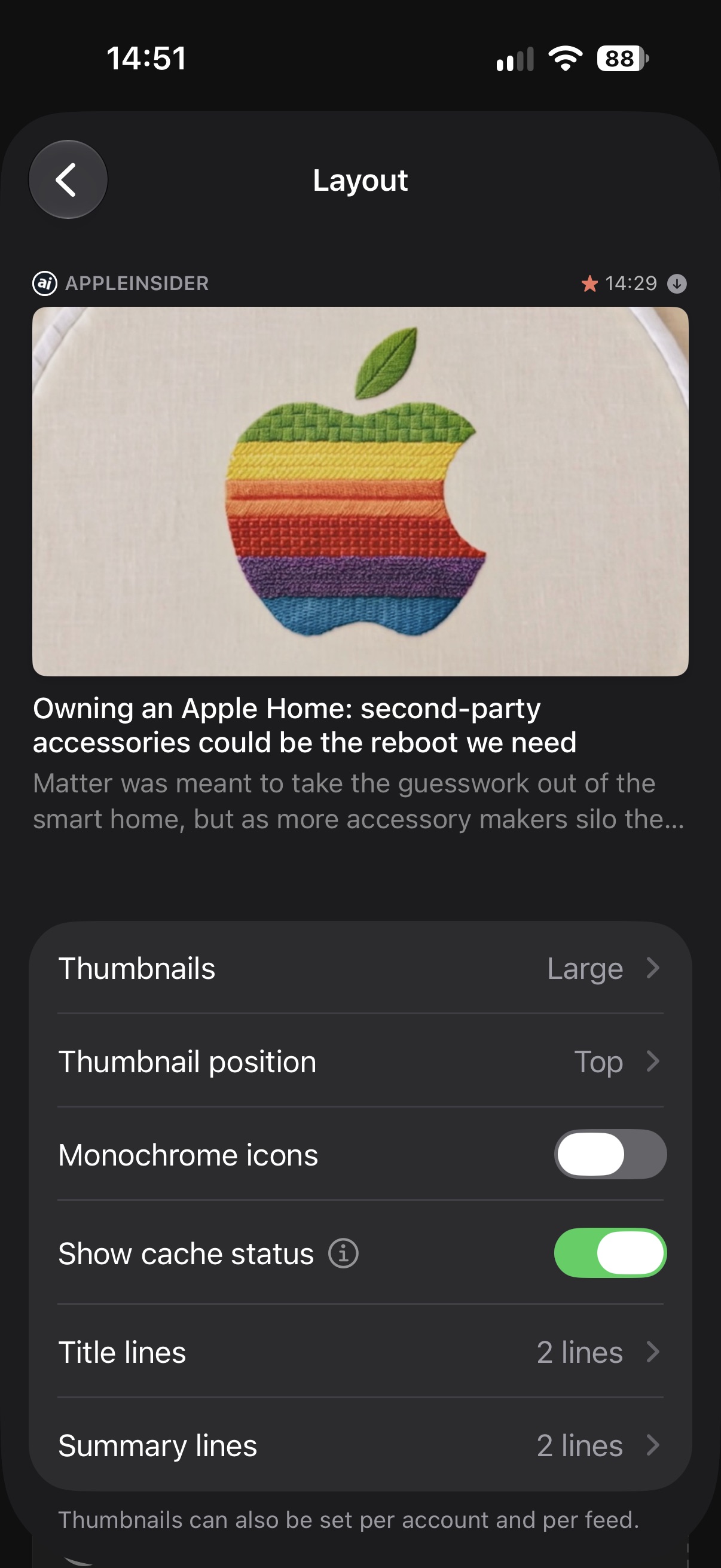
Open Settings › Lists › Layout. At the top of the page sits a real row from your library: one of your favorites when you have one, otherwise a recent article, from the account you are reading. Every setting below it changes the row as you tap. No guessing from a description, no going back and forth between the settings and the list.
Thumbnails: None, Medium or Large
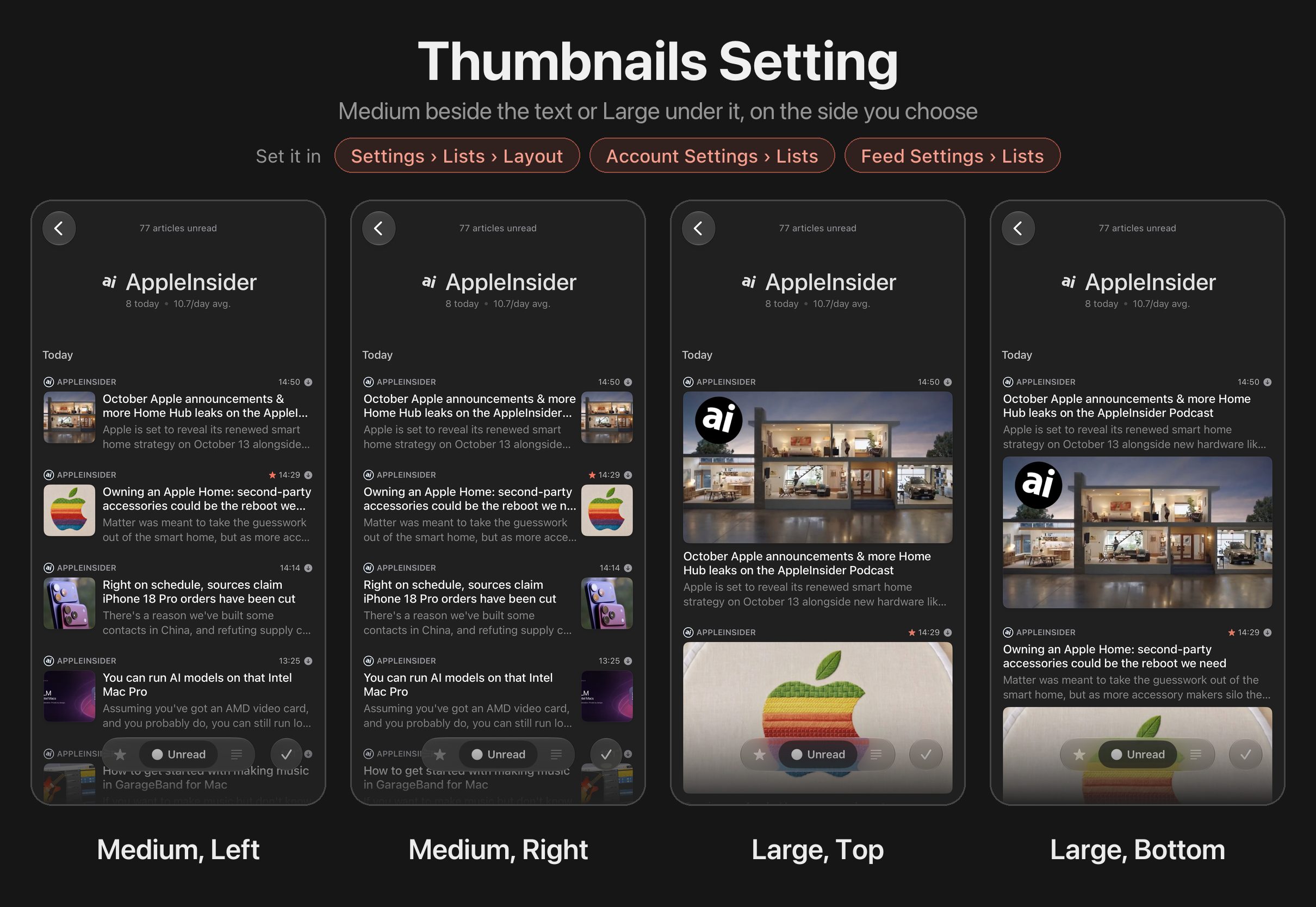
Medium keeps the familiar square thumbnail beside the text and remains the default. Large is a wide image across the row, the same shape for every article, so the list keeps a steady rhythm whatever the sites publish. None turns the list into headlines and text only. Chosen for the whole app, None also stops Feedler from fetching thumbnails, as the old switch did; chosen for one account or one feed, it only hides them.
Left or right, above or below
A Medium thumbnail can sit on the left or on the right of the text. A Large one goes above the title or below the summary. Four thumbnail arrangements, each with its own feel: a Medium square on the left reads like a classic list, a Large image below the text reads like a magazine.
Title and summary lines
Show up to four lines for the title and up to three for the summary, or hide the summary entirely. One title line and no summary gives the densest list Feedler has ever had. Four title lines and three summary lines give each article room to tell you whether it is worth opening.
For the whole app, an account, or one feed
The thumbnail size is the one choice you can make at three levels: once for the whole app, then for an account or a single feed in their own settings, under Lists. A news account in Large, a tech feed in Medium, a feed of link posts with no thumbnails at all. Thumbnail position and title and summary line limits apply to all accounts and feeds on that device.
An iPhone and an iPad are not the same screen, so each keeps its own layout settings, which are backed up to iCloud along with its other preferences.
The Layout page is in Feedler now, and the FAQ answers “Can I change how the article list looks?”.