
1.9.1
YouTube
Web View
Lists
Fixes
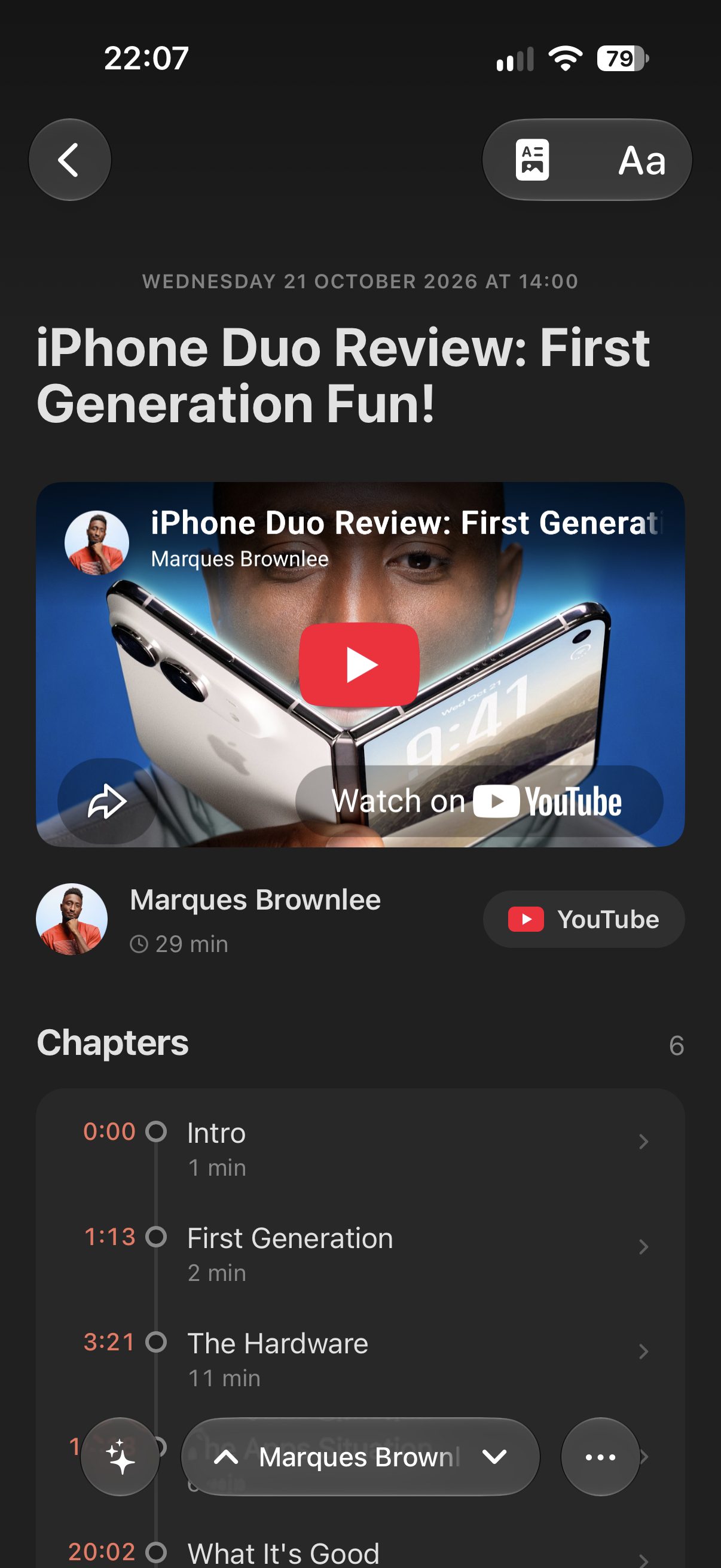
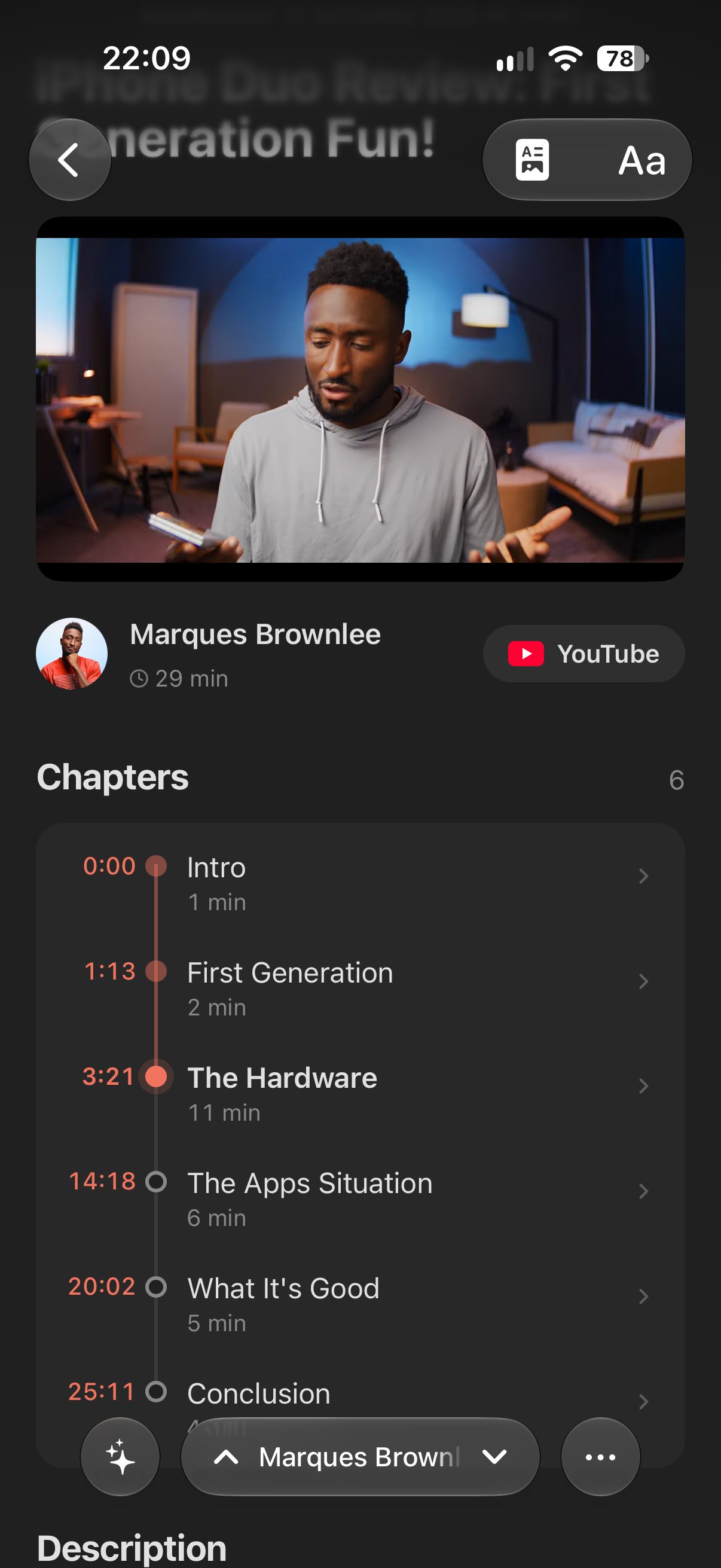
Videos from YouTube feeds now open on a page made for video. The blog post “YouTube feeds get a layout of their own” shows it.
- YouTube: videos from a channel's feed get a page of their own, with the player, chapters you can tap and the description's links
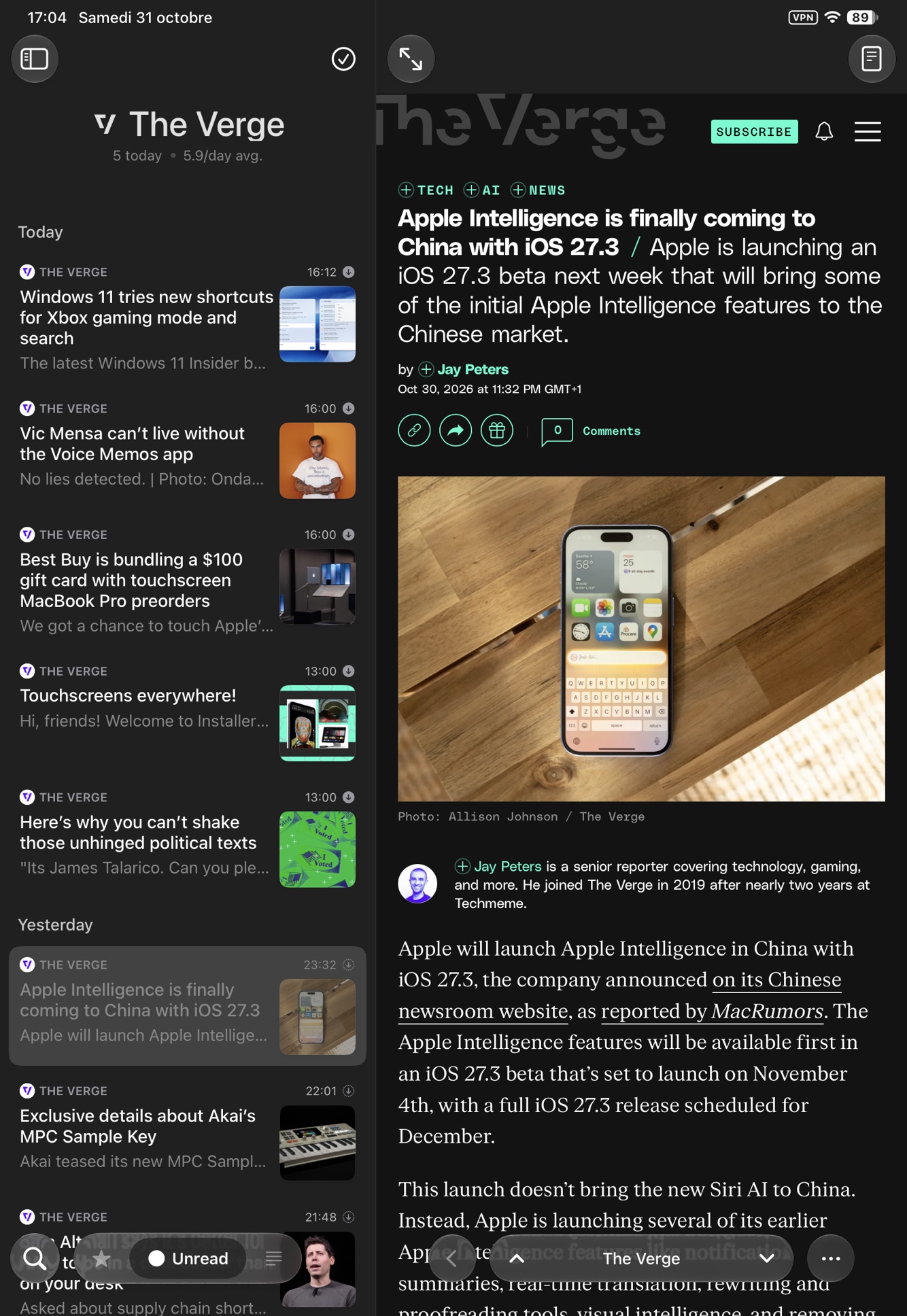
- Web View: a fourth option in Default View, to read an article on its own website without leaving Feedler. On iPad, Mac and the unfolded iPhone Duo, the website sits next to the list
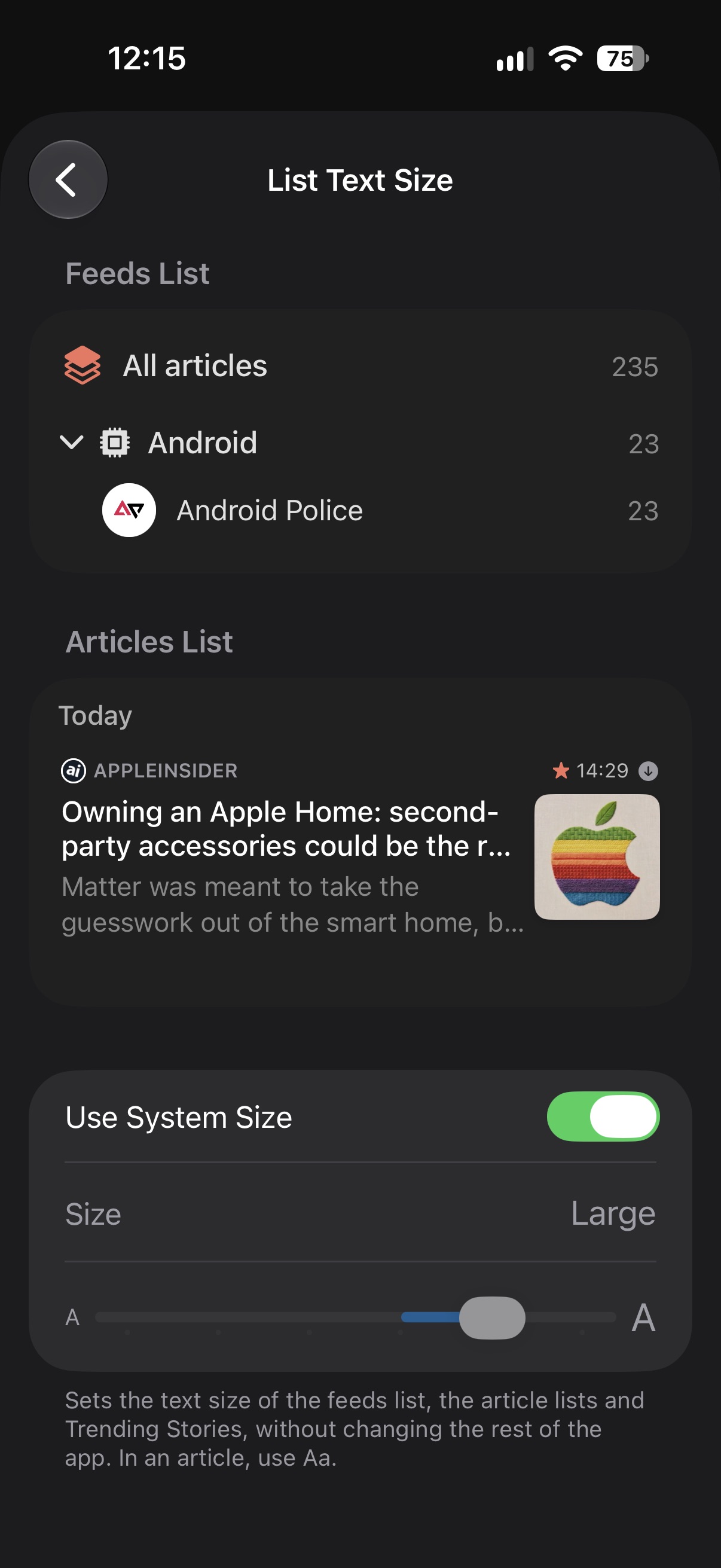
- List Text Size: on iPhone and iPad, make the text of the lists larger or smaller without changing the rest of the app
- Pass Site Checks for sites that block images, cleaner articles on many sites, and fixes
YouTube
- Videos from a YouTube channel or playlist feed get a page of their own: the player first, then the channel, the description and its links, each with its site's icon
- Chapters appear as a timeline. Tap one to play from there
- Many videos have no chapters in their description, but YouTube adds its own to them. Feedler shows those too, once it has loaded the video's page on YouTube
- The page shows the video's duration and updates your position in the chapter timeline as it plays
- Every YouTube video, in any article of any feed, now appears smoothly: its image and a loading indicator first, then the player fades in, with no black screen
- A YouTube feed's settings no longer show Hero Image and Parser, which the video page does not use
- A YouTube feed that briefly fails to load is no longer reported as gone
- With Feedbin, a video entry keeps its player in Feed View
Web View
- Settings › Article › Default View has a fourth option, Web View, to read an article on its own website without leaving Feedler. It can be set for the whole app, for one account or for one feed
- Web View shows the website in place of the article. Browser View opens it in the built-in Safari on iPhone and iPad, or in your default browser on Mac
- On iPad, Mac and the unfolded iPhone Duo, the website sits next to the list, so you move from article to article without going back
- The Reader button switches between the website and Feedler's Reader View
- A Back button at the bottom left lets you navigate within the website. The More menu includes Open in Browser, Reload and Forward
- Share sends the page on screen, even after following a link on the website
- Your sign-ins and cookie choices are kept from one article to the next
- On iPhone, swipe from the left edge of the screen to go back to the list
- Websites that offer a dark version follow Feedler's light or dark theme
- The FAQ answers “What are Reader View, Feed View, Web View and Browser View?”
Browser View
- On iPad and the unfolded iPhone Duo, Browser View now opens articles in the built-in Safari, as on iPhone, with Safari's Reader. On Mac, it opens them in your default browser
- The article pane shows Browser View when the list opens its articles that way
Lists
- New on iPhone and iPad, Settings › Appearance › List Text Size: keep the system size, or pick one of Apple's sizes from Extra Small to Extra Extra Large for the feeds list, the article lists and Trending Stories. A live preview shows your own feeds and articles. The FAQ answers “Can I make list text larger or smaller?”
- On iPad with a keyboard, ⌘+, ⌘− and ⌘0 change the lists' text size
- Changes to Thumbnails and Title icon in Feed Settings or Account Settings now appear immediately in the open list
- Feed Settings and Account Settings show their sections in the same, clearer order
Sites that block readers
- New Feed Settings › Parser Customization › Pass Site Checks for sites that block images or pages from readers. Enabled by default for Muddy Colors
- When a site blocks an article's images, the article says so and offers Try Another Way. The setting is kept only if it works
- It may still not work on some sites, and it can make images or the article itself take longer to appear
- More in the FAQ: “How do I customize the article parser?”

Cleaner articles
- Improved article extraction removes author biographies, unrelated article cards and unwanted videos on sites including 9to5Mac, Android Police, MacRumors and Wikipedia
- Posts from X, Instagram, Bluesky and TikTok embedded in an article stay in place
- More reliable articles from MacRumors, La Tribune, Air & Cosmos, ActuGaming, It's Nice That and Spaziogames
- A site's error page is no longer shown as the article, and Gameblog articles open again
- With Source set to Feed content, the top image no longer shows twice
- Transparent images no longer appear on a black background. Saved images take less space, and High quality is sharper
- A writer's email address no longer shows next to their name (AppleInsider)
- AI summaries no longer show a stray dash before their bullet points
- For an article already saved, use Regenerate cache to see these fixes
iPhone Duo
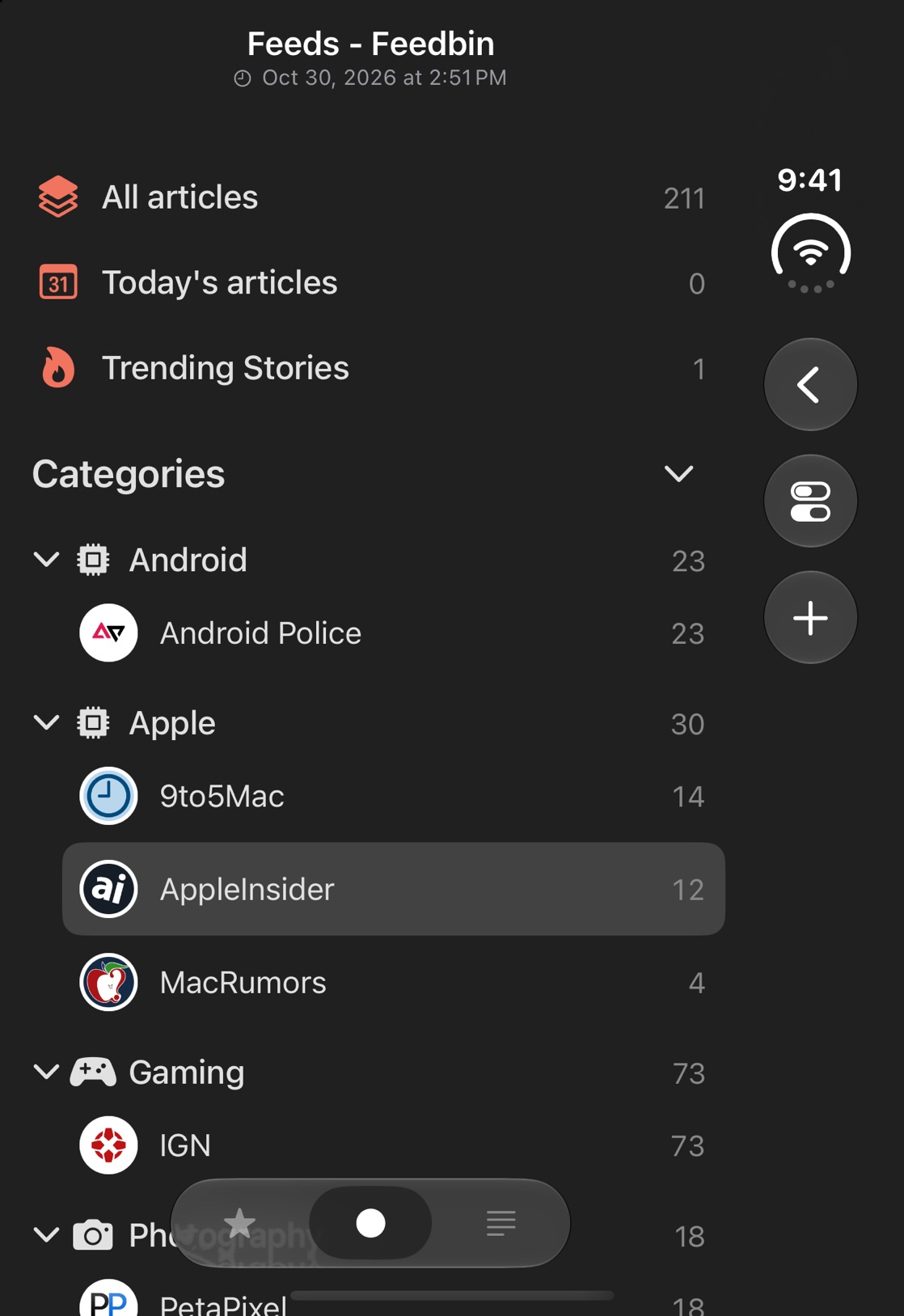
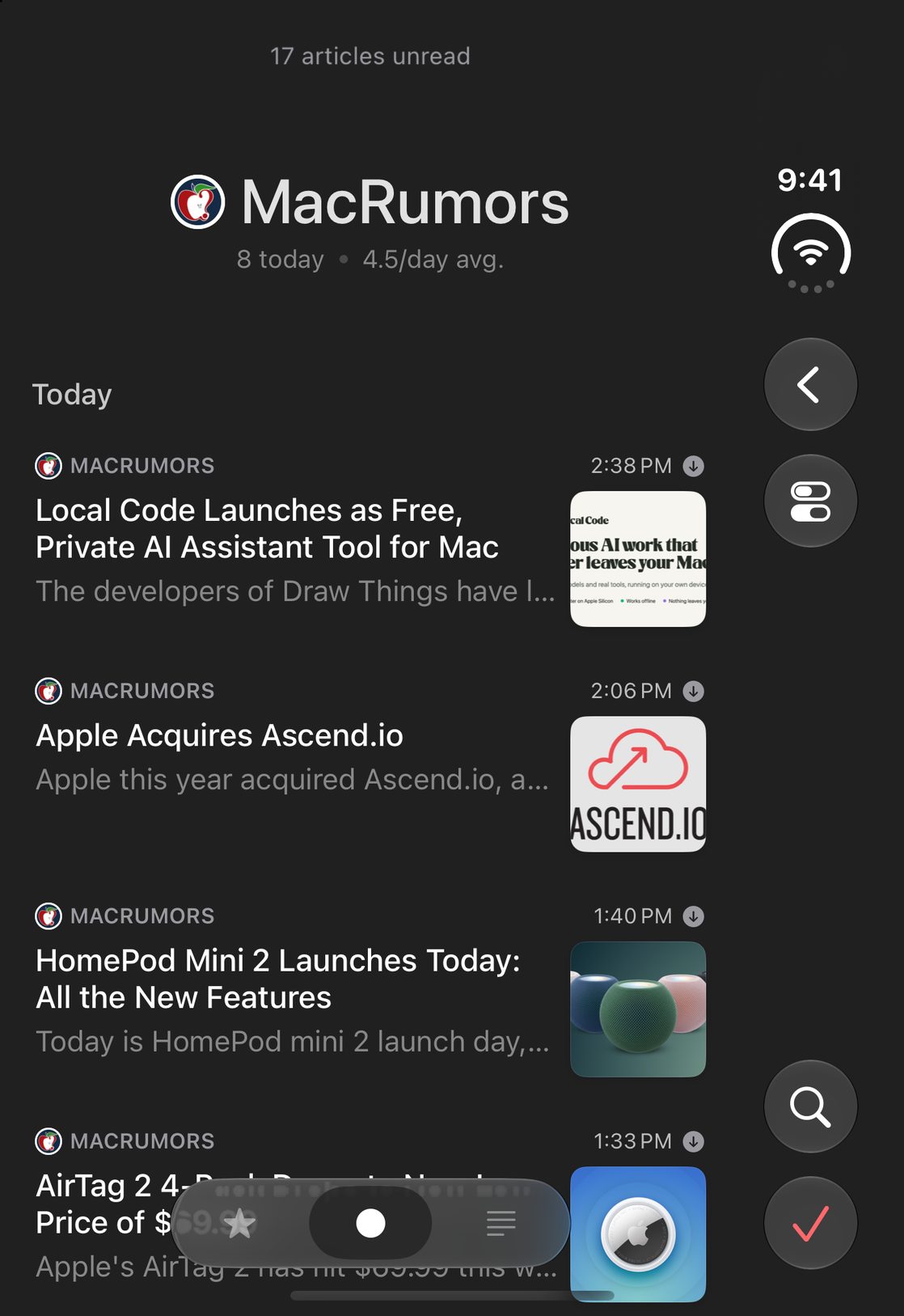
- Folded, the filter bar lines up with the bottom of the side toolbar
- Folded, Settings sits under the back button, Search and Mark all as read at the bottom of the side toolbar, and the Add (+) button at its top on Feeds
- On Accounts, a back arrow returns to your feeds
- Unfolded in landscape, the list's filter bar lines up with the side toolbar
- The FAQ answers “Does Feedler work on the iPhone Duo?”

Also
- Each account card shows an arrow to open its feeds
- Settings › Changelog is now Settings › What's New. The FAQ answers “How do I follow Feedler's news and releases?”
- The Aa panel is easier to read on iPadOS 27
- Restored the opening animation for articles not yet saved, on iPad and Mac
- Discover: Tagesspiegel replaces ZEIT ONLINE, Fortune replaces the Financial Times and Kiplinger replaces The Economist
- Fixed a crash when leaving an article while its images were loading