
YouTube feeds get a layout of their own
Following YouTube channels by RSS gives you every new video from the creators you chose, in the order they come out, with nothing recommended in between. Feedler already played these videos inline, but the page around them was the one built for articles: the player, then the description as one long block of text, timestamps and links included. In Feedler 1.9.1, a video from a YouTube feed opens on a page made for video, the same in Feed View and Reader View.
The player first
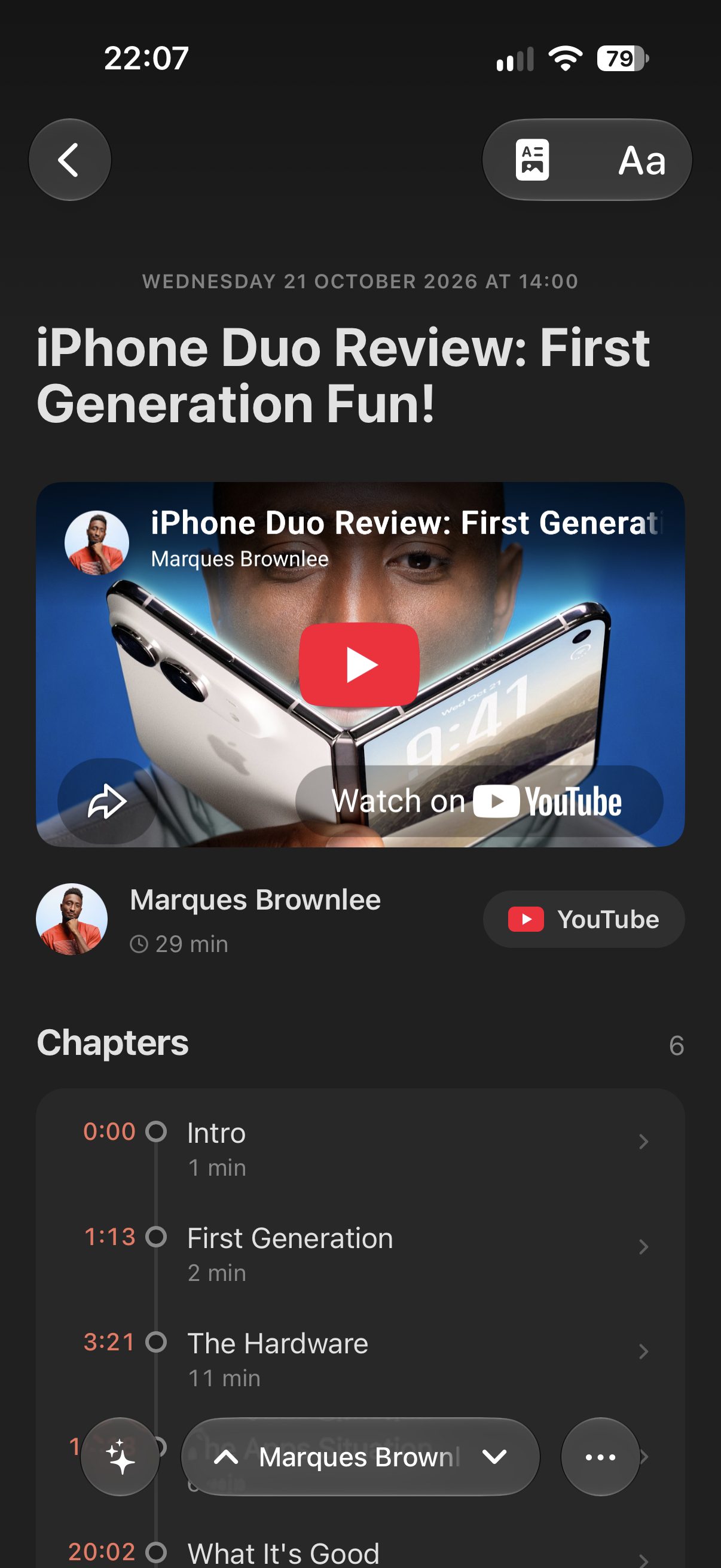
The page opens on the video's thumbnail, right under the title, and the thumbnail turns into the player as soon as YouTube is ready, with a small spinner while it loads. Below it sit the channel's picture and name, the length of the video, and a button that opens it in YouTube.
Chapters you can tap
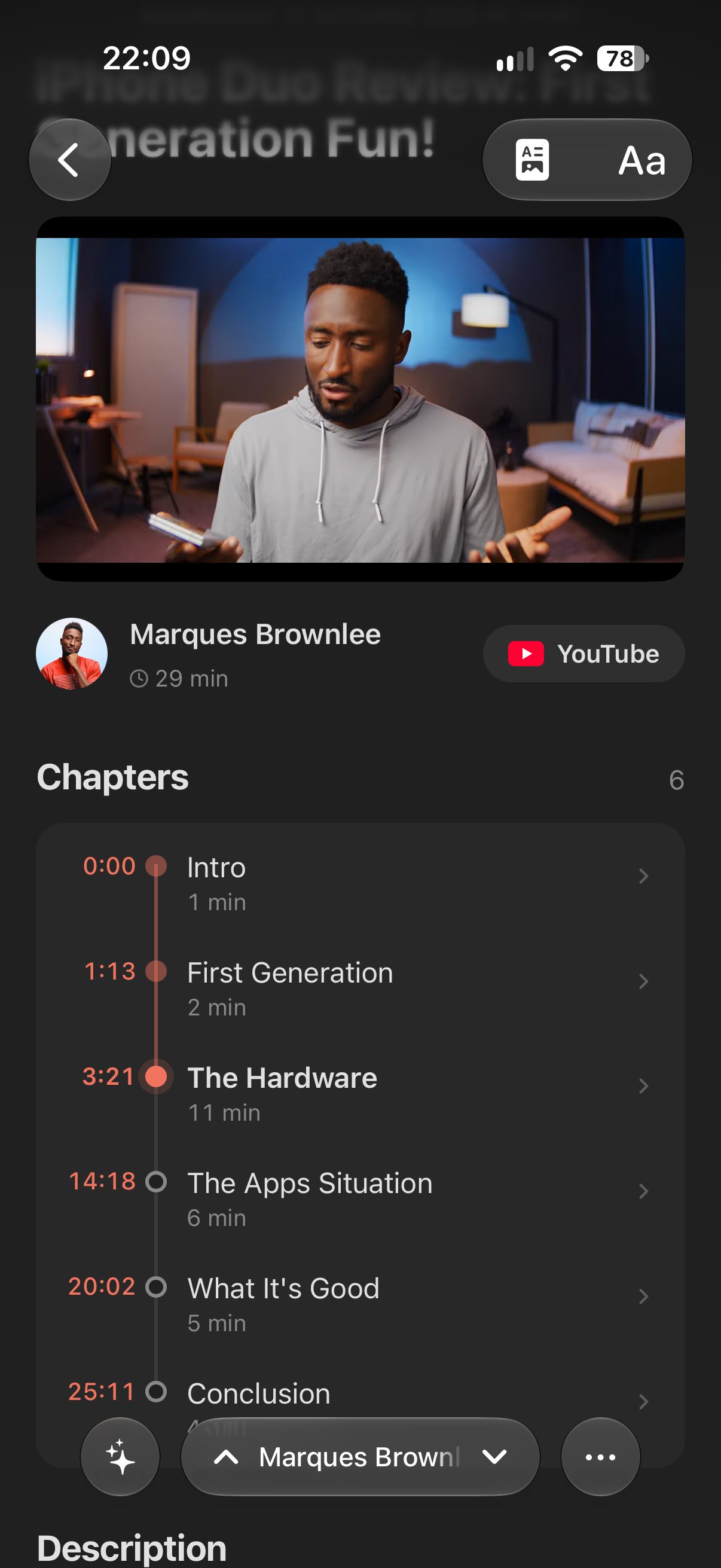
When a video has chapters, Feedler lists them as a timeline, each with its start time and its length, the way YouTube shows them. Tap one and the video starts there. While it plays, the timeline follows along: the current chapter is marked, and earlier chapters are filled in as playback progresses.
Many videos have no chapters in their description, but YouTube adds its own to them. Feedler shows those too, once it has loaded the video's page on YouTube.
A description that is easier to read
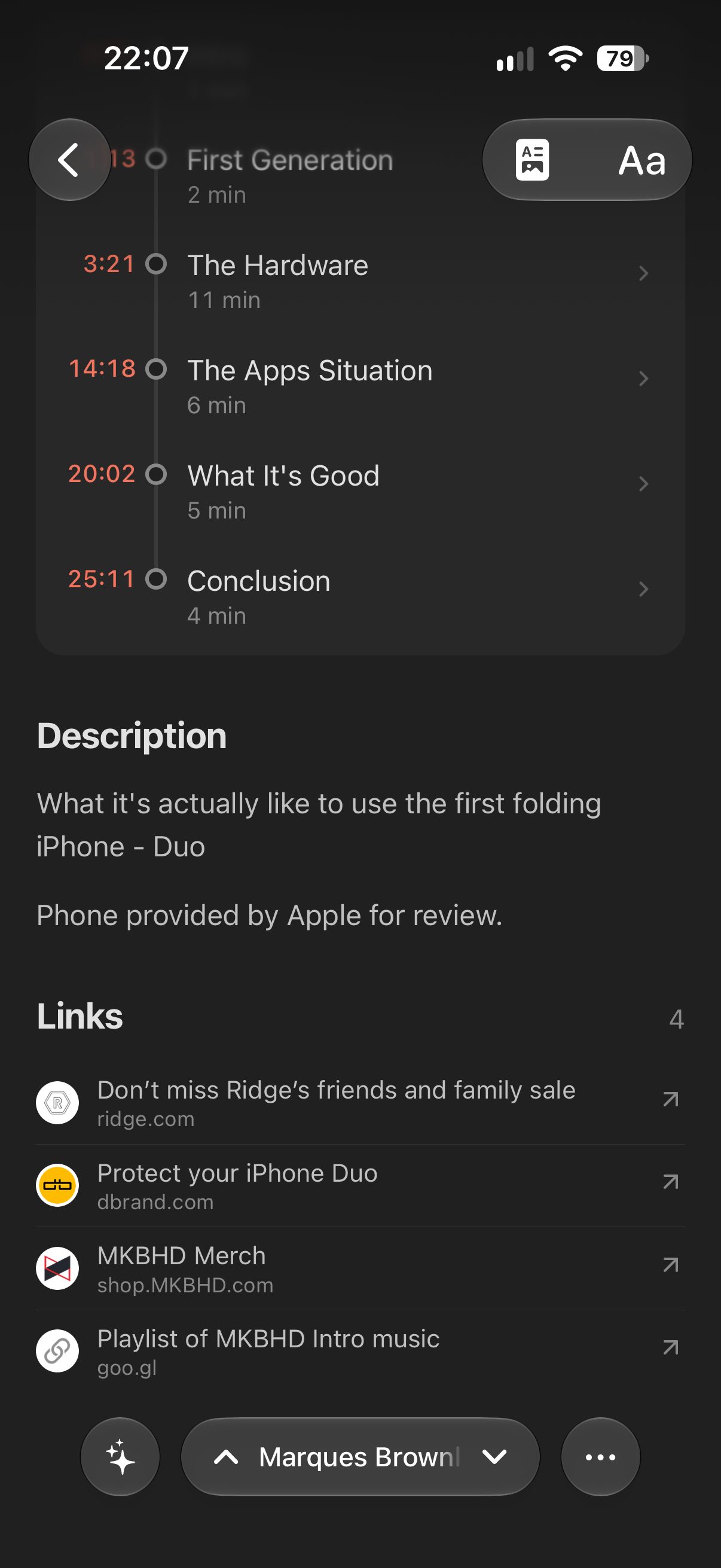
The description initially shows four lines. Tap Show more to read the rest. The links a creator lists under a video (a sponsor, the gear they use, a related video) move to a Links section of their own, each with the site's icon, its title and the site it leads to. An address that is part of a sentence stays in the text, where you can still tap it.
For every YouTube feed
The page is used for every video of a YouTube channel or playlist feed, on iPhone, iPad and Mac, whichever account the feed is in: Local RSS, iCloud, or a sync service such as Feedbin. A site's own article that embeds a video keeps the article layout, since its text is what you came for.
Hero Image and Parser settings are no longer shown for YouTube feeds: the video layout handles the player and description directly. Default View, Lists, Cache and Browser stay.
To follow a creator, paste the link of their channel or of one of their videos (straight from YouTube's Share button), or type their @handle, in Add Feeds. Feedler finds the channel's feed and its picture. Every way to add a feed is in the FAQ: “How do I add a feed?”.
Smoother video loading in articles, too
The way the player appears is not limited to YouTube feeds. Every YouTube video Feedler shows, in an article of any feed, now starts the same way: the video's image with a small spinner, then the player fades in as soon as YouTube is ready, with no black screen in between. Articles already saved on your device get it too, with nothing to regenerate.