
1.8.4
Lists
Search
Buttons
Fixes
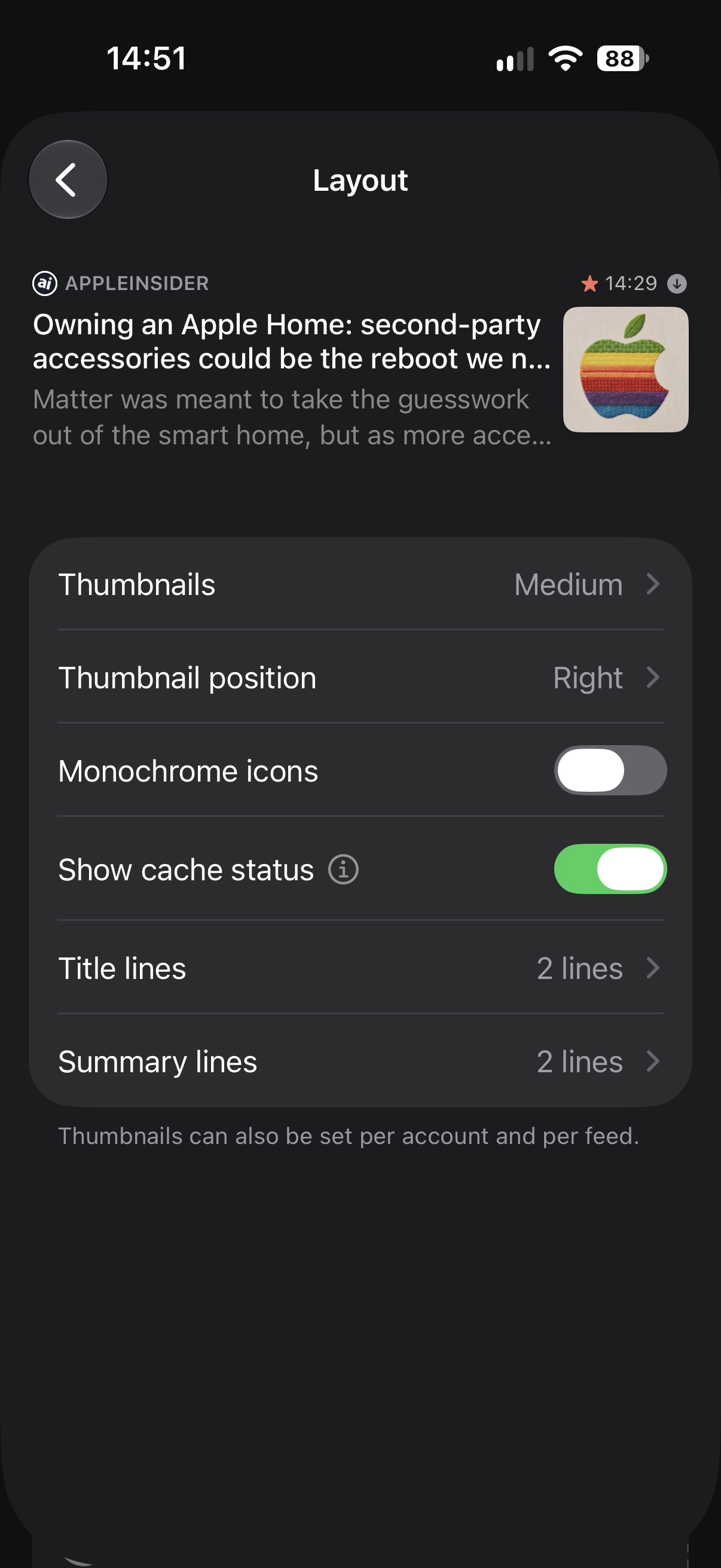
- Layout: choose None, Medium or Large thumbnails and where they sit, and how many lines titles and summaries can take, with a live preview of one of your own articles
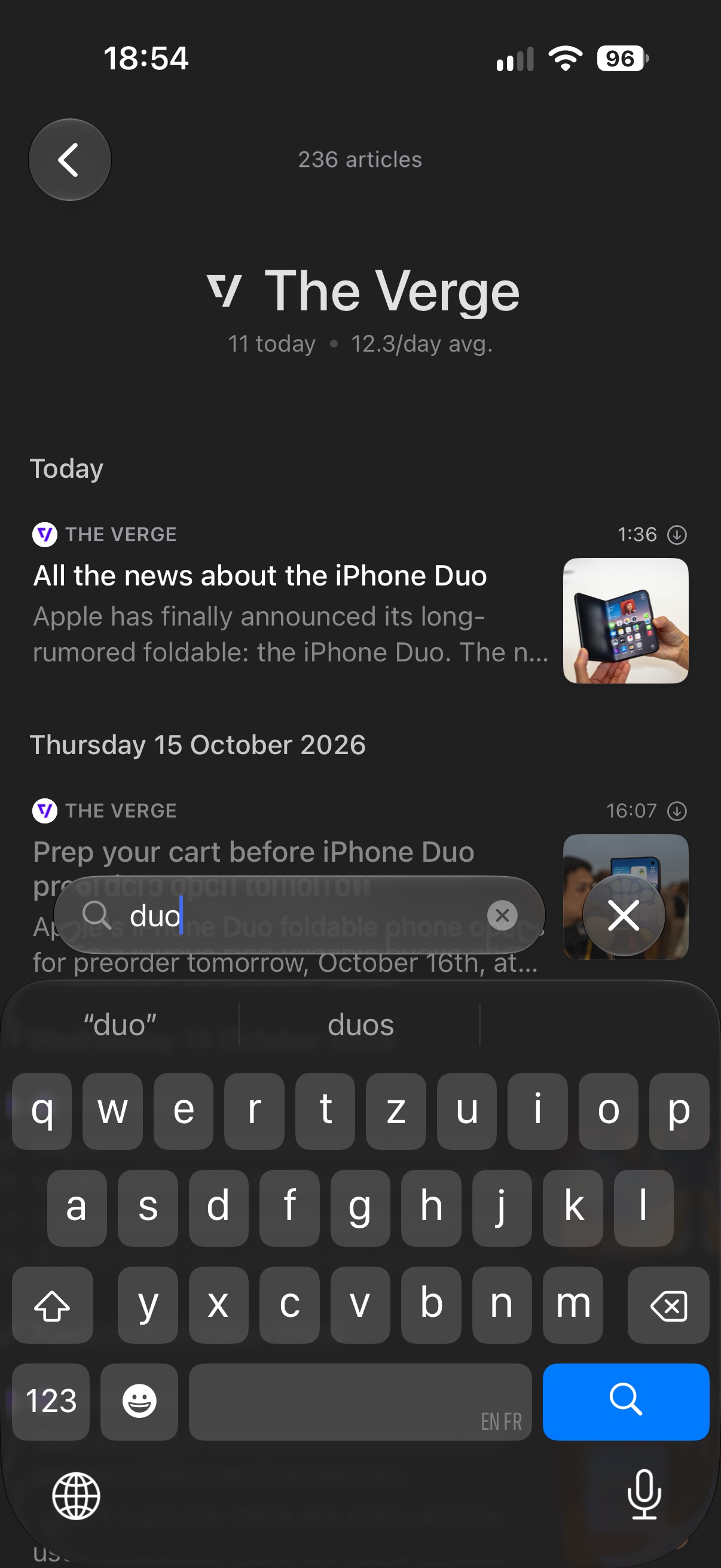
- Search: a search button in the article list's bottom bar keeps only the articles that match as you type
- On iPhone, choose which button sits at each end of the filter bar, on the feeds list and on the article list
- Round glass buttons respond consistently to a press, plus several fixes
Layout
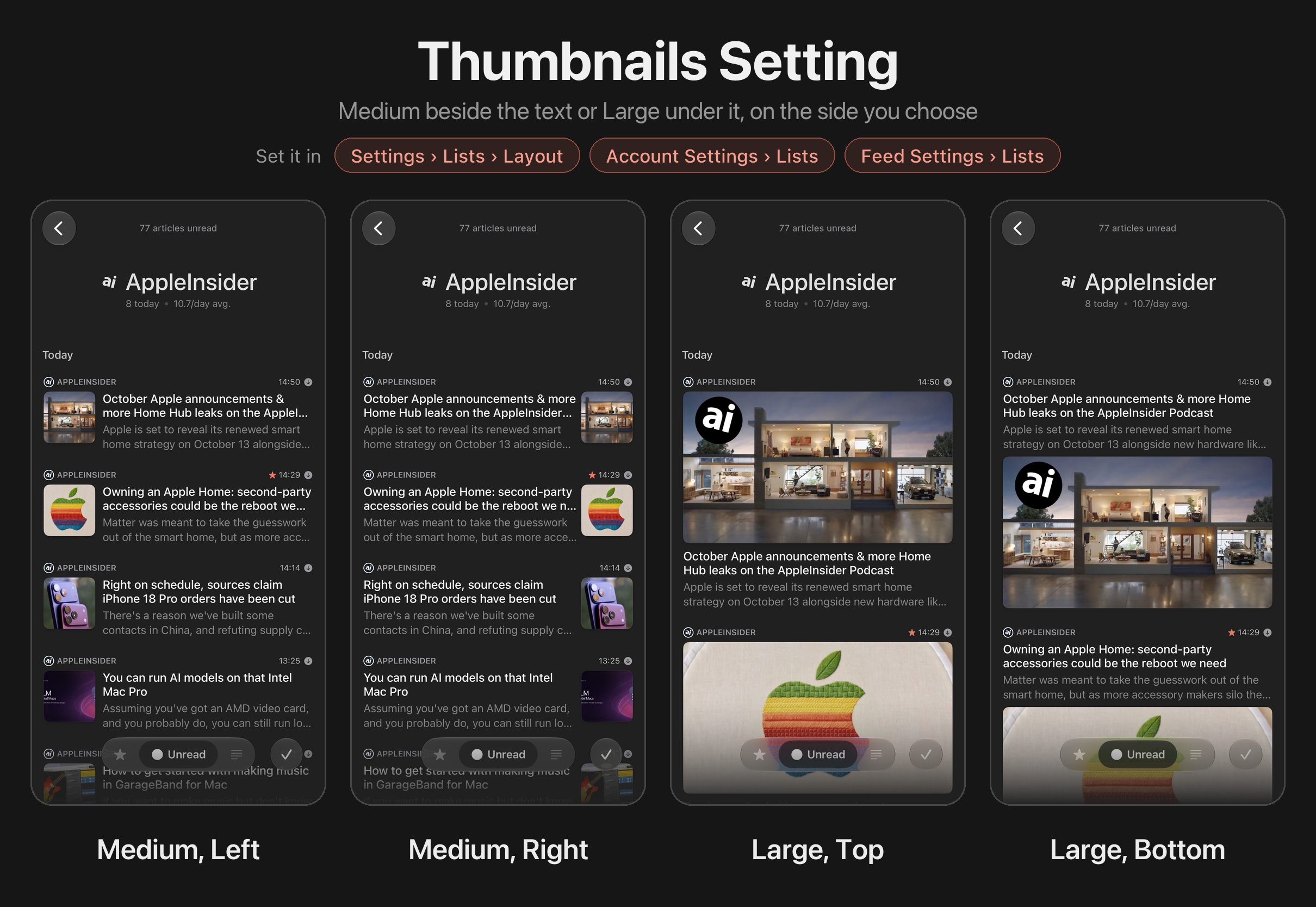
- A new page, Settings › Lists › Layout. A live preview at the top uses an article from your library, preferably a favorite, and updates as you change the settings
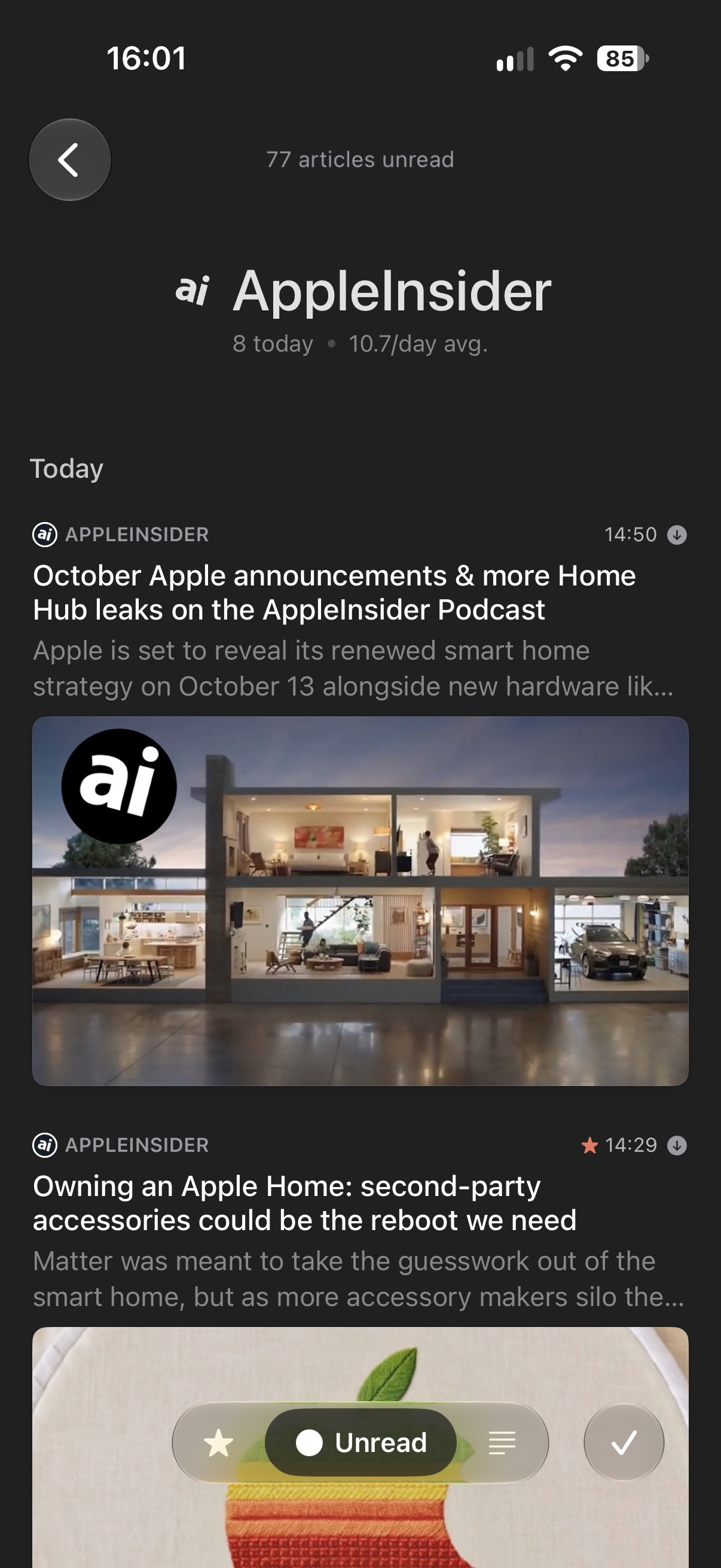
- Thumbnails: None, Medium or Large. Medium is the familiar square beside the text. Large is a wide image across the row, the same shape for every article. None leaves headlines and text only
- Thumbnail position: a Medium thumbnail on the left or on the right of the text, a Large one above the title or below the summary
- Titles can take up to four lines and summaries up to three, or no summary at all
- The thumbnail size can also be set for an account or a single feed, in their own settings under Lists
Search
- Tap the magnifying glass in the article list's bottom bar and type. Search matches titles, summaries, authors and sources, ignoring case and accents
- It searches the list you have open: a feed, a folder, All articles or Today. The full text of the articles is not searched
- Open an article from the results and the keyboard goes away. Back on the list, your search is still there
- On iPad and Mac, the magnifying glass sits in the bottom bar too, and the search field opens at the top of the list
Buttons
- On iPhone, Left button and Right button in Settings › Lists choose the buttons at each end of the filter bar
- On the article list: Mark all as read, Search or None. On the feeds list: Mark all as read or None
- Mark all as read stays as you had set it, and the new Search button takes the other end
- Choosing a button that is already at the other end swaps the two
- Round glass buttons now respond consistently, expanding slightly when pressed
- The filter bar shows its icons alone when its labels no longer fit, with a larger text size for example
Also
- Feed Info shows the site's icon even when Title icon is set to None
- On iPad, the header of the open list follows a change of Title icon right away
- In Feed Settings, Reset now says whether it restores the account's setting or the app's, then shows the value that applies